














The BuddyBoss App Smart Banner helps promote your mobile app to members who visit your website from a mobile device. When enabled, the Smart Banner can direct visitors to your app’s listing or provide an option to open the BuddyBoss App when available.
You can configure the Smart Banner for iOS and Android by adding the appropriate app identifiers and enabling the feature from your BuddyBoss App settings.
Retrieving Your App Store IDs
Locate your Apple App ID
- Visit your app’s page on the Apple App Store (e.g., https://apps.apple.com/…/id1558004735).
- Copy the numeric ID after id (e.g., 1558004735).
Locate your Google Application ID
- Go to your app’s page on Google Play (e.g., https://play.google.com/store/apps/details?id=com.fruit.oranges).
- Copy the value after id= (e.g., com.fruit.oranges).
Save both IDs
- Store these identifiers in a secure place, they link the banner to your live app listings.
Configuring the Apple Smart Banner
- In your WordPress Dashboard, go to BuddyBoss App > Configure > iOS Settings.
- Scroll to App Information and paste your Apple App ID into the Apple App ID field.
- Click Save Changes to register your iOS app for the Smart Banner.
Configuring the Android Smart Banner
- In your Dashboard, navigate to BuddyBoss App > Configure > Android Settings.
- Confirm your Application ID appears in App Configuration.
- Ensure the checkbox I have registered this Application ID in Google Developer Account is ticked.
- Click Save Changes to enable Android support.
Enabling the Smart Banner
- Go to BuddyBoss App > Settings > Smart Banner.
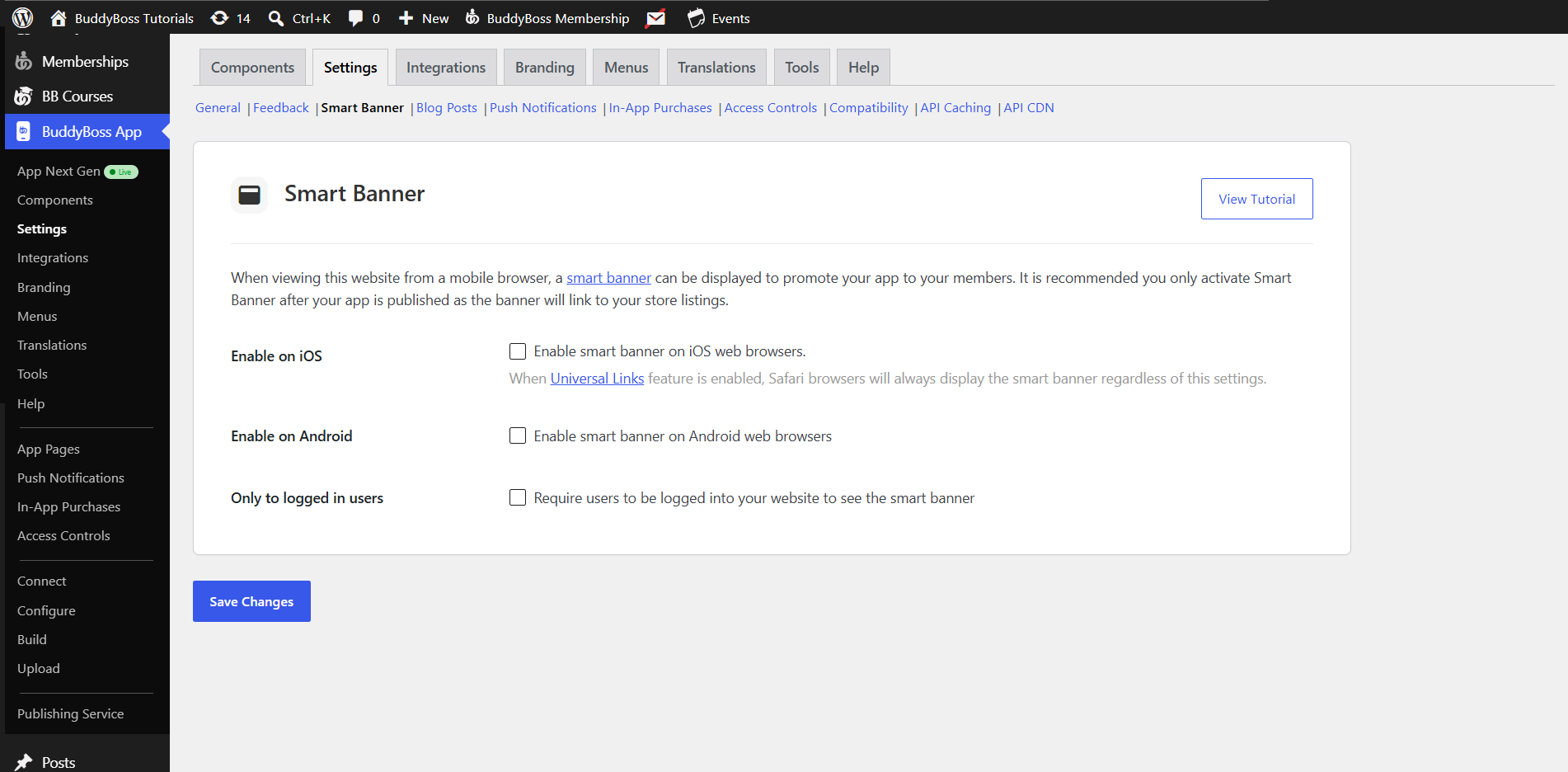
- Tick Enable on iOS to display the banner for Apple devices.
- Tick Enable on Android to display the banner for Android devices.
- Click Save Changes to activate the Smart Banner across both platforms.
Disabling the Smart Banner
- Return to BuddyBoss App > Settings > Smart Banner.
- Untick Enable on iOS and/or Enable on Android.
- Click Save Changes to remove the banner from your mobile site.