









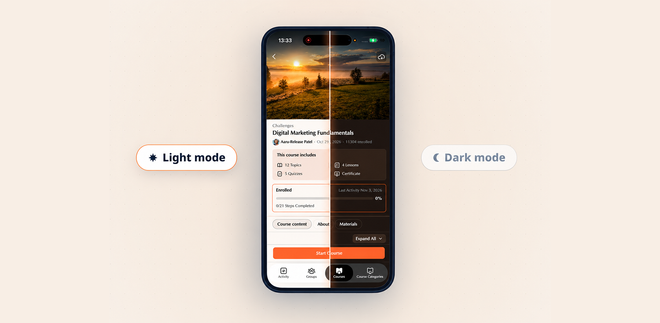
BuddyBoss App NextGen supports Dark Mode, allowing you to provide members with a comfortable viewing experience using darker backgrounds and adjusted text colors. With support for both Light Mode and Dark Mode, your app maintains a consistent appearance across community features, courses, and other supported screens. You can Enable Dark Mode in BuddyBoss App NextGen through the BuddyBoss App branding settings in your WordPress Dashboard.
Enable BuddyBoss App NextGen
Before configuring Dark Mode, make sure BuddyBoss App NextGen is enabled.
- From your WordPress Dashboard, navigate to BuddyBoss App > App Next Gen.
- Locate the App Next Gen toggle.
- Enable the toggle to activate App Next Gen.
- Review the installation and upgrade checklist displayed on the page.
Note: Dark Mode is available only when BuddyBoss App NextGen is enabled.
Configure Dark Mode
Once App NextGen is enabled, you can configure your app’s appearance settings.
- From your WordPress Dashboard, navigate to BuddyBoss App > Branding > Settings.
- Locate the Appearance settings.
- Enable or configure Dark Mode using the available options.
- Click Save Changes to apply your settings.
How Dark Mode Works
When Dark Mode is enabled, supported BuddyBoss App NextGen screens use a darker color scheme while maintaining readability and consistent styling.
Dark Mode adjusts supported interface elements, including:
- Backgrounds: Applies darker colors to app screens, cards, and content sections.
- Typography: Adjusts text colors for readability against dark backgrounds.
- Buttons and Links: Uses appropriate colors for interactive elements and navigation.
- Borders and Dividers: Adjusts section borders and separators to match the selected appearance.
- Progress Indicators: Displays progress bars and completion indicators using the corresponding color settings.
- Status Indicators: Maintains visual distinctions for supported success, warning, and other status messages.
These appearance settings also apply to supported LearnDash course listing and individual course screens in BuddyBoss App NextGen.
Verify Dark Mode in Your App
After saving your appearance settings:
- Open your BuddyBoss App NextGen on a mobile device.
- View the app using the configured Dark Mode appearance.
- Navigate through supported screens, including community pages and LearnDash courses.
- Confirm that backgrounds, text, buttons, and other interface elements display correctly.
Note: The appearance of individual screens and elements may vary depending on the features and integrations enabled in your BuddyBoss App.