














The BuddyBoss App Push Notifications allow you to send timely alerts directly to members’ mobile devices, helping them stay informed about activity, messages, group invitations, courses, and other important updates.
Once Firebase is configured, you can control automated notification types and send manual push notifications immediately or schedule them for later. You can also target specific recipients and use deep links to direct members to relevant content in your BuddyBoss App.
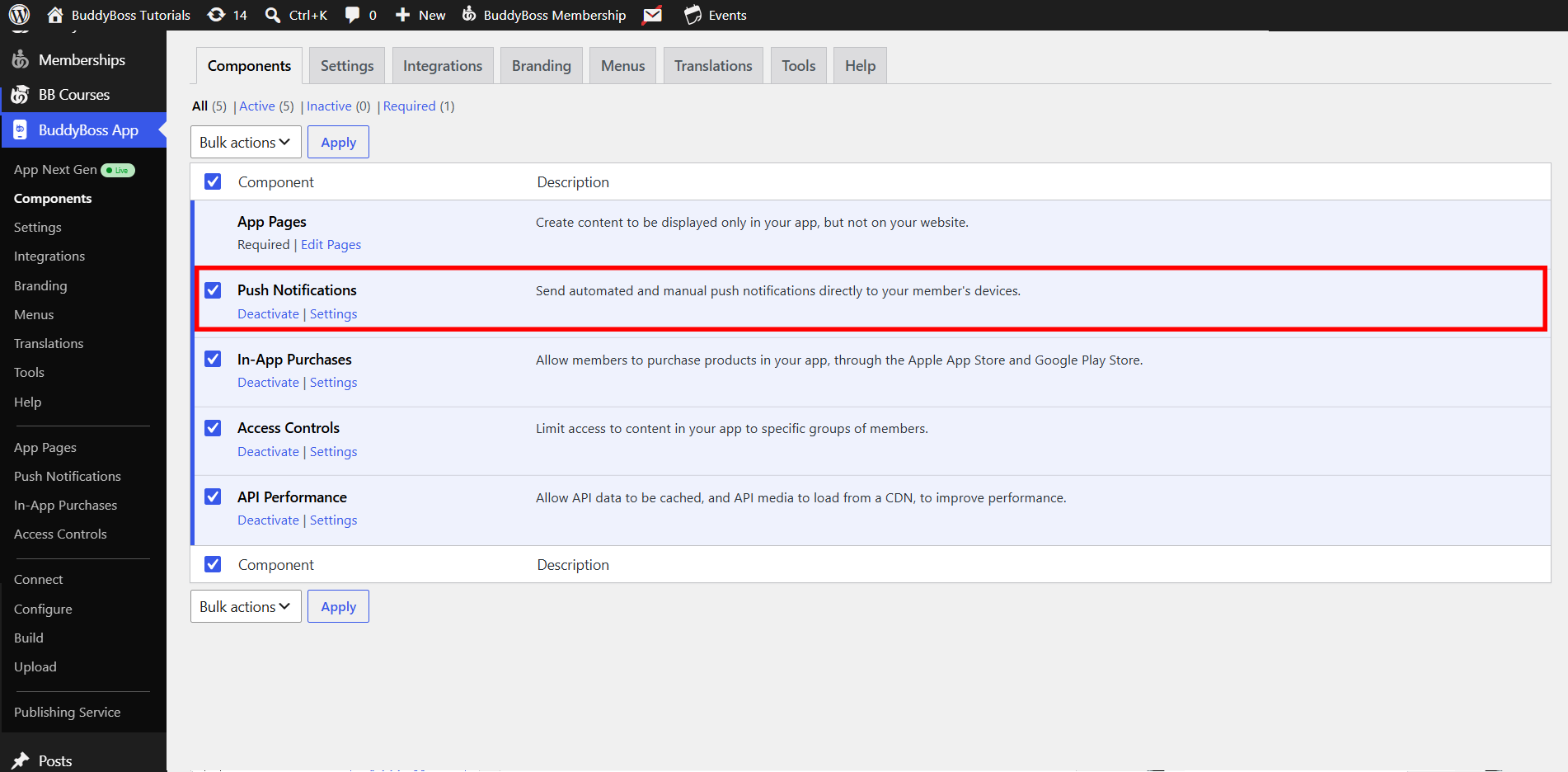
Enabling the Push Notifications Component
In your WordPress Dashboard, go to BuddyBoss App > Components.
Configuring Firebase for Delivery
- Navigate to BuddyBoss App > Configure > Google Firebase.
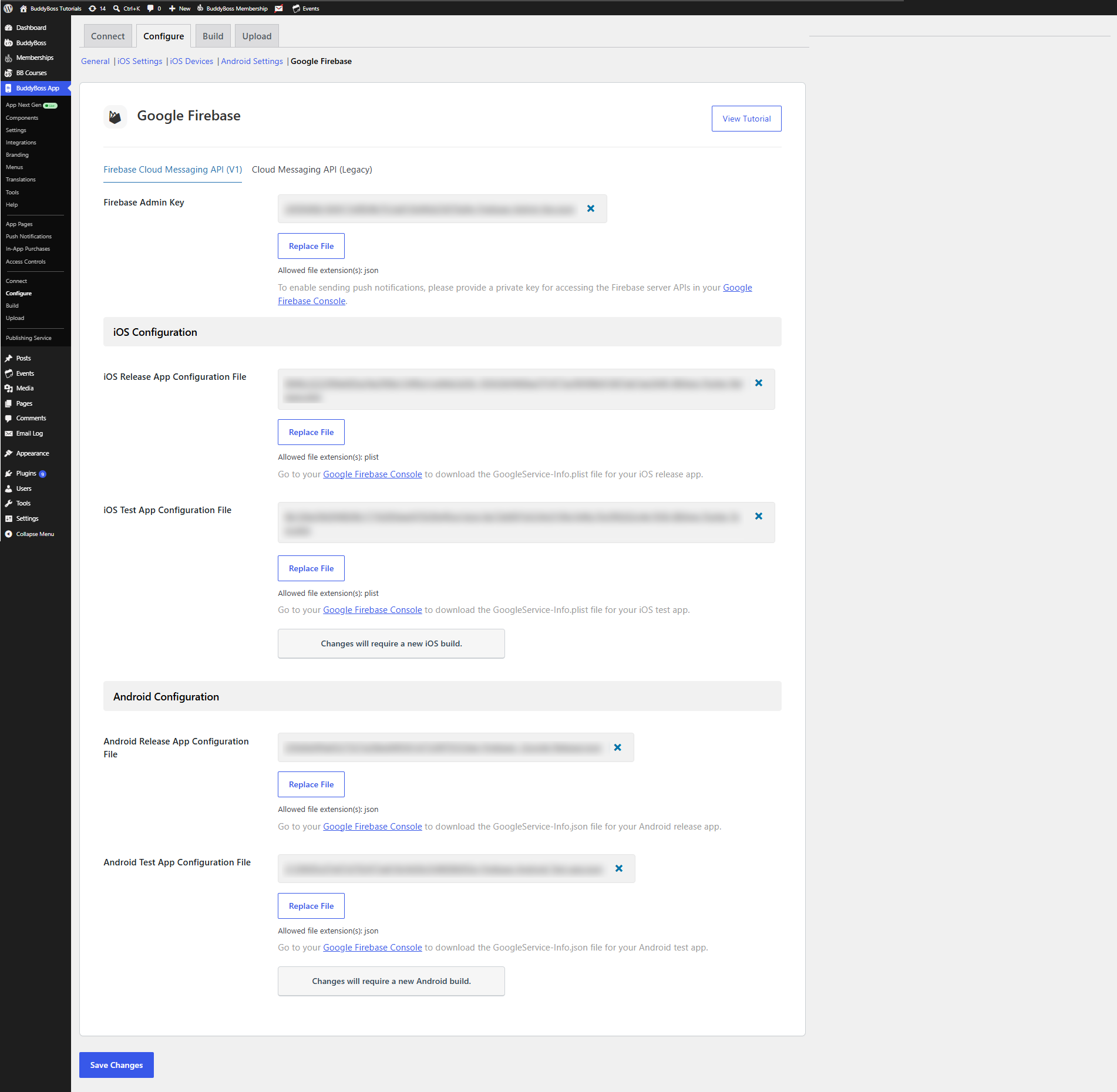
- Follow the Firebase setup tutorial to generate and upload your Google Services JSON and Plist files.
- Ensure your Server Key and Sender ID are correctly entered.
- Click Save Changes.
Setting Up Automatic Notification Types
- Go to BuddyBoss App > Settings > Push Notifications.
- Under Automatic Notifications, enable or disable each alert (e.g., New Activity Post, New Message, Group Invitation).
- Click Save Changes.
Note: Only the types you enable here will appear in members’ in-app settings, ensuring they receive only relevant alerts.
Sending a Manual Notification
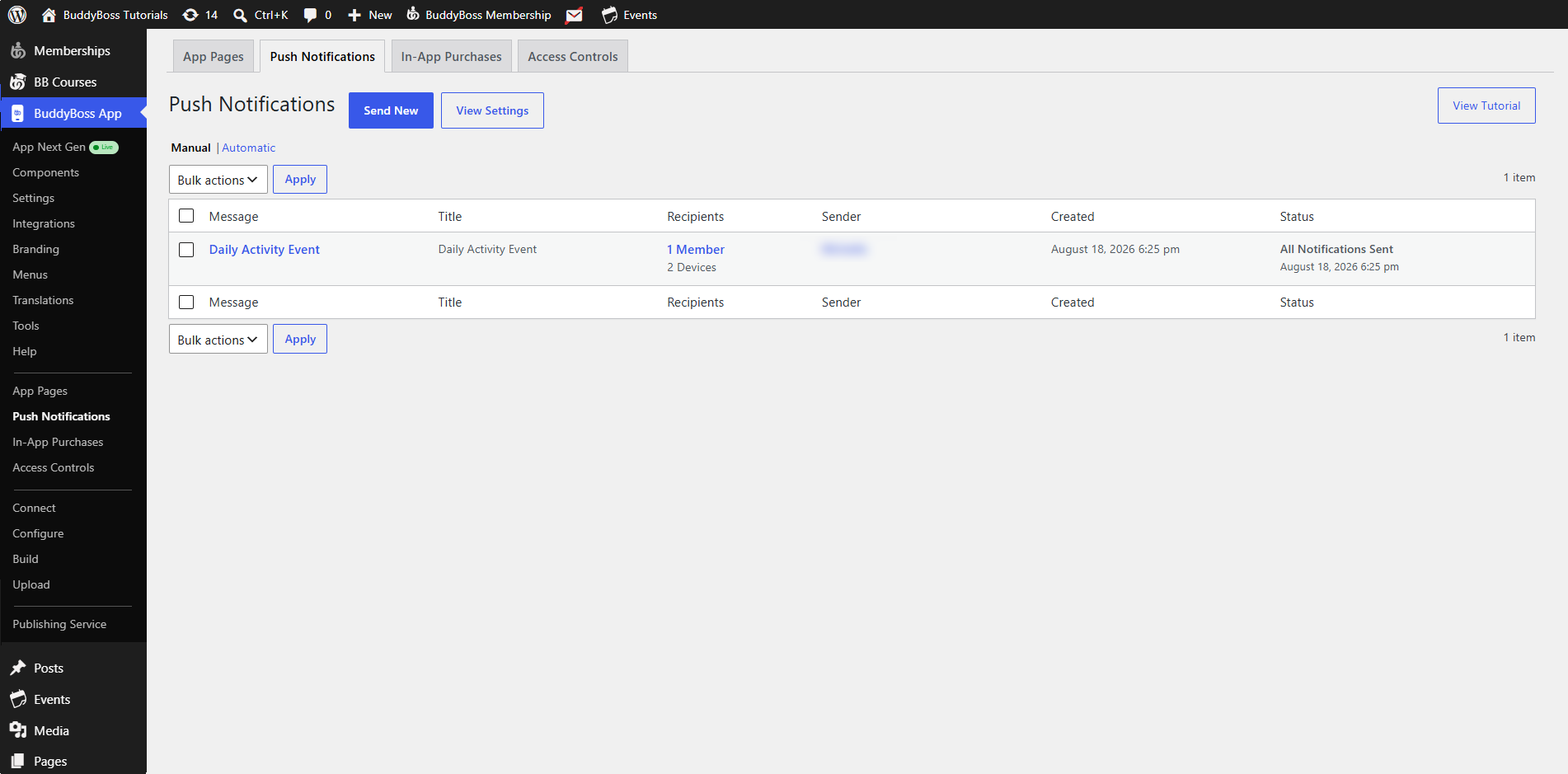
- Navigate to BuddyBoss App > Push Notifications and click Send New.
- Enter a Title (optional) and Message. This previews in the modal on both iOS and Android.
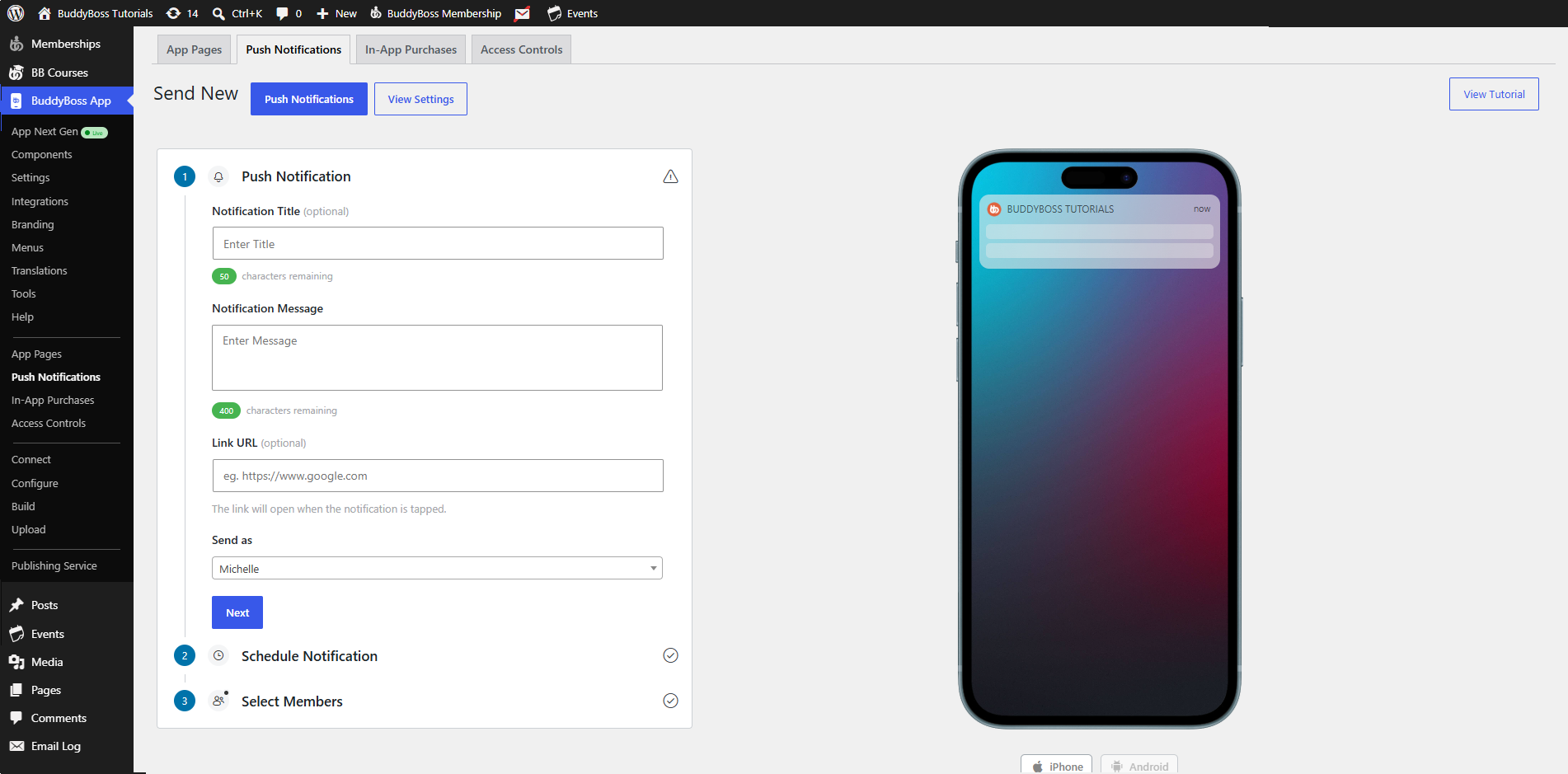
- (Optional) Add a Deep Link URL to route users to a course, group, or app page (e.g., https://www.example.com/bbapp/page/1).
- Choose a Sender (e.g., your admin account).
- Select Send Immediately or Schedule for later.
- Under Recipients, pick All Members, specific users, or apply filters by Group, Course, or Membership.
- Click Send Notification.