














The BuddyBoss App Custom Profile and Group Tabs compatibility feature allows you to display custom tabs added by third-party plugins or custom code within member profiles and social groups in the BuddyBoss App. This makes it possible to bring additional profile and group content, such as listings, favorites, reviews, job dashboards, and custom pages, into the mobile app.
Once enabled, supported custom tabs can display their content in the app using web fallbacks, helping you provide access to functionality that extends beyond the standard BuddyBoss profile and group tabs.
Configuring Custom Tabs Compatibility
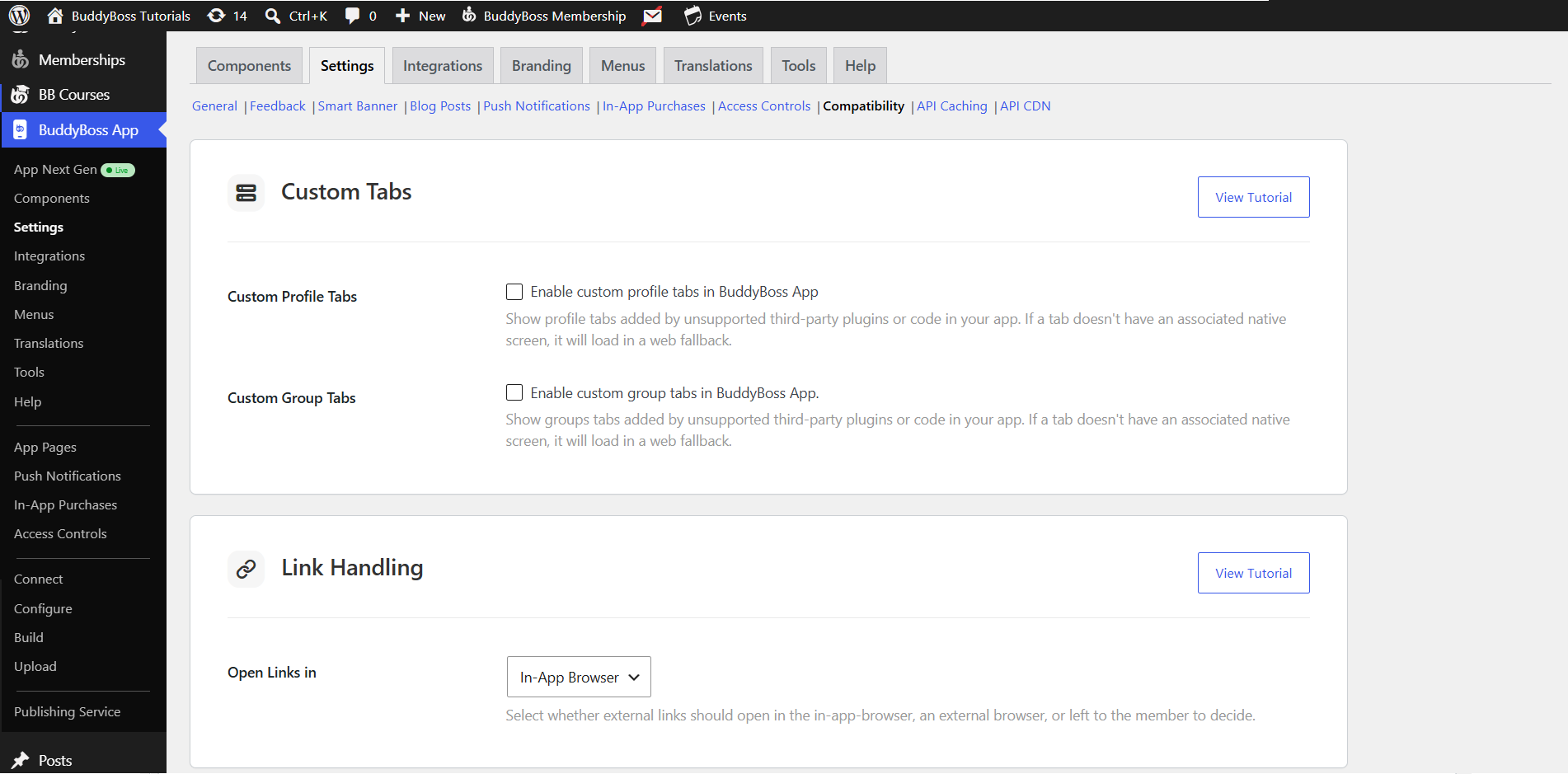
Enable Custom Profile Tabs
- Navigate to BuddyBoss App > Settings > Compatibility.
- Check Enable Custom Profile Tabs in BuddyBoss App.
- Click Save Changes.
Enable Custom Group Tabs
- Still under Compatibility, check Enable Custom Group Tabs in BuddyBoss App.
- Click Save Changes.
Preparing Third-Party Tab Plugins
Install and Configure Your Tab Plugins
- For profile tabs: e.g., BuddyPress User Profile Tabs Creator Pro, GeoDirectory, WP Job Manager (manually add your Jobs Dashboard page as a profile tab).
- For group tabs: e.g., BuddyPress Groups Tabs Creator Pro—create or assign pages to group tabs.
Tip: Verify tabs appear correctly on your desktop site before testing in the app.
Verifying Custom Tabs in the App
Hard-Quit and Relaunch the App
Force-close the BuddyBoss App on your device to clear any cached settings.
View Custom Profile Tabs
- Go to your Profile screen.
- Confirm tabs like Listings, Favorites, Reviews, Jobs appear alongside core tabs.
- Tap a tab to load its content-note the app strips the desktop header and footer for a clean web fallback.
View Custom Group Tabs
- Open a Social Group in the app.
- Scroll down to find your custom tab (e.g., How To).
- Tap to view the group-specific page within the app’s tab interface.