














Introduction
The Newsletter plugin a newsletter and email marketing system for your WordPress site for list building, you can easily create, send and track e-mails. The plugin works out of the box and also includes an easy-to-use Drag and drop composer to build responsive newsletters.
The plugin seamlessly integrates with the WordPress User registration. Also, it is EU laws compliant with single and double opt-in privacy checkboxes.
You can import the subscribers’ list into your website. To extend the functionality of the plugin, you can buy the Premium plan of the plugin.
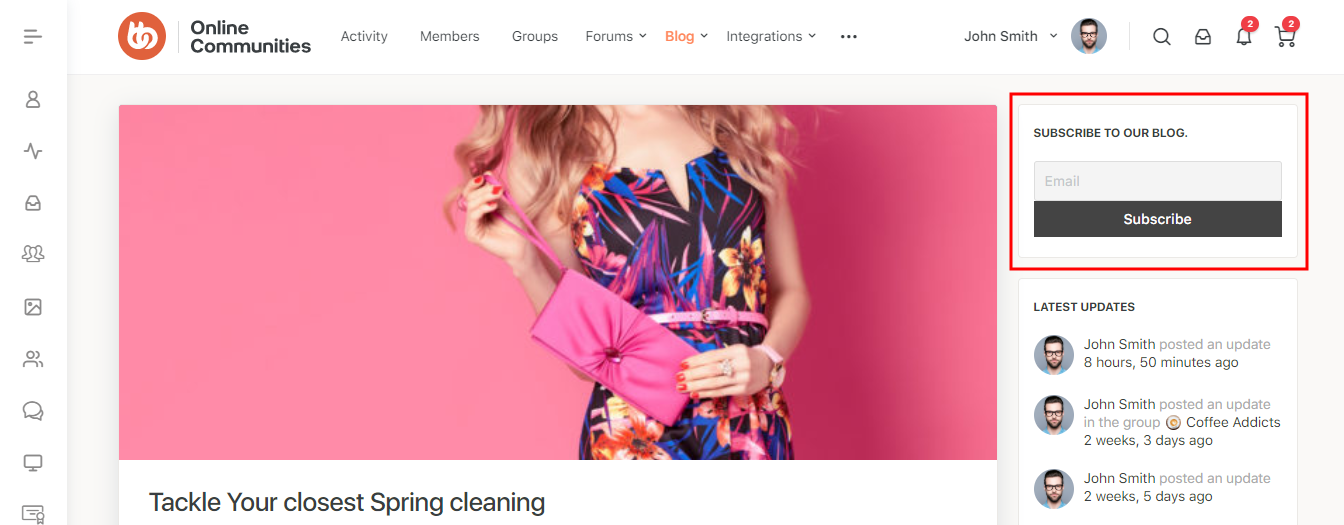
The integration works with the BuddyBoss theme and blends the widgets and forms for the email subscriptions seamlessly.
Installing the plugin
To install the plugin:
- Download the Newsletter plugin from the link below
https://wordpress.org/plugins/newsletter/ - Extract the downloaded newsletter.zip file to the WordPress plugins folder yourhostname/wordpress/wp-content/plugins OR
Go to your WordPress Dashboard > Plugins > Add New. Click the Upload Plugin button. Browse to the download file location, select the newsletter.zip & install the plugin. - Click the Activate Plugin button to activate the Newsletter plugin on your website. OR
To activate the plugin on your website site go to WordPress Dashboard > Plugins and then click the Activate button for Newsletter.
Adding the Newsletter Subscription form using the widget
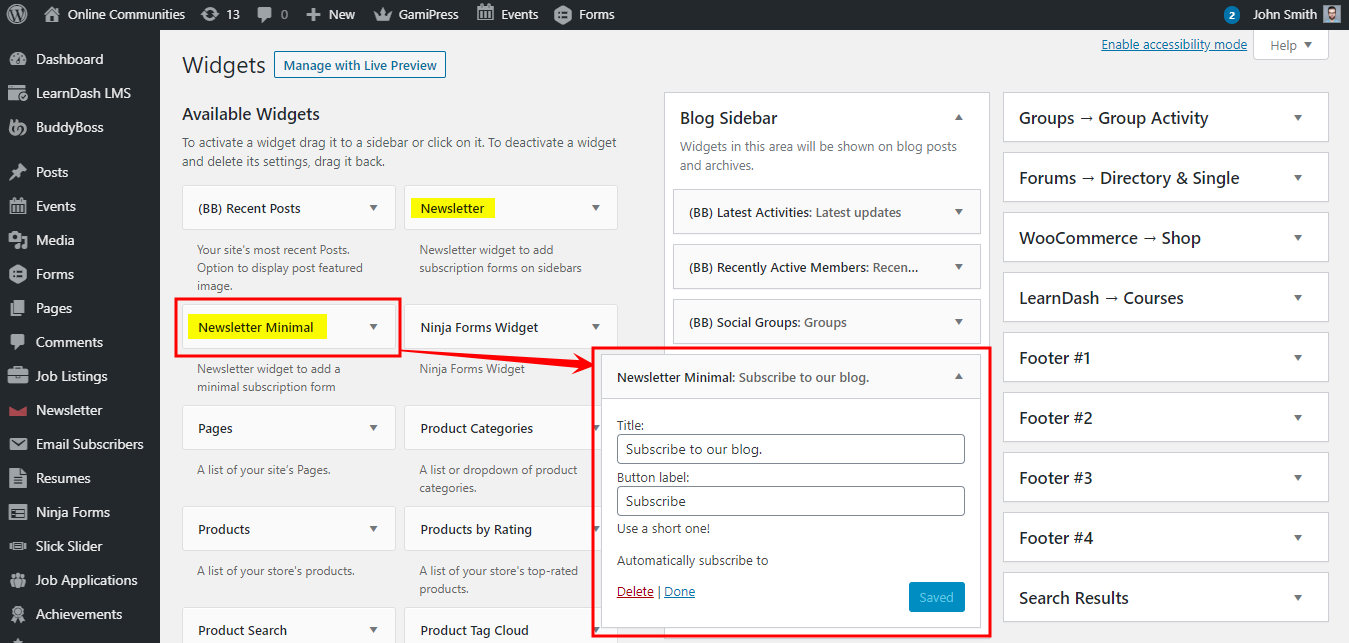
To add the Newsletter (default) or Newsletter Minimal widget to a page/post:
- Go to WordPress Dashboard > Appearance > Widgets.
- Drag-and-drop the Newsletter Minimal widget into the preferred sidebar.
- Add a title for the widget and the button and then click the Save button.
For further setup and usage tutorials, refer to the official documentation of the Newsletter plugin.