














Introduction
Popup Builder is a WordPress plugin that allows you to create and manage customizable popups for your website. You can use popups to promote offers, collect email subscribers, display announcements, or encourage visitors to take specific actions.
The plugin integrates seamlessly with the BuddyBoss Theme, automatically matching your site’s styling for a consistent user experience.
Features
- Create and manage unlimited responsive popups
- Customize the look and feel of the popup
- Set popup animation effect, opening sound
- Choose between several popup themes
- Set popup location on the screen
- Show popup after X amount of page scrolling/scroll popups
- OnClick/OnHover popup
- Redirect confirmation popup/leaving notice popup
- Repetitive pop up – show popup every X period of time
- Network/Multisite compatible
- WPML, Visual Composer, and DIVI Builder compatible
- Redirect user to another page when he/she clicks on popup content
- Show/Hide Popup for selected User Roles (Admin panel)
- Reopen popup after form submission
- Various types of popups – HTML, image, Facebook, shortcode, subscription, PDF and newsletter
- Third-party integrations compatibility with Contact Form 7, Ninja Forms, Gravity Forms, TablePress, Formidable Forms, WP Google Maps, HTML5 Maps, and Review Builder
The BuddyBoss Theme styles the pop-ups seamlessly.
Installing the plugin
To install the plugin:
- Download the Popup Builder plugin from the link below
https://wordpress.org/plugins/popup-builder/ - Extract the downloaded popup-builder.zip file to the WordPress plugins folder yourhostname/wordpress/wp-content/plugins OR
Go to your WordPress Dashboard > Plugins > Add New. Click the Upload Plugin button. Browse to the download file location, select the popup-builder.zip & install the plugin. - Click the Activate Plugin button to activate the Popup Builder plugin on your website. OR
To activate the plugin on your website site go to WordPress Dashboard > Plugins and then click the Activate button for Popup Builder.
Setting up the plugin
To set up the plugin:
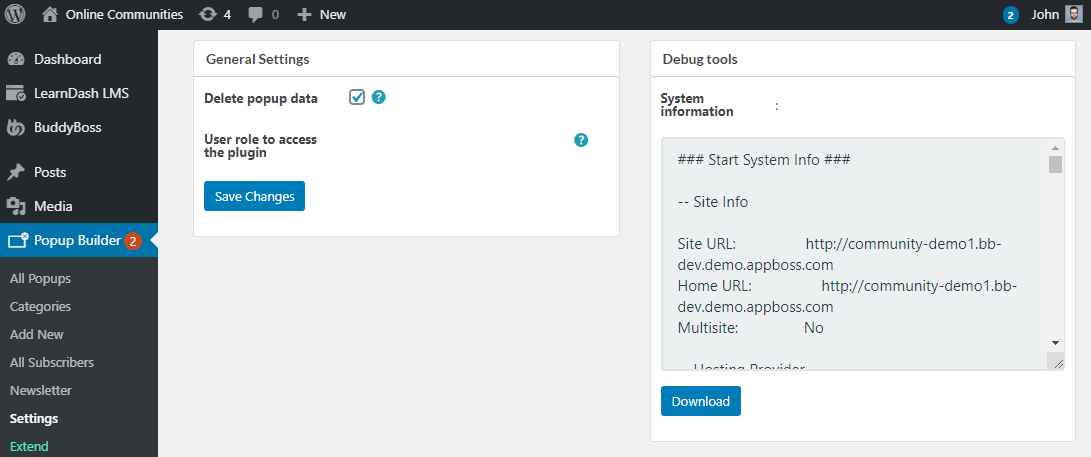
- Go to WordPress Dashboard > Popup Builder > Settings.
- Make the preferred changes to the settings and then click the Save Changes button.
Creating a new pop-up
To create a new popup:
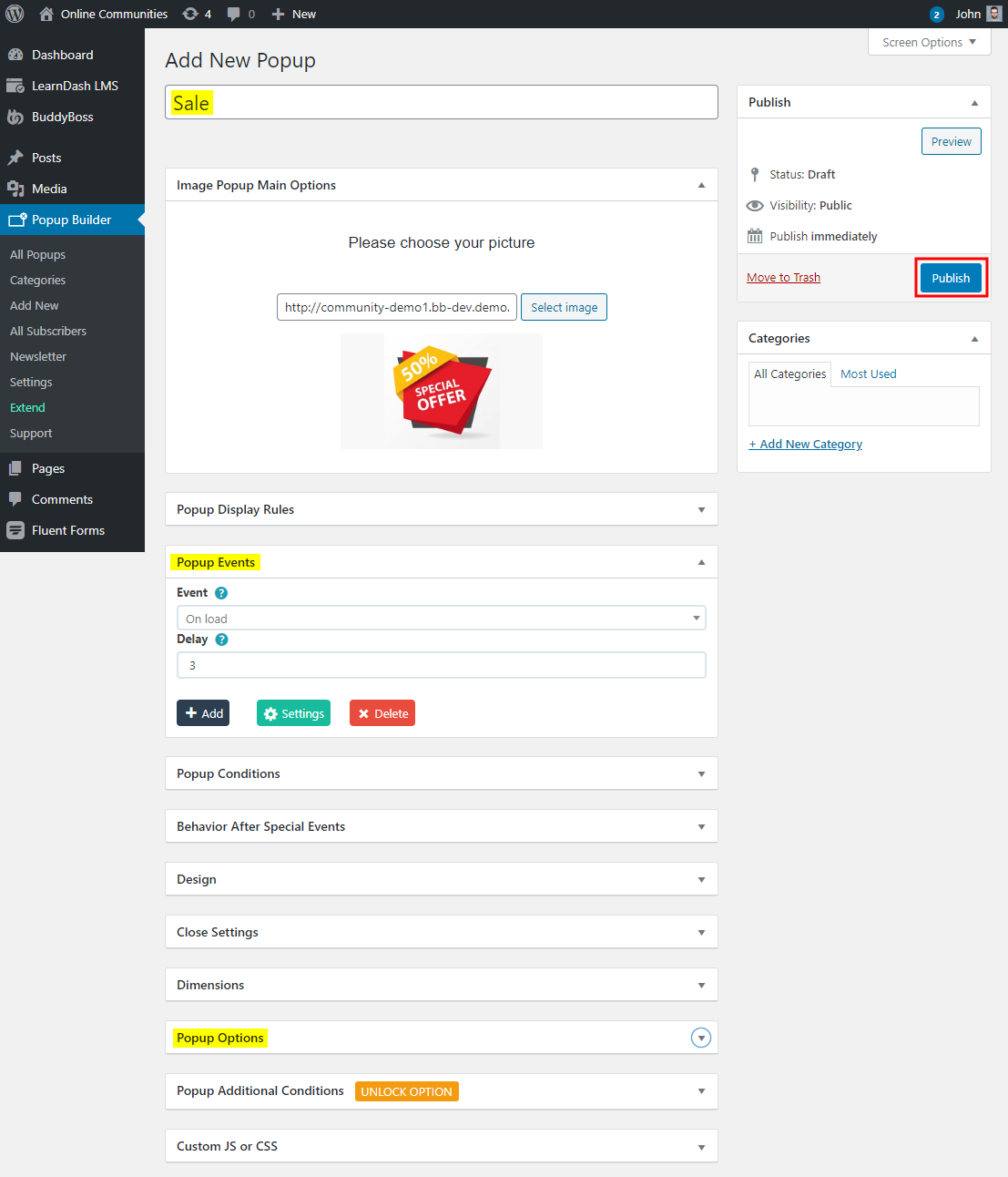
- Go to WordPress Dashboard > Popup Builder > All Popups and then click the Add New button.
- Select the type of popup you want to create. For example, click the Image popup type.
- Add a title, select/upload an image for the popup, make the preferred changes in the Popup Events and Popup Options meta box.
- Click the Publish button.

For further setup and usage tutorials, refer to the official documentation of Popup Builder.