














The Thrive Comments plugin is a superior comments management system for your WordPress site.
The features include:
- Upvotes/Downvotes on individual comments (WordPress comment voting)
- Social login (Facebook and Google) to comment
- Display offer/message after comment
- Dedicated thrive comments moderation area
- Award badges for gamification
- When someone comments you can: send a thank you message, give them the options to share on social media, show them related posts, or redirect them to another page
- Allow people to be notified when someone replies to their comment, or to subscribe to comments for the article
- Options to lazy load comments and avatars after the page has loaded
- Built-in anti-spam features and much more.
The integration works with the BuddyBoss theme and supports all templates and blocks in the Thrive Comments plugin.
Installing the plugin
To install the plugin:
- Buy and download the Thrive Comments plugin from the link below
https://thrivethemes.com/comments/ OR
Download the Thrive Product Manager plugin from your Thrive Themes Member Dashboard. - Extract the downloaded thrive-product-manager.zip file to the WordPress plugins folder yourhostname/wordpress/wp-content/plugins OR
Go to your WordPress Dashboard > Plugins > Add New. Click the Upload Plugin button. Browse to the download file location, select the thrive-product-manager.zip & install the plugin. - Click the Activate Plugin button to activate the Thrive Product Manager plugin on your website. OR
To activate the plugin on your website site go to WordPress Dashboard > Plugins and then click the Activate button for Thrive Product Manager. - Go to WordPress Dashboard > Product Manager.
- Log into your Thrive Themes account.
- Mark the checkbox for the Thrive Comments plugin and click the Install selected products button.
Setting up the plugin
To set up the plugin:
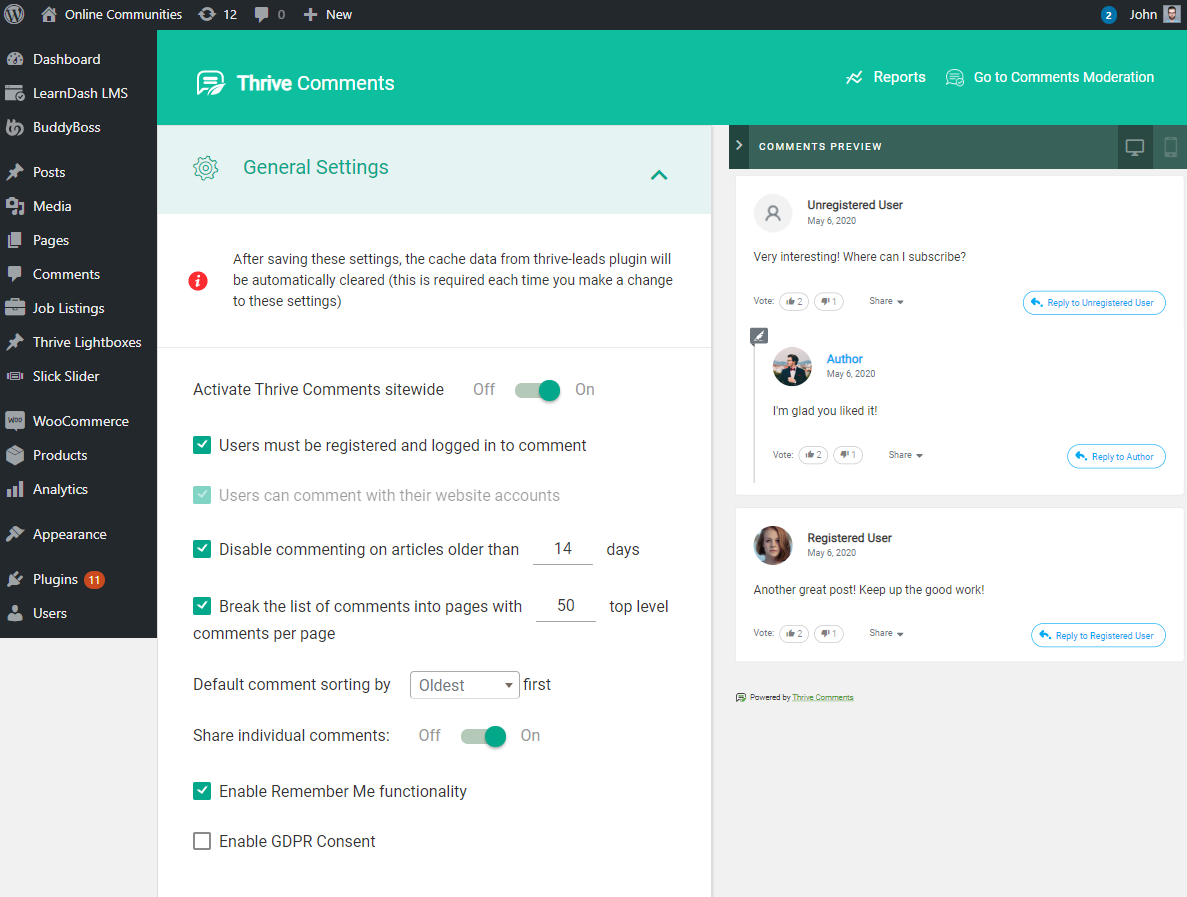
- Go to WordPress Dashboard > Thrive Dashboard > Thrive Comments.
- In the General Settings tab, click the toggle bar to Activate Thrive Comments sitewide.
- Make the preferred changes to the settings in other tabs.
All settings are automatically saved in real-time.
For further setup and usage tutorials, refer to the official documentation of Thrive Comments.