














Introduction
WPML is a premium translation plugin that allows you to translate pages, posts, menus, custom post types, taxonomies, and theme texts. It’s a reliable solution for translating your WordPress site and works seamlessly with any plugin or theme using the WordPress API.
WPML is fully compatible with the BuddyBoss Theme and BuddyBoss Platform, enabling you to create a multilingual social network. With WPML’s BuddyPress Multilingual add-on, you can:
- Translate all BuddyBoss pages like Groups, Forums, Members, Activity Feed, and Registration.
- Choose between automatic translation, manual translation, or outsourcing the work to others.
- Use the WPML String Translation add-on to translate all strings from the BuddyBoss Platform and Theme.
- Automatically translate BuddyBoss Group names and descriptions.
- Translate both default and custom BuddyBoss profile fields.
This integration ensures that your multilingual BuddyBoss-powered social network runs smoothly across languages.
Installing the plugin
For the BuddyBoss Platform and Theme integration:
- Install and activate the following WPML plugins:
WPML
BuddyBoss Platform plugin
BuddyPress Multilingual add-on (also available on your WPML account’s Downloads page) - For BuddyPress Multilingual to work, turn on the Different languages in directories option found in the WPML > Languages > Language URL Format.
Translation Dashboard
The Translation Dashboard in the WPML (WordPress Multilingual Plugin) plugin is a centralized interface designed to help manage multilingual content efficiently on WordPress websites.
The revamped Translation Dashboard is the single hub for translating your entire site. Easily send any content, including posts, pages, products, and widgets, for translation. A word count estimate and the amount you’ll pay to translate your content is shown after you select the option to Translate automatically. The dashboard also displays detailed translation statuses and alerts you when action is needed.
Key features include:
- Translation Job Overview: View the status of posts, pages, and custom content.
- Workflow Management: Assign jobs to translators or translation services, and track progress.
- Content Selection: Filter and select content for translation in bulk.
- Automatic Translation: Use machine translation with or without human review.
- Progress Monitoring: Real-time tracking of translation jobs with reports and priorities.
- String Translation: Translate theme and plugin strings.
- Translation Memory: Ensures consistent translations across content.
It supports collaborative workflows and integrates with various plugins, streamlining multilingual site management.
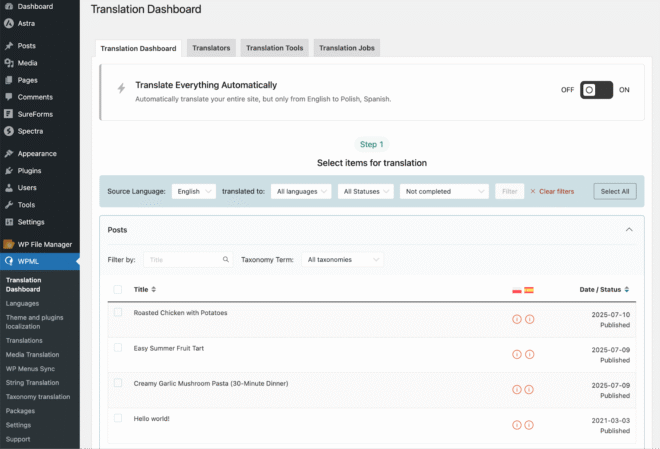
Translation Dashboard
Translate Texts
From the Translation Dashboard, select items for translation.
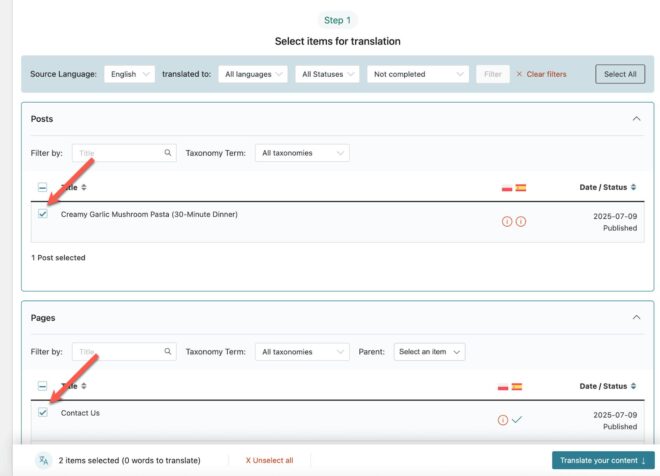
Choose how to translate your content from the Action dropdown. You can choose to send content for automatic translation, assign it to yourself, or send it to professional translators. For automatic translation, you can use Private Translation Cloud (PTC) — WPML’s very own AI translation engine.
PTC works like a private cloud of expert translators, tailored to your site. It learns your business, understands your project, and adapts to your audience. It speaks in your brand voice, uses your terminology correctly, and keeps your translations consistent across all content.
Translations done with PTC are backed by WPML’s Translation Quality Guarantee: if you’re not satisfied, WPML will fix the translation or refund you for the translations.
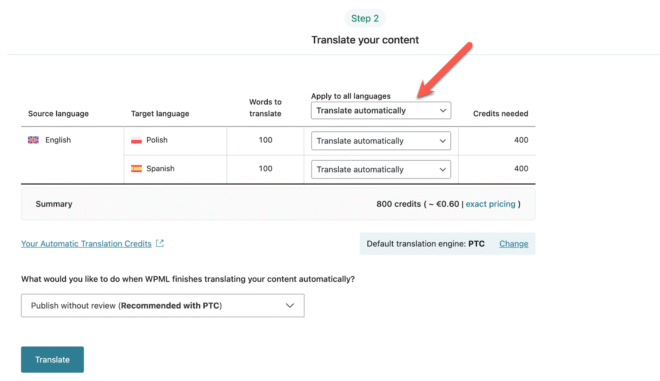
In “What would you like to do when WPML finishes translating your content automatically?”, select a review option. If you’re using PTC, you can choose to publish without review. Then click Translate.
Review Translations
To edit a translation, visit the translated page on the front-end. If you spot anything you want to change, click Edit Translation in your top admin bar.
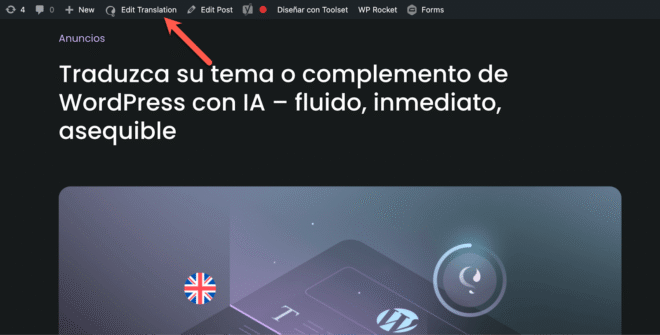
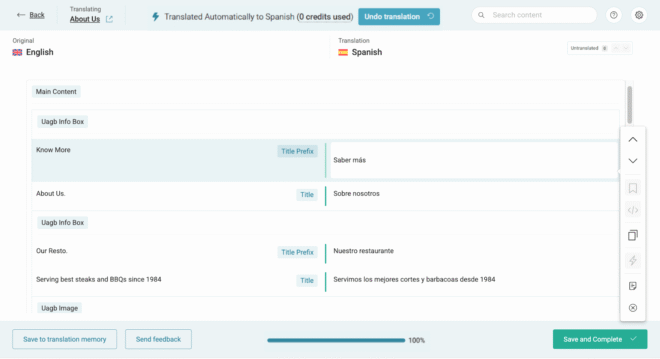
This opens the Advanced Translation Editor, where you can review and edit translations as needed.
For further setup and translating pages, posts, and custom posts, refer to the official documentation of the WPML plugin.