














The BuddyBoss App Profile Card Block lets you display personalized information about the currently logged-in member directly on an App Page. You can use the block to show a member’s profile information, personalized greeting, and profile completion progress.
With different layout, color, and display options, you can customize the Profile Card for homepages, dashboards, member hubs, and onboarding pages to create a more personalized app experience.
Add the Profile Card Block
- Open the App Page where you want to display the profile information.
- Click the + Add Block button or open the Blocks panel.
- Search for Profile Card.
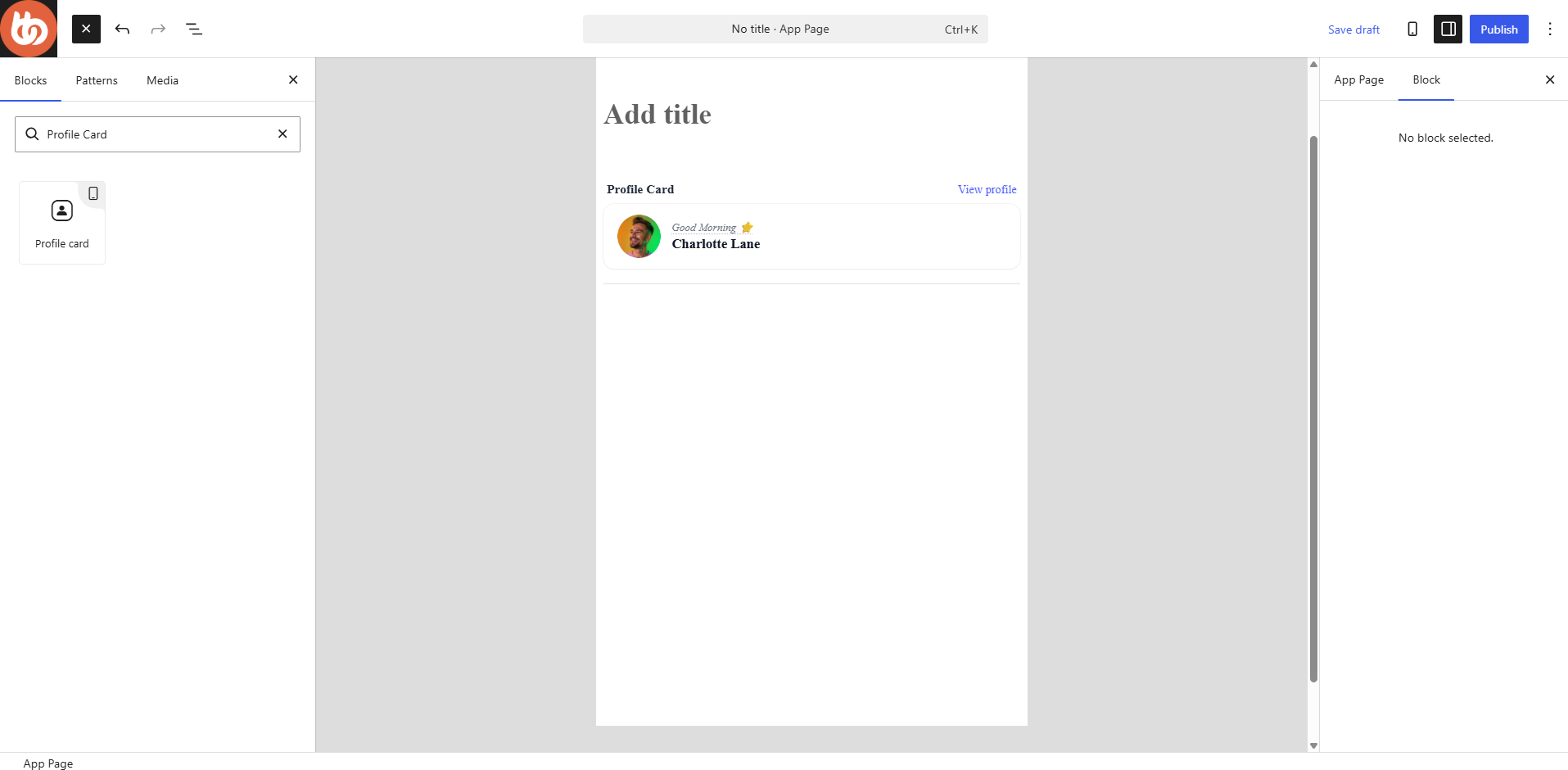
- Drag and drop the Profile Card block into the center content area of the page editor.
Once added, the block settings will appear in the right-hand panel.
Select a Profile Card Layout
The Profile Card block offers two layout options.
Greeting Card
The Greeting Card layout displays:
- Member profile photo
- Personalized greeting
- Member name
- View Profile link
This layout is ideal for:
- Homepage dashboards
- Welcome pages
- Member hubs
- Personalized landing pages
Profile Complete
The Profile Complete layout focuses on profile completion progress and encourages members to complete their profile information.
This layout is ideal for:
- Onboarding experiences
- New member dashboards
- Community engagement initiatives
To change the layout:
- Open the Design dropdown.
- Select either Greeting Card or Profile Complete.
Configure the Block Title
Use the Block Title field to customize the heading displayed above the profile card.
Examples:
- Profile Card
- Welcome Back
- My Profile
- Member Dashboard
If you do not want a title displayed, disable Show Block Title in the settings section.
Customize Colors
The Color section lets you customize the Profile Card’s appearance.
Available options include:
- Heading Text Color
- Body Text Color
- Background Color
- Card Background (Available if Profile Complete Design is selected. )
Light and Dark Mode
The Profile Card supports both Light and Dark color configurations.
Important: The Dark Mode color option is only available when App Next Gen is enabled for your app.
If App Next Gen is not enabled, only the standard light-mode styling will be applied.
Configure Display Settings
The Profile Card includes the following display options.
Show Block Title – Enable or disable the block title displayed above the card.
Show Profile Complete – Enable or disable the profile completion indicator. When enabled, members can easily see their profile completion status and are encouraged to complete missing profile information.