














The BuddyBoss Email Digest feature allows members to combine supported notification emails into a single daily or weekly digest instead of receiving a separate email for every notification. Members can choose whether they want to receive a digest, while their in-app notifications continue to appear normally.
Email Digest is disabled by default. When it is disabled, notification emails continue to send immediately.
Prerequisites
Before your proceed, make sure:
- You have BuddyBoss Web Start Plan
- BuddyBoss Platform and BuddyBoss Add-on plugins are both installed and activated.
- You have administrator access to your WordPress site.
Enable Email Digest
- In your WordPress Dashboard, navigate to BuddyBoss > Settings.
- Scroll down to Notifications and click > Settings..
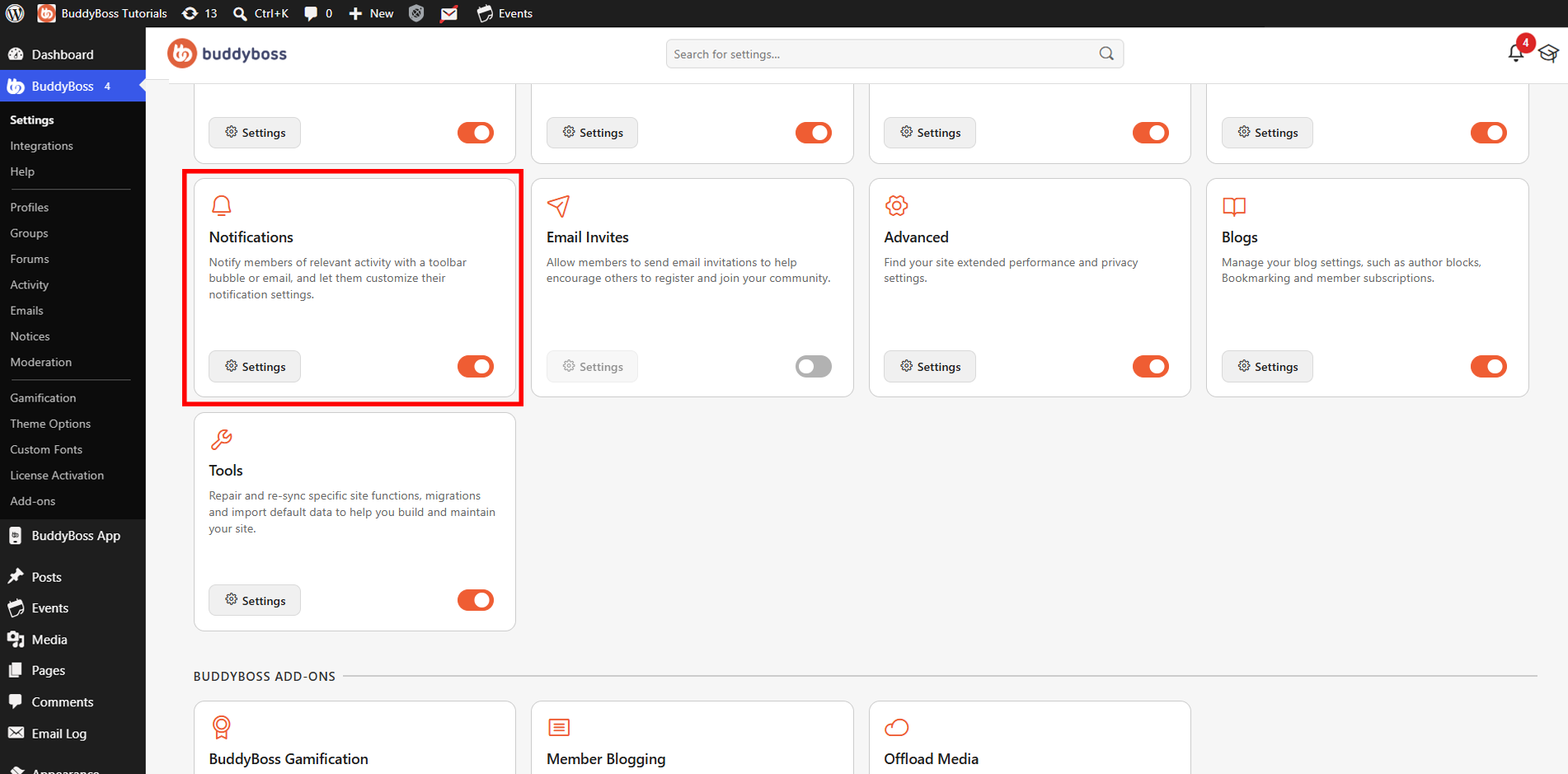
- Select Email Digest tab > Enable Email Digest.
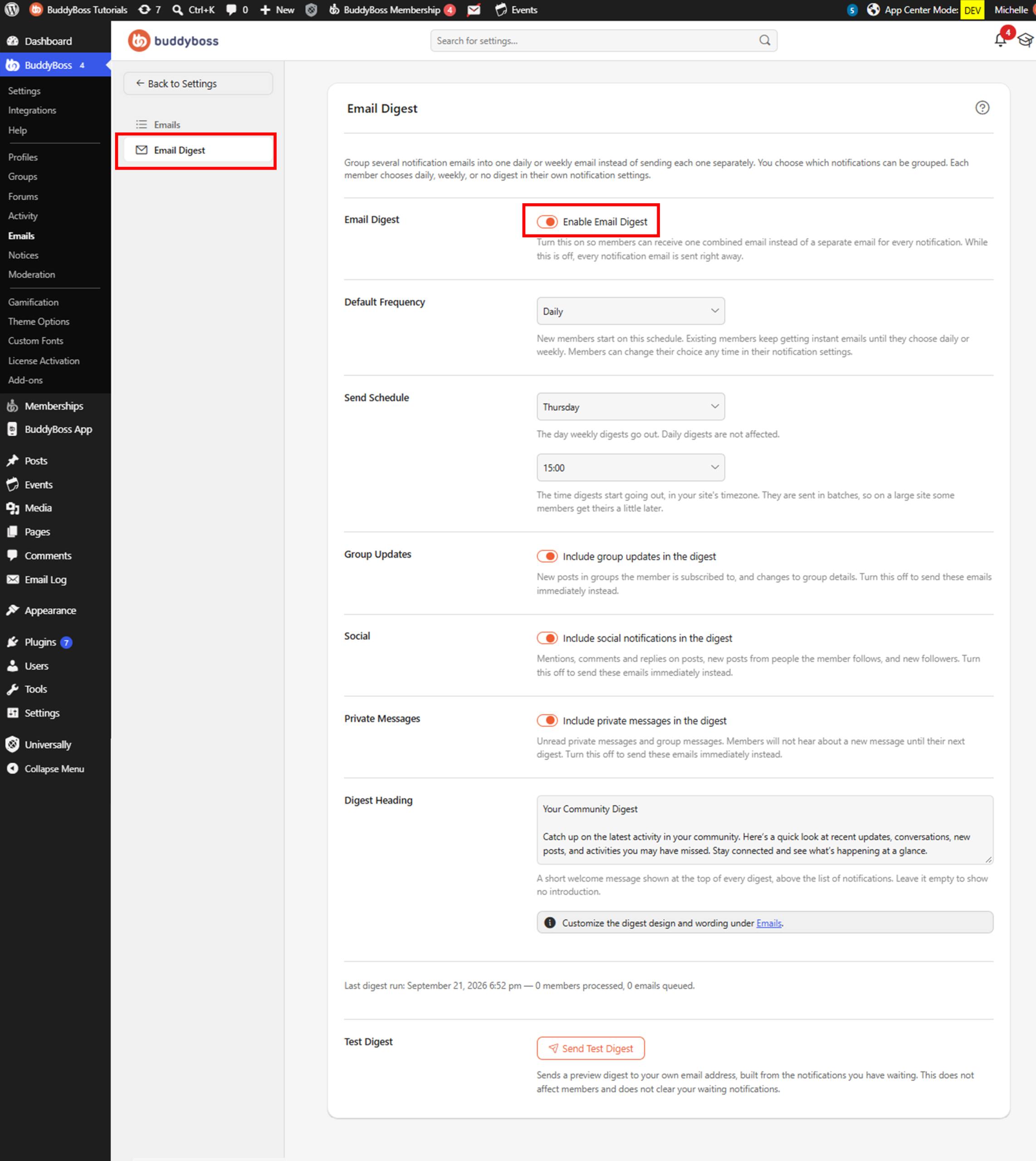
When Email Digest is enabled, members who choose a daily or weekly digest can receive supported notification emails together. Members who continue using immediate delivery are not affected.
Configure the Default Frequency
The Default Frequency determines the initial digest cadence for new members.
Select one of the following:
- Daily – Sets daily digest as the default for new members.
- Weekly – Sets weekly digest as the default for new members.
Note: New members inherit the selected default frequency. Existing members continue receiving immediate notification emails until they choose a digest frequency.
Configure the Send Schedule
Use Send Schedule to determine when digest emails begin sending.
For Daily digests:
- Select Daily under Default Frequency.
- Select the preferred send time.
Note: The selected day is ignored for daily digests.
For Weekly digests:
- Select Weekly under Default Frequency.
- Select the day of the week when the digest should be sent.
- Select the preferred send time.
The send time follows your site timezone. Delivery is staggered, so most members receive their digest shortly after the configured time.
Include Group Updates
Enable Include group updates in the digest to include supported group-related notification emails in member digests.
If this option is disabled, group notification emails continue to send immediately instead of being included in the digest.
Include Social Notifications
Enable Include social notifications in the digest to include supported social notifications.
Social notifications include:
- Mentions
- Replies
- Follows
If this option is disabled, these notification emails continue to be sent immediately.
Include Private Messages
Enable Include private messages in the digest to make private message notifications eligible for Email Digest.
Members must also explicitly opt in to message digests from their own notification preferences before private messages are included.
This allows private message emails to remain immediate unless the member specifically chooses to include them in their digest.
Add a Digest Heading and Introduction
The Digest Heading field allows you to add content that appears at the top of every digest email.
Enter a heading or short newsletter-style introduction that you want members to see before their notification summary.
You can leave this field empty if you do not want to include an introduction.
Customize the Digest Email
The design and wording of the digest can be customized using the BuddyBoss email templates.
Navigate to BuddyBoss > Emails to customize the corresponding digest emails.
The available templates include:
- Your daily digest
- Your weekly digest
These templates can be customized in the same way as other BuddyBoss emails.
View the Last Digest Run
The Email Digest settings display the Last digest run information.
This shows:
- When the digest process last ran
- How many members were processed
- How many emails were queued
Use this information to confirm that the digest process is running and producing emails as expected.
Send a Test Digest
Use Send Test Digest to preview how a digest email will appear.
- Locate Test Digest at the bottom of the Email Digest settings.
- Click Send Test Digest.
The test uses your own pending notifications to generate a sample digest and sends it to your email address. Sending a test digest does not affect member digests or their pending notifications.
How Members Configure Email Digest
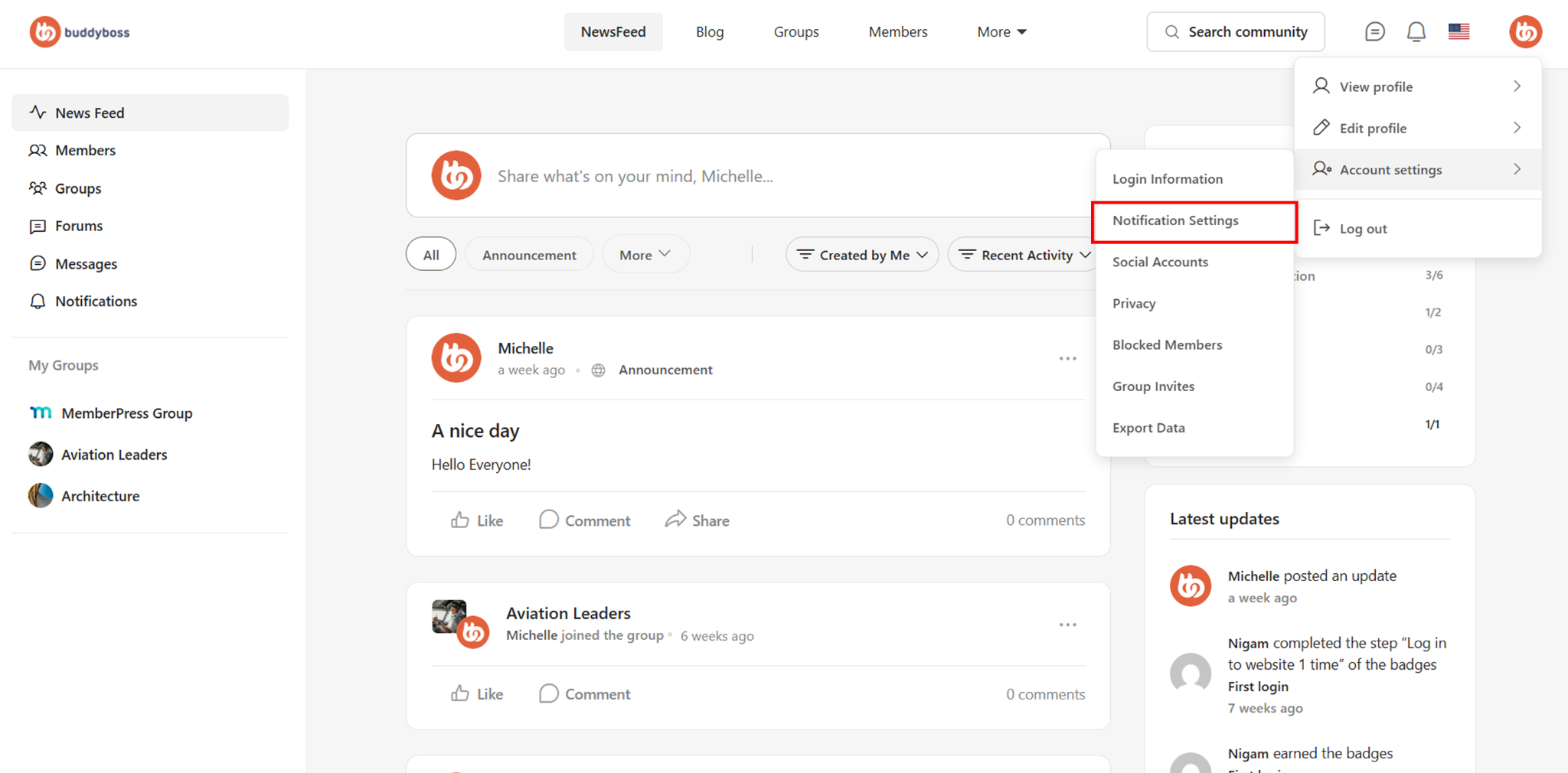
Members can manage their email delivery preferences by:
- In the user’s Profile Dropdown > Account Settings > Notification Settings >
- Scroll down to the Email Digest section.
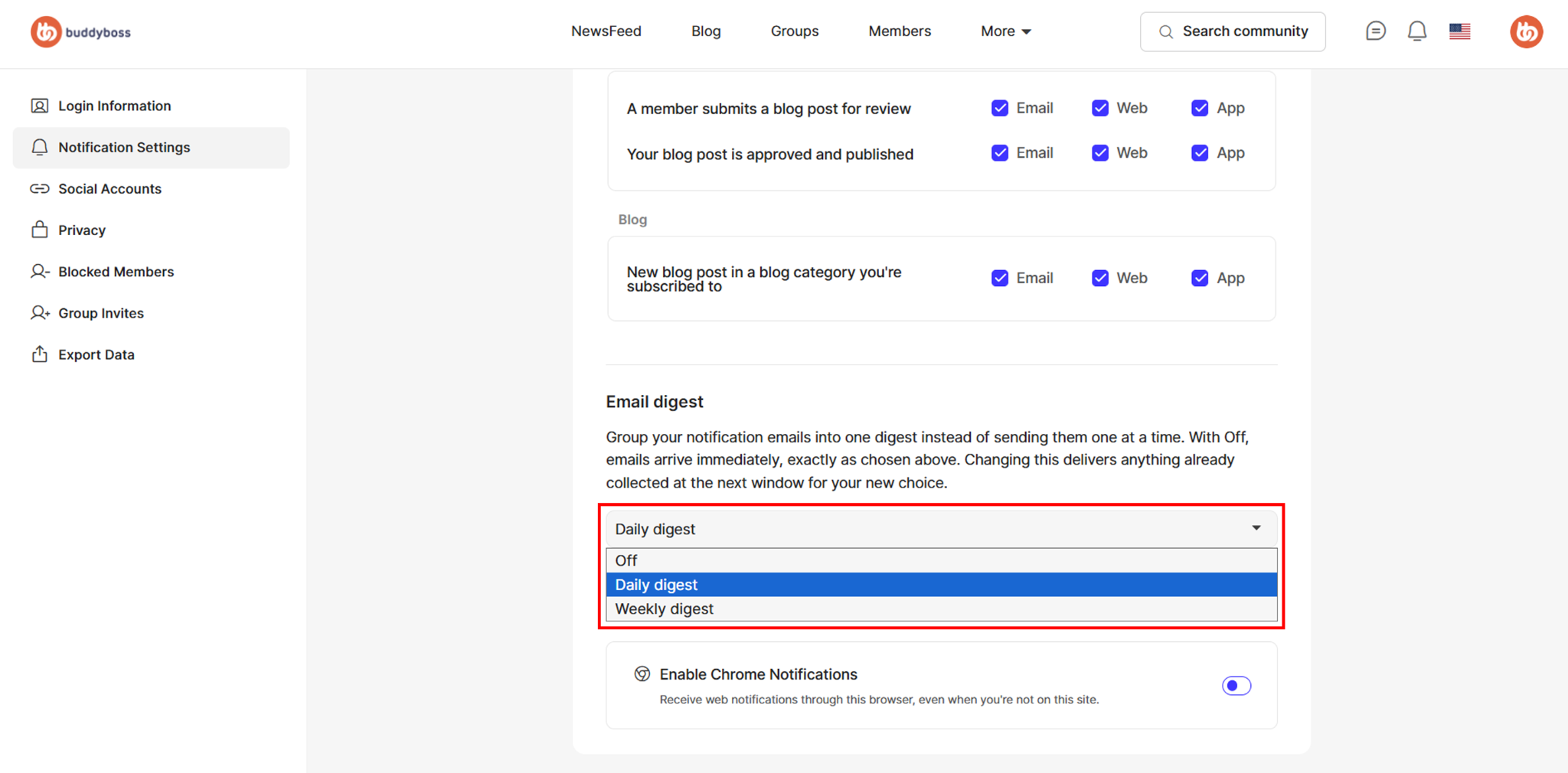
Depending on the available settings, members can choose:
- Daily Digest – Supported notifications are collected into a daily email.
- Weekly Digest – Supported notifications are collected into a weekly email.
- Off – Email Digest for Notification are disabled while in-app notifications remain available.
Note: Pending digest notifications are automatically managed when a member changes their email delivery preference, based on the newly selected option
How the Email Digest Appears to Members
When members receive an Email Digest, their eligible notifications are combined into a single organized email. The Digest Heading configured by the administrator appears at the top of the email, followed by notifications grouped into relevant sections.
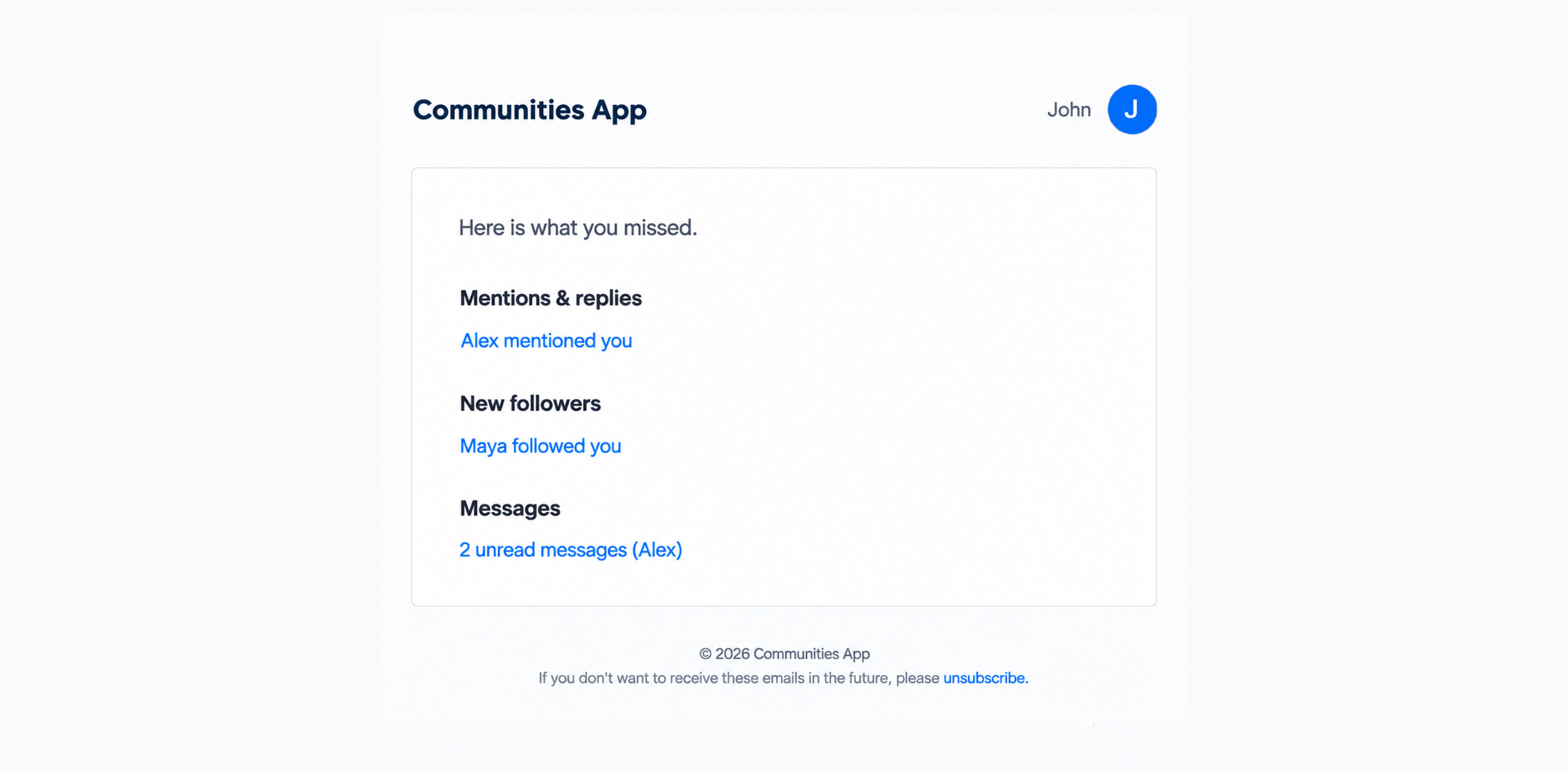
Depending on the member’s notifications and preferences, the digest can include sections such as:
- Mentions & replies – Mentions, replies, and other supported social activity.
- New followers – New follower notifications.
- Groups – Group activity and updates.
- Messages – Private message notifications when the member has opted to include them.
Members can click individual notification links to return to the relevant content on the website. At the bottom of the email, members can also unsubscribe from digest emails.
If a member unsubscribes from digest emails, they can resubscribe at any time by going to their Account Settings > Notification Preferences and selecting their preferred Email Digest frequency.