














The BuddyBoss App Directory Block allows you to create a directory or archive-style listing on an App Page using supported WordPress post types and custom post types. You can control how content appears in the directory by configuring featured images, metadata, search and filter options, author avatars, comments, bookmarks, and content ordering.
The Directory Block is designed to function as the only block on an App Page and cannot be used alongside other App Blocks on the same page.
This guide explains how to add the Directory Block, select the content you want to display, configure metadata, and customize the available directory options.
Add the Directory Block
Drag and Drop the Directory Block
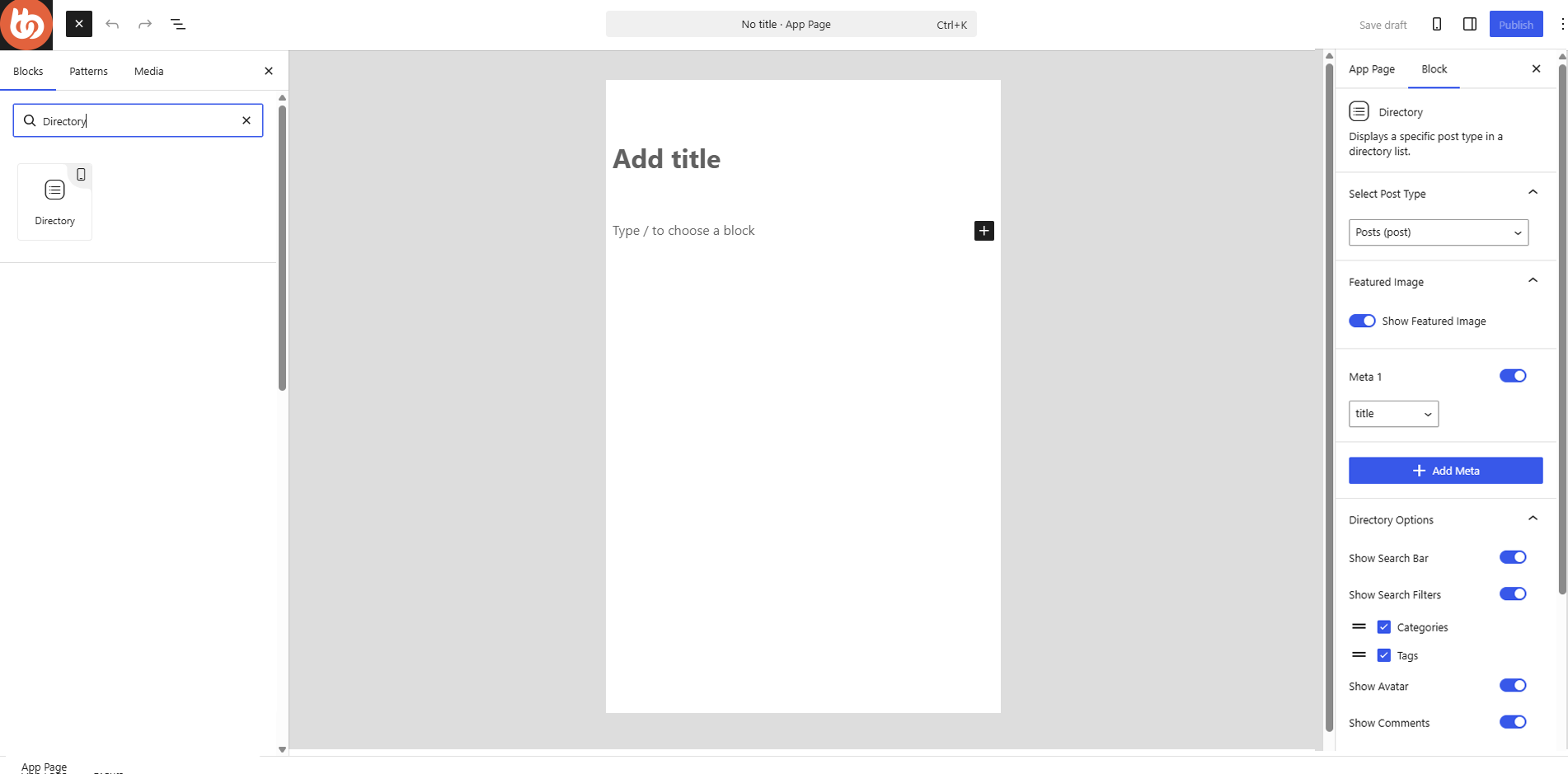
- Navigate to your Wordpress Dashboard > BuddyBoss App > App Pages
- Add or edit a new App page.
- Open the App Page editor.
- Click the Toggle Block Inserter.
- Search for Directory.
- Drag and drop the Directory Block onto the App Page.
Alternatively:
- Type /directory in the App Page editor.
- Select the Directory Block from the available blocks.
Visual Preview on Hover
When adding the Directory Block, a preview appears with skeleton content to show the general structure of the directory.
Placeholders labeled META 1, META 2, META 3, and META 4 indicate where the metadata you configure will appear.
Configure Block Settings
Select a Post Type
- Select the Directory Block to open the Block Settings sidebar.
- Locate the Select Post Type dropdown.
- Choose the post type you want to display in the directory.
Supported standard post types may include:
- Posts
- Pages
- Forums
- Discussions
- Replies
You can also create directories using supported custom post types provided by compatible plugins, including:
- WP Job Manager
- LearnDash
- Tutor LMS
- MemberPress
- The Events Calendar
- WooCommerce, such as a directory of Products
- Modern Events Calendar
The available post types depend on the plugins and content types available on your WordPress website.
Show Featured Images
Enable Show Featured Image to display the featured image associated with supported directory content, such as posts, pages, and forum discussions.
If the option is disabled, featured images will not appear in the directory listing.
Configure Metadata
Metadata allows you to display additional information for each item in the directory.
- Navigate to the Metadata section.
- Enable Meta 1.
- Select the information you want to display.
- Click Add Meta to add another metadata field.
- Configure the additional metadata as needed.
You can add up to four metadata fields to the Directory Block.
The configured metadata appears in the META 1, META 2, META 3, and META 4 positions shown in the block preview.
Configure Directory Options
Use the Directory Options to control which browsing and content elements are available within the directory.
- Show Search Bar – Displays a search field that members can use to search the content shown in the directory.
- Show Search Filter – Displays filtering options that members can use to narrow the directory results.
- Show Avatar – Displays the author’s avatar with directory items when applicable.
- Show Comment – Displays comment information for supported directory content.
- Show Bookmark – Allows the bookmark option to appear for supported directory content so members can save content for later access.
- Enable or disable each option depending on the directory experience you want to provide.
Set the Content Order
Use the Order By and Order settings to control how items are arranged in the Directory Block.
- Order By – Select the criteria used to determine how directory items are sorted.
- Order – Choose the direction in which the selected content is displayed.
Configure these settings based on how you want members to browse the directory content.
Save the App Page
Once you have finished configuring the Directory Block:
- Review the Directory Block settings.
- Confirm that the correct post type, metadata, directory options, and ordering settings are selected.
- Click Save to apply your changes.