














The BuddyBoss App External Link Handling settings let you control how external website links open when members tap them in the app. Links can open within the BuddyBoss App using the in-app browser, launch in the device’s default browser, or allow members to choose their preferred option.
This gives you greater control over how members navigate external links from blog posts, course content, custom menus, and other areas of your BuddyBoss App.
Configuring Link Handling Options
Accessing the Compatibility Settings
- In WordPress, go to BuddyBoss App > Settings > Compatibility.
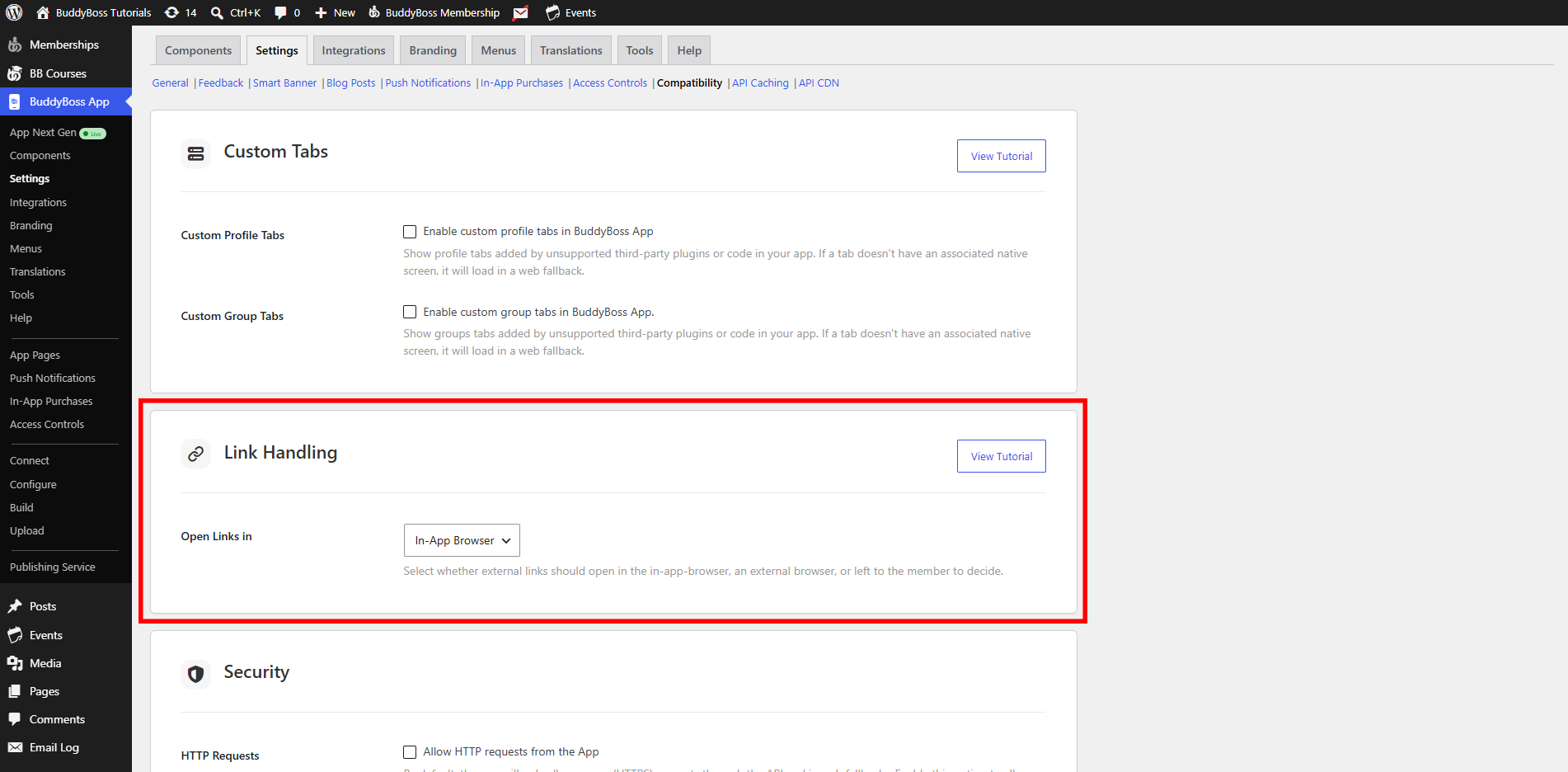
- Locate the Link Handling drop-down.
Enabling In-App Browser
- Select In-App Browser from the drop-down.
- Click Save Changes.
- Hard-quit the BuddyBoss App on your device, then tap any external link. It will open inside the app’s built-in browser, keeping users on your platform.
Enabling External Browser
- Return to Compatibility > Link Handling.
- Select External Browser.
- Click Save Changes, then hard-quit and reopen the app.
- Tap a link and confirm it launches in your device’s default browser (e.g., Safari or Chrome).
Enabling “Ask Member”
- In Link Handling, choose Ask Member.
- Save your changes and hard-quit the app.
- Tap an external link. The first time, a prompt asks In-App Browser or External Browser.
- Make a selection, the app remembers it for future taps.
Changing the User’s Preference In-App
- Within the BuddyBoss App, open More > Settings > Web Browser.
- Toggle between In-App Browser and External Browser at any time. This menu appears only if Ask Member was selected.