














Your BuddyBoss App Homepage is the first screen users see after logging in, making it engaging and functional. This guide shows you how to create a custom App Page using Gutenberg blocks, add it to the Tab Bar, and preview the result. By the end, you’ll have a branded, interactive Home tab that drives user engagement.
Accessing the App Pages Screen
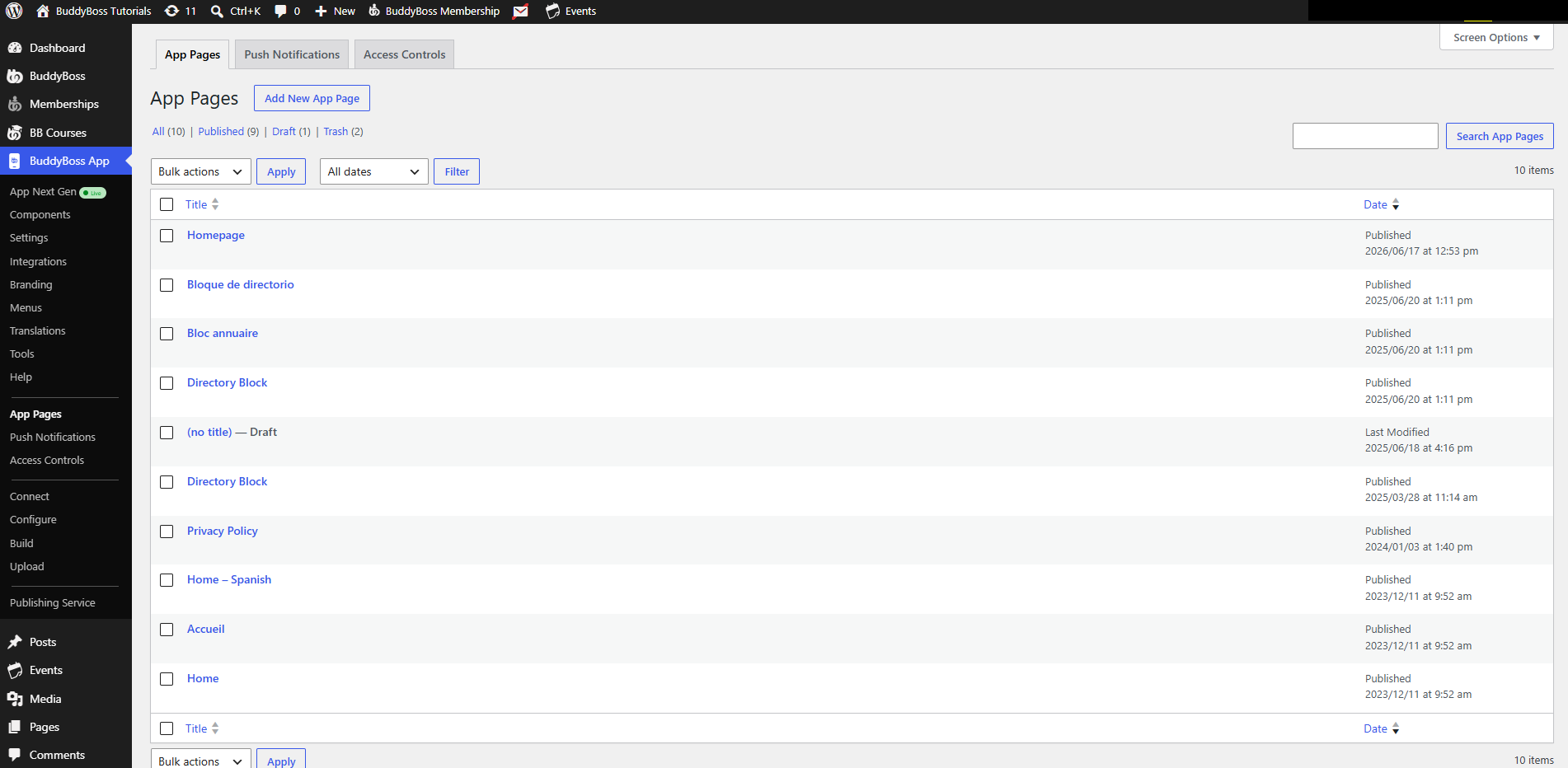
- In your WordPress Dashboard, navigate to BuddyBoss App > App Pages.
- Click Add New Page to begin creating a new App Page.
Creating a New App Page
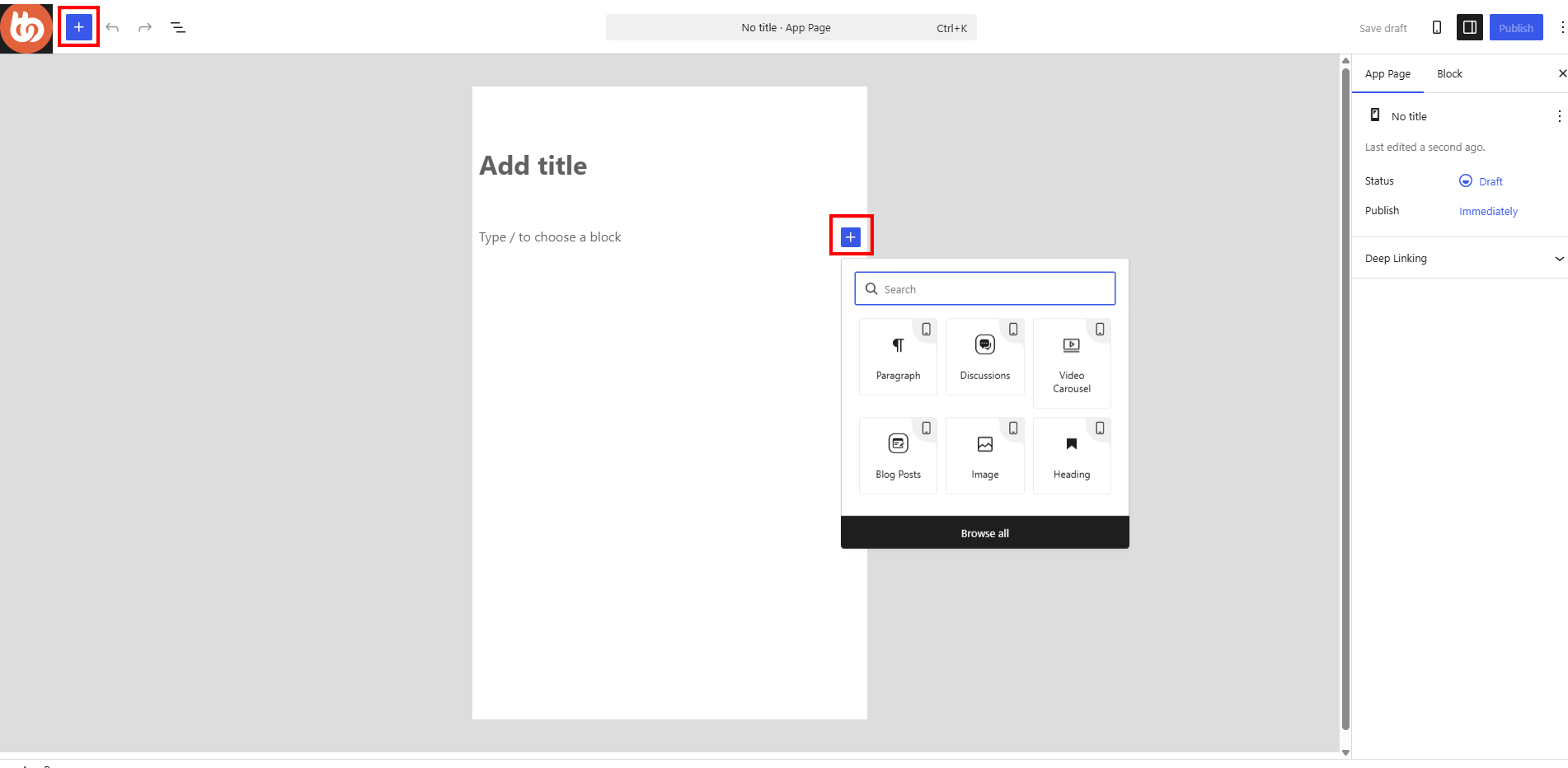
- Enter a Title, such as Home, at the top of the editor.
- Click the + icon to insert blocks into your mobile app interface.
Adding Blocks to Your Homepage
- Click +, search for Blocks blocks that you want to add.
Integrating Your Homepage into the Tab Bar
- Go to BuddyBoss App > Menus > Tab Bar Menu.
- Click App Page, then scroll or click View All to locate Home.
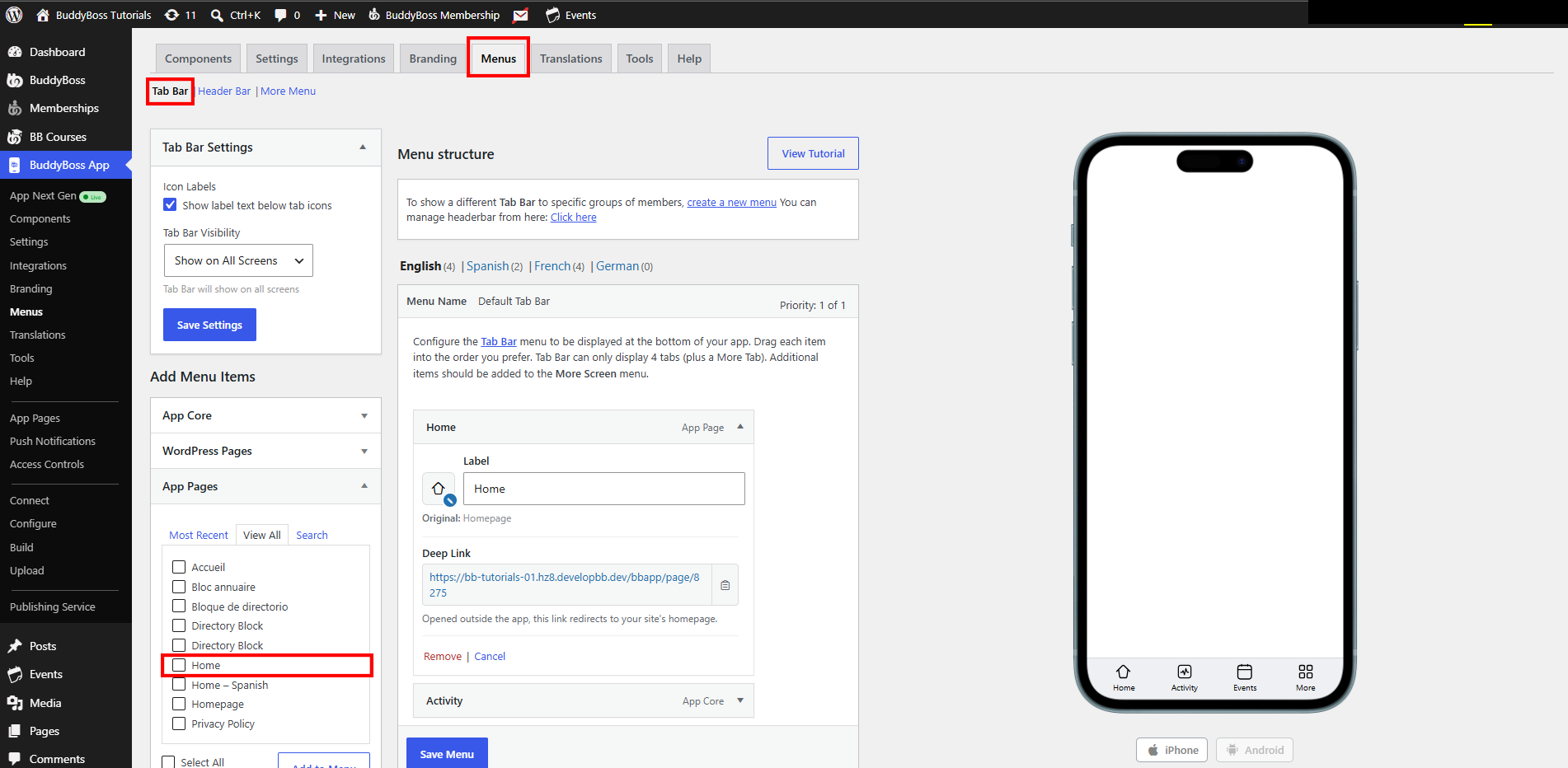
- Select Home and click Add to Menu.
- In the menu list, click Home, then click Item Icon.
- Choose a Home icon, adjust Icon Settings, and click Select Icon.
- Click Save Menu to apply your Tab Bar changes.
Previewing Your Homepage
- Force-close and reopen the BuddyBoss App on your device.
- Tap the Home tab in the Tab Bar.
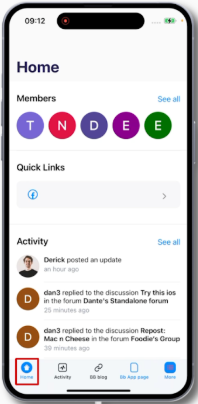
- Confirm your Members, Quick Links, and Activity blocks display and function as configured.