














The BuddyBoss App Share and Related Posts features allow members to easily share blog content and discover additional posts directly within your mobile app. Sharing gives members access to their device’s native sharing options, while Related Posts helps them continue exploring relevant content.
When enabled, related posts appear at the bottom of an article based on its category. If the post does not have a category, the app displays the latest posts by date instead.
Enabling Share and Related Posts
- Navigate to BuddyBoss App > Settings > Blog Posts in your WordPress Dashboard.
- Under Bookmarking, check Enable Sharing and Enable Related Posts.
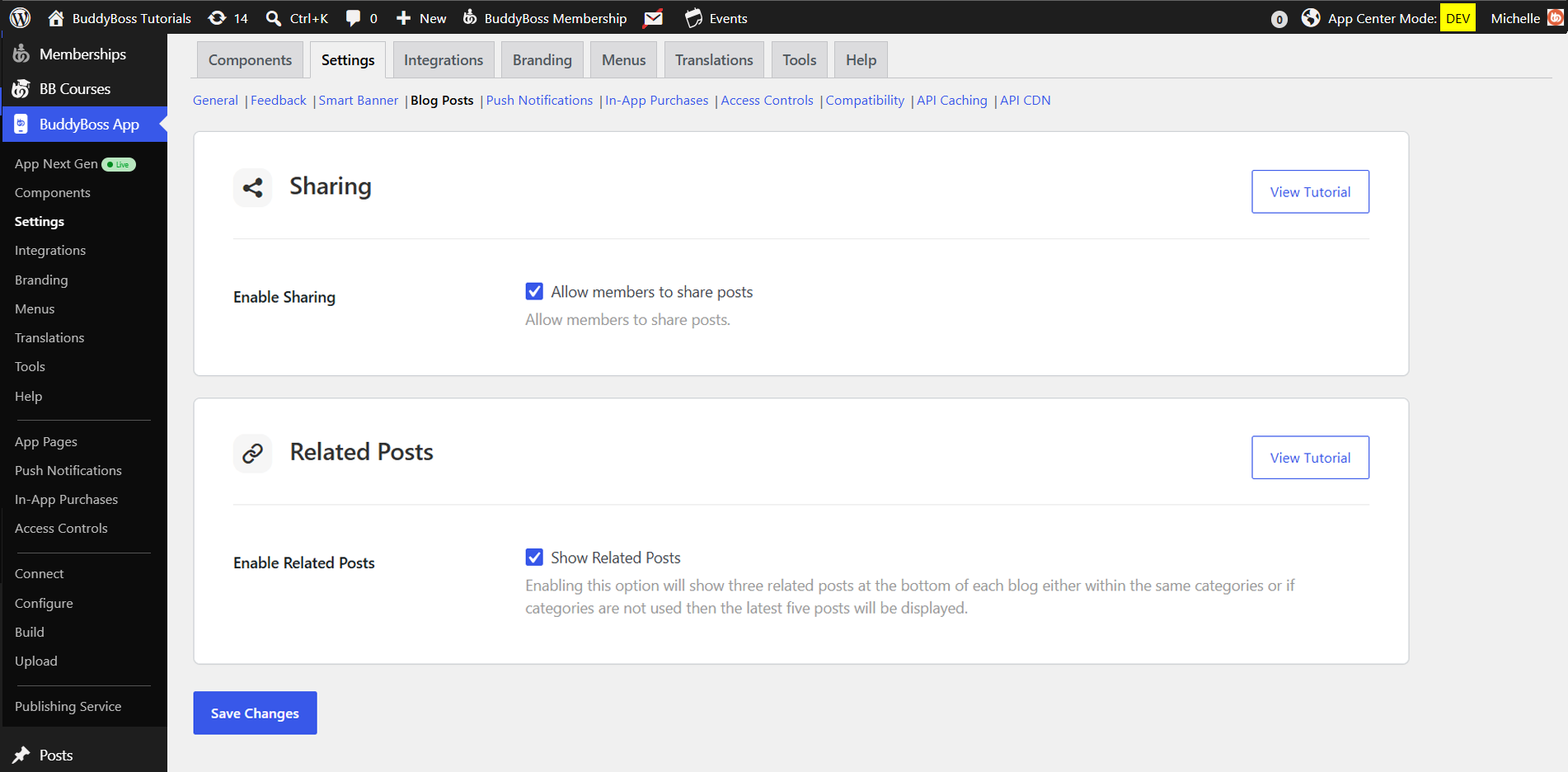
- Click Save Changes.
Sharing a Blog Post in the App
- Open the BuddyBoss App and tap Blog Posts.
- Select any article to view its single-post screen.
- Tap the Share icon next to the comment button at the top.
- Choose Copy or pick any installed app from the share sheet to send the post link.
Viewing Related Posts
- Scroll to the bottom of any blog post in the app.
- Browse the Related Posts list, these are pulled from the same category.
- Tap See All to view every related article.
Note: If a post has no category, the section defaults to the latest posts by date.