














The BuddyBoss App Website Authentication feature allows you to password-protect your website while still allowing the BuddyBoss App to access the APIs it needs for testing. This is useful for staging or development websites that you do not want publicly accessible before launch.
When enabled, website visitors must enter the configured password before they can access your site. You can also customize the Website Notice displayed on the password screen and update the password whenever needed.
Configuring Website Authentication
Enabling Password Protection
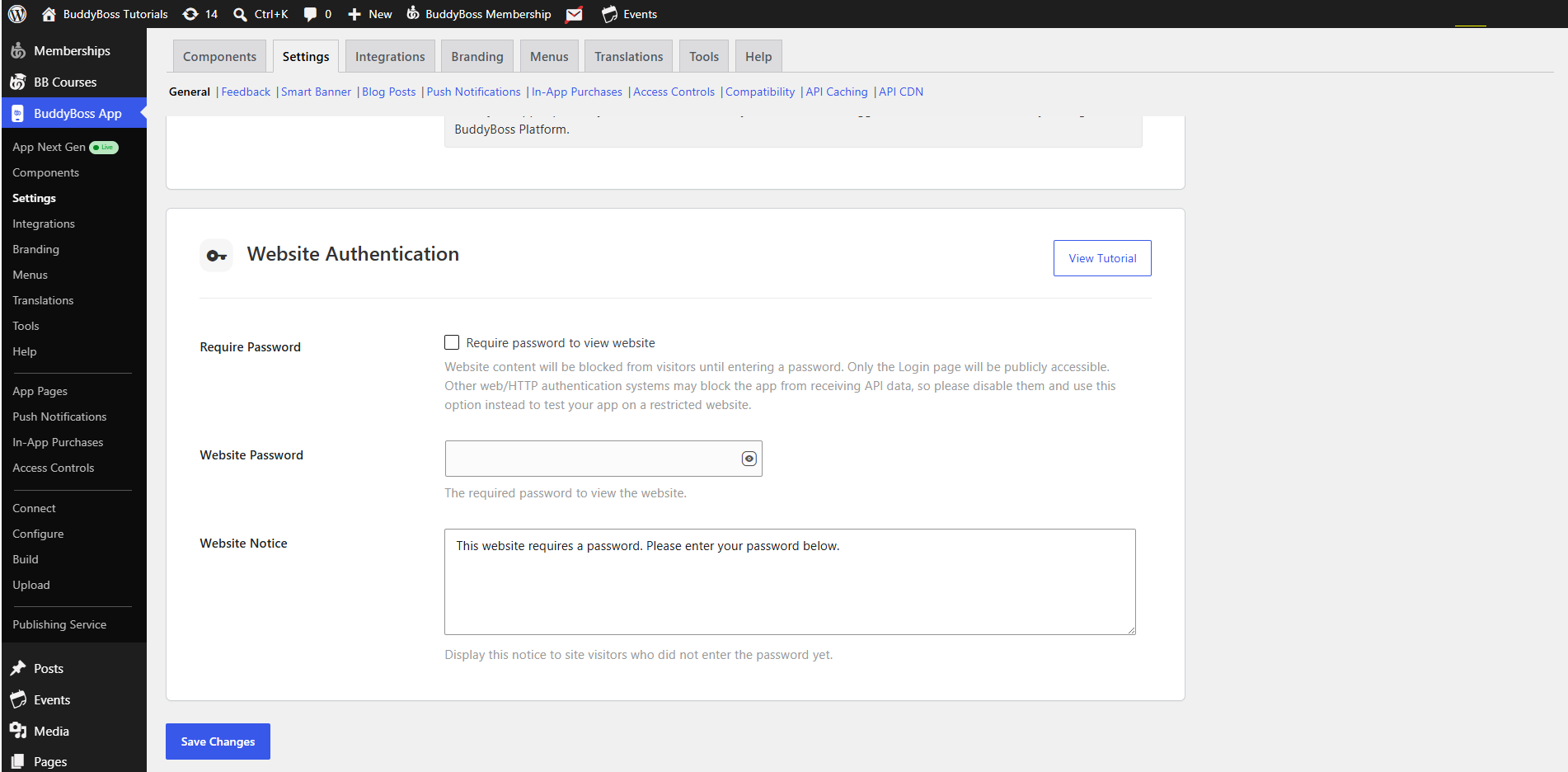
- In WordPress, go to BuddyBoss App > Settings > General.
- Scroll to Website Authentication.
- Check Required Password.
- Click Save Changes.
Verifying the Login Prompt
- Open your site in an Incognito or private browser window.
- Confirm you see the password prompt with your Website Notice.
- Enter an incorrect password to ensure you get the “Incorrect password” error.
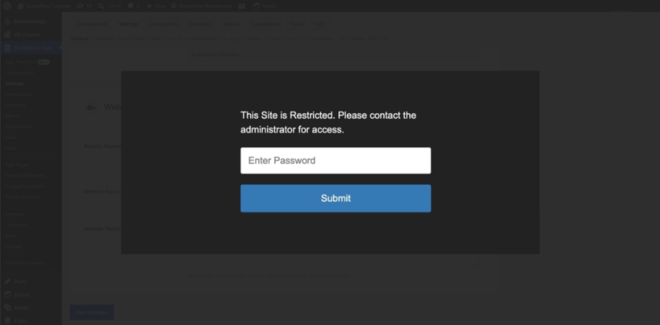
- Enter the correct password to access the site.
Changing the Website Password and Notice
- In BuddyBoss App > Settings, locate Website Authentication.
- Click the eye icon next to Website Password to reveal the current password.
- Update the Website Password and Website Notice as desired.
- Click Save Changes.
- Reopen your site in Incognito to confirm the new notice and password are required.