














The BuddyBoss App Translations feature allows you to translate text in the BuddyBoss App or customize existing labels to better match your community, audience, and brand. You can replace default app strings with another language or change specific terms, such as Blog to Articles, directly from your WordPress Dashboard.
This guide explains how to find app strings, add translations or custom text, save your changes, and verify the updated wording in the BuddyBoss App.
Accessing the Translations Panel
- In your WordPress Dashboard, navigate to BuddyBoss App > Translations.
- Locate the search bar at the top of the panel.
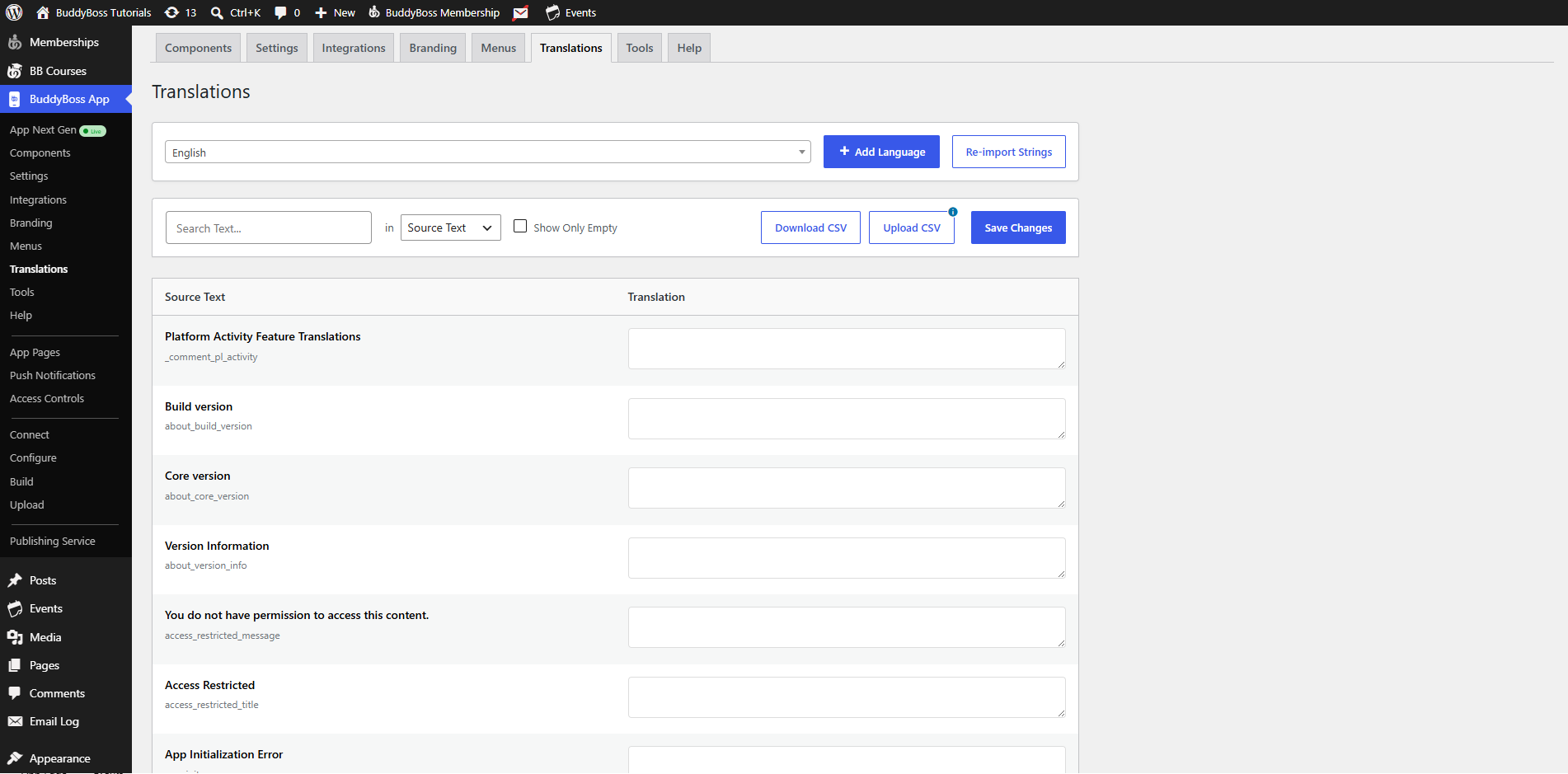
Searching for Text to Translate
- Enter the word or phrase you want to change (e.g., Blog) into the search bar.
- Review the list of instances where that text appears in the app.
Adding Your Translation
- Next to each original string, click the translation field.
- Type your preferred text, this can be any language or a customized English term (e.g., Articles).
- Click Save Changes to apply your updates.
Verifying Translations in the App
- Open the BuddyBoss App on your mobile device.
- Navigate to the section where the modified text appears.
- Confirm that the new wording displays correctly.
Troubleshooting and FAQs
Q: My translations aren’t showing in the app.
A: After saving, force-close and reopen the BuddyBoss App to clear its cache and load the latest strings.
Q: I can’t find the text I want to translate.
A: Search for a partial substring (e.g., “Art” to find Articles) or verify the exact original text as displayed in the app.
Q: Changes reverted after reload.
A: Always click Save Changes. Unsaved edits will be lost if you navigate away or refresh the page.
Q: Can I revert to the default text?
A: Clear the custom translation field and click Save Changes to restore the original string.
Q: Dynamic or placeholder text isn’t editable.
A: Only static strings exposed in BuddyBoss App > Translations can be modified; dynamic variables may not appear.