














The BuddyBoss Membership Email Settings tab allows you to customize the email notifications sent by BuddyBoss Membership. You can choose which emails are sent to members and administrators, edit the email templates, send test emails, and configure the sender information.
Access BuddyBoss Membership Email Settings
- Log in to your WordPress Admin Dashboard.
- Go to Memberships > Settings.
- Open the Emails tab.
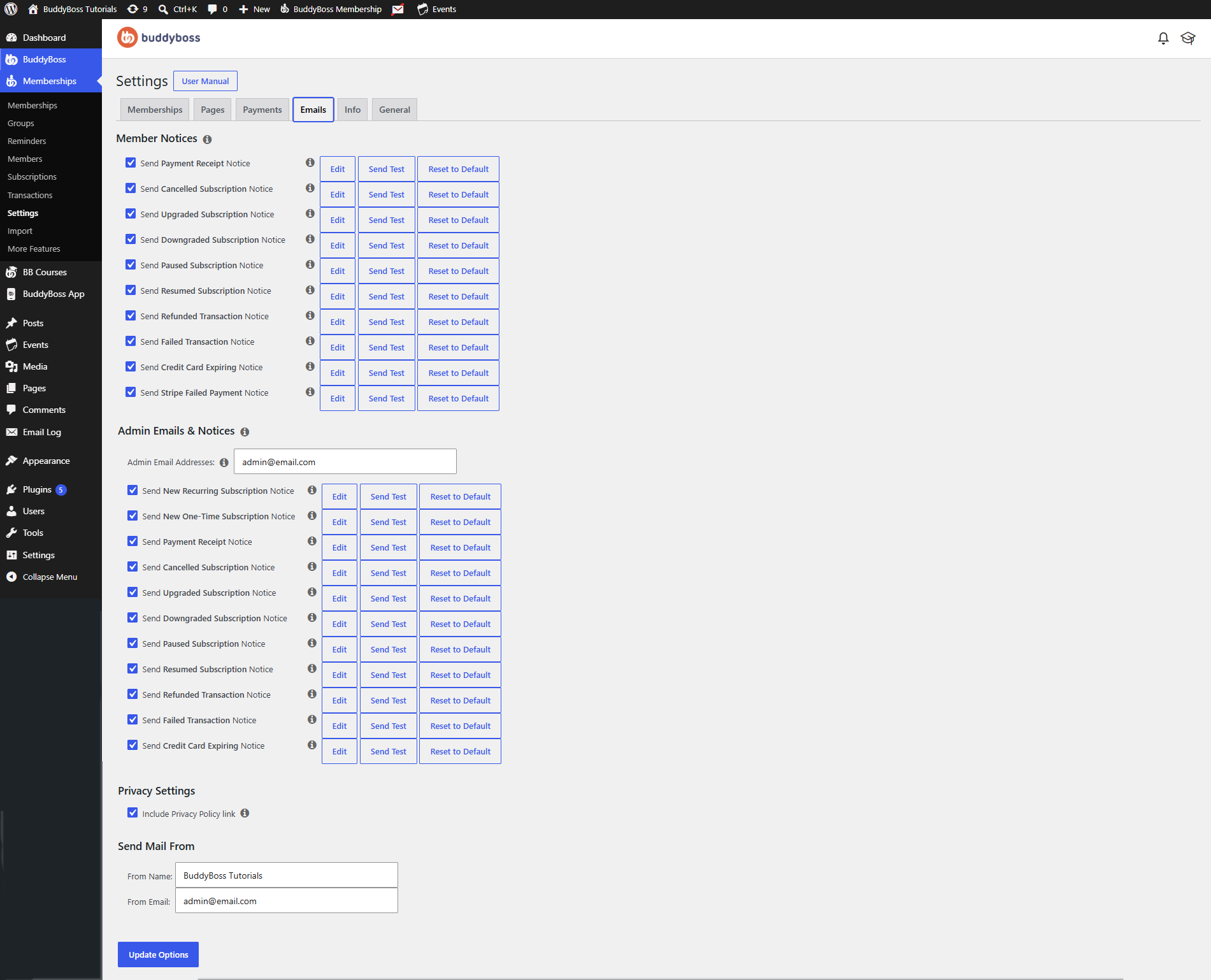
Member Notices
The Member Notices section controls the automated emails sent to members throughout their membership lifecycle.
Enable or disable any notification by checking or unchecking its corresponding checkbox.
Available member notifications include:
- Payment Receipt Notice
- Cancelled Subscription Notice
- Upgraded Subscription Notice
- Downgraded Subscription Notice
- Paused Subscription Notice
- Resumed Subscription Notice
- Refunded Transaction Notice
- Failed Transaction Notice
- Credit Card Expiring Notice
- Stripe Failed Payment Notice
Each notification includes the following actions:
- Edit – Customize the email subject and message content.
- Send Test – Send a sample email to verify the email’s appearance and formatting.
- Reset to Default – Restore the original BuddyBoss email template if you want to discard your changes.
Admin Emails & Notices
The Admin Emails & Notices section controls the notifications sent to site administrators.
Admin Email Addresses – Enter one or more email addresses that should receive membership-related notifications. Multiple email addresses can be added if you want more than one administrator to receive notifications.
Available Administrator Notifications
Enable or disable the following administrator notifications:
- New Recurring Subscription Notice
- New One-Time Subscription Notice
- Payment Receipt Notice
- Cancelled Subscription Notice
- Upgraded Subscription Notice
- Downgraded Subscription Notice
- Paused Subscription Notice
- Resumed Subscription Notice
- Refunded Transaction Notice
- Failed Transaction Notice
- Credit Card Expiring Notice
Each administrator notification also includes the following actions:
- Edit – Customize the email subject and message content.
- Send Test – Send a sample email to verify the email’s appearance and formatting.
- Reset to Default – Restore the original BuddyBoss email template if needed.
Privacy Settings
Include Privacy Policy Link
Enable Include Privacy Policy Link to automatically include a link to your website’s Privacy Policy in outgoing membership emails.
This helps members easily access your privacy policy and supports compliance with privacy regulations.
Send Mail From
Configure the sender information displayed in outgoing emails.
- From Name – Enter the name recipients will see as the sender of your membership emails.
- From Email – Enter the email address that will appear as the sender of all membership emails.
For the best email deliverability, use an email address associated with your website’s domain.
Save Your Changes
After configuring your email settings:
- Review your changes.
- Click Update Options.
Your membership email preferences will be saved and applied immediately.