














The BuddyBoss Membership General Settings tab allows you to configure localization settings, currency formatting, administrative options, and card testing protection for BuddyBoss Membership.
Access BuddyBoss Membership General Settings
- Log in to your WordPress Admin Dashboard.
- Go to Memberships > Settings.
- Open the General tab.
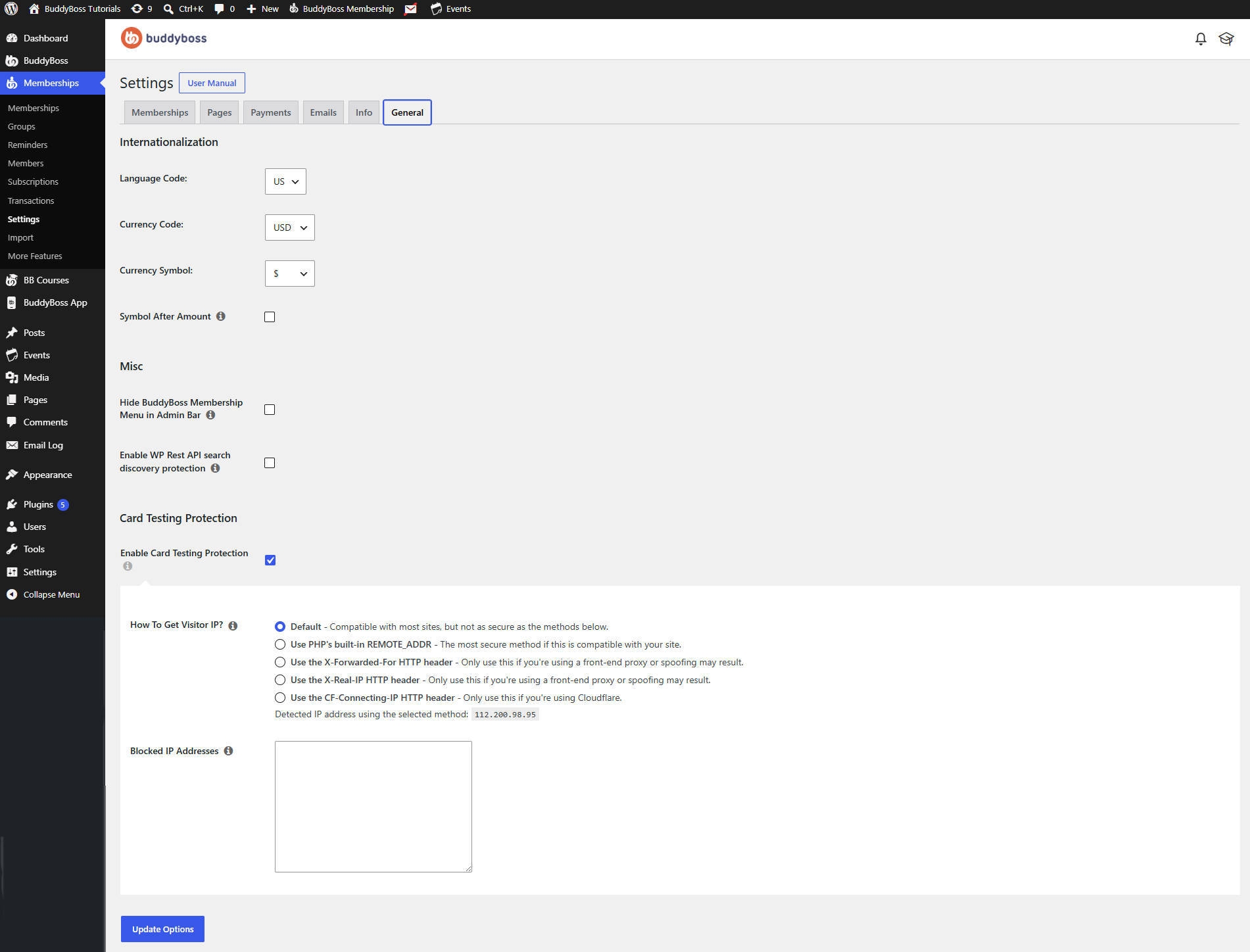
Internationalization
The Internationalization section lets you customize the language and currency settings used throughout your membership system.
Language Code – Select the default language or locale used by BuddyBoss Membership. Choose the appropriate country or regional language code from the dropdown list.
Currency Code – Select the currency used for all membership pricing and payment transactions.
Currency Symbol – Choose the symbol displayed alongside membership prices.
Symbol After Amount – Enable Symbol After Amount if you want the currency symbol to appear after the amount instead of before it.
Misc
The Misc section contains additional administrative and security options.
Hide BuddyBoss Membership Menu in Admin Bar – Enable this option to remove the BuddyBoss Membership shortcut from the WordPress Admin Bar.
This helps reduce clutter in the admin toolbar for logged-in administrators.
Enable WP REST API Search Discovery Protection – Enable this option to help prevent search engines or automated tools from discovering your site’s REST API search endpoints.
This provides an additional layer of privacy and security for your website.
Card Testing Protection
The Card Testing Protection feature helps protect your website against automated credit card testing attacks.
Enable Card Testing Protection – Enable this option to activate BuddyBoss Membership’s card testing protection features. Once enabled, additional configuration options become available.
How to Get Visitor IP
Select the method BuddyBoss should use to detect a visitor’s IP address.
Available options include:
- Default – Compatible with most websites and recommended for general use.
- Use PHP’s built-in REMOTE_ADDR – The most secure option if it is compatible with your server configuration.
- Use the X-Forwarded-For HTTP header – Recommended only if your website uses a trusted reverse proxy. Incorrect configuration may allow IP spoofing.
- Use the X-Real-IP HTTP header – Recommended only when your website uses a front-end proxy.
- Use the CF-Connecting-IP HTTP header – Use this option if your website is behind Cloudflare.
BuddyBoss also displays the IP address currently detected using the selected method so you can verify that the correct visitor IP is being identified.
Blocked IP Addresses
Enter one IP address per line to permanently block specific IP addresses from interacting with your membership payment system.
This is useful for blocking known malicious users or automated bots attempting fraudulent payment activity.
Save Your Changes
After configuring your general settings:
- Review your changes.
- Click Update Options.