














The BuddyBoss Membership Payment Methods tab allows you to configure the payment gateways used to accept membership payments on your BuddyBoss website. Before members can purchase paid memberships, you must add and configure at least one payment gateway.
Access BuddyBoss Membership Payment Methods
- Log in to your WordPress Admin Dashboard.
- Go to Memberships > Settings.
- Open the Payments tab.
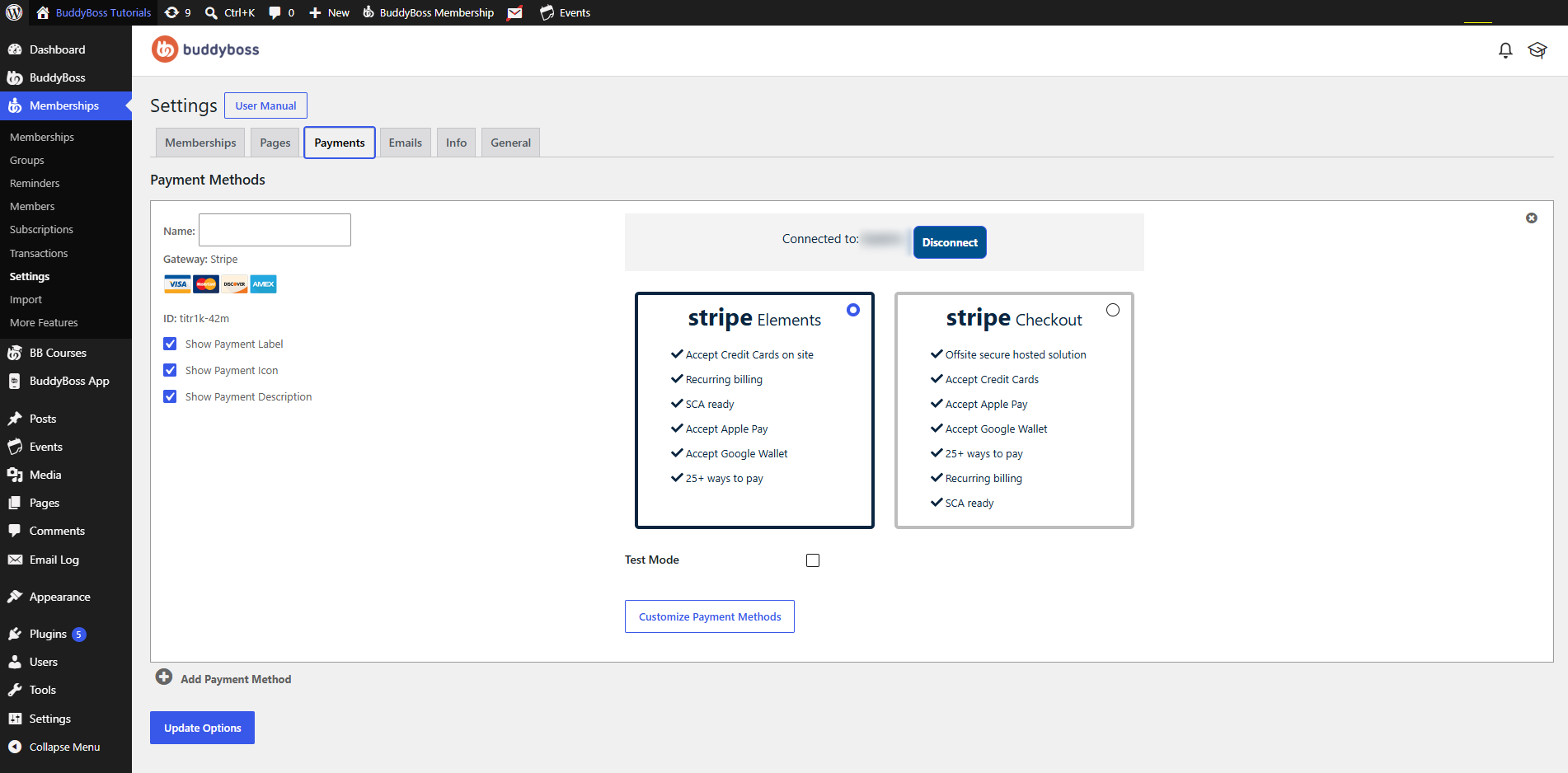
Add a Payment Method
If no payment gateways have been configured, the Payment Methods section will be empty.
To add your first payment gateway:
- Click Add Payment Method (+).
- A new payment gateway configuration panel will appear.
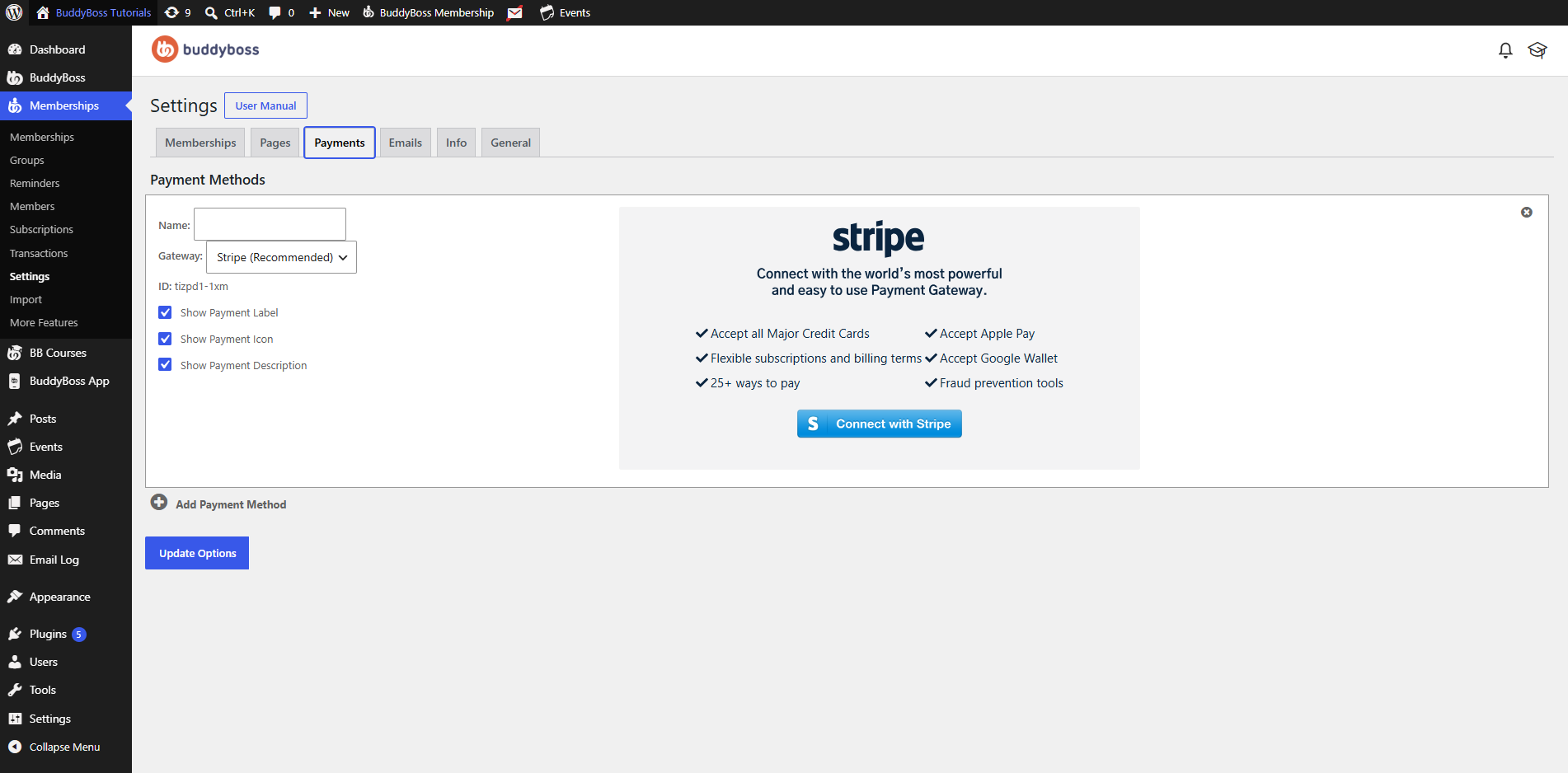
Configure the Payment Gateway
After adding a payment method,configure the available options.
Complete Payment Gateway Information
Name – Enter a name for the payment gateway. This name is for your reference and can also be displayed to members during checkout if payment labels are enabled.
Gateway – Choose the payment provider from the Gateway dropdown.
Currently, BuddyBoss Membership supports:
- Stripe (Recommended)
Stripe supports:
- Credit and debit card payments
- Apple Pay
- Google Wallet
- Flexible recurring subscriptions
- Fraud protection tools
- More than 25 supported payment methods
Click Connect with Stripe to link your Stripe account and complete the payment gateway setup.
Gateway ID – Each payment gateway is automatically assigned a unique ID. This identifier is generated by BuddyBoss and is used internally by the plugin. In most cases, you do not need to modify it.
Payment Display Options
Choose how the payment method appears on your membership checkout page.
Show Payment Label – Displays the payment gateway name during checkout.
Show Payment Icon – Displays the payment provider’s icon or logo.
Show Payment Description – Displays a short description of the payment method to help members understand the available payment option.
These display settings improve the checkout experience by providing clear payment information.
Add Multiple Payment Methods
To configure additional payment gateways:
- Click Add Payment Method (+) again.
- Configure the new gateway.
- Repeat as needed for each supported payment provider.
Save Your Changes
After configuring your payment methods:
- Review your payment gateway settings.
- Click Update Options.
Your payment gateway configuration will be saved and ready to process membership payments on your website.