














The BuddyBoss Membership Settings page allows you to configure the global behavior of BuddyBoss Memberships. From this page, you can define default memberships, customize the registration and pricing experience, assign default BuddyBoss Groups to members, and protect profile pages.
Access BuddyBoss Membership Settings
- Log in to your WordPress Admin Dashboard.
- Go to Memberships > Settings.
- Open the Memberships tab.
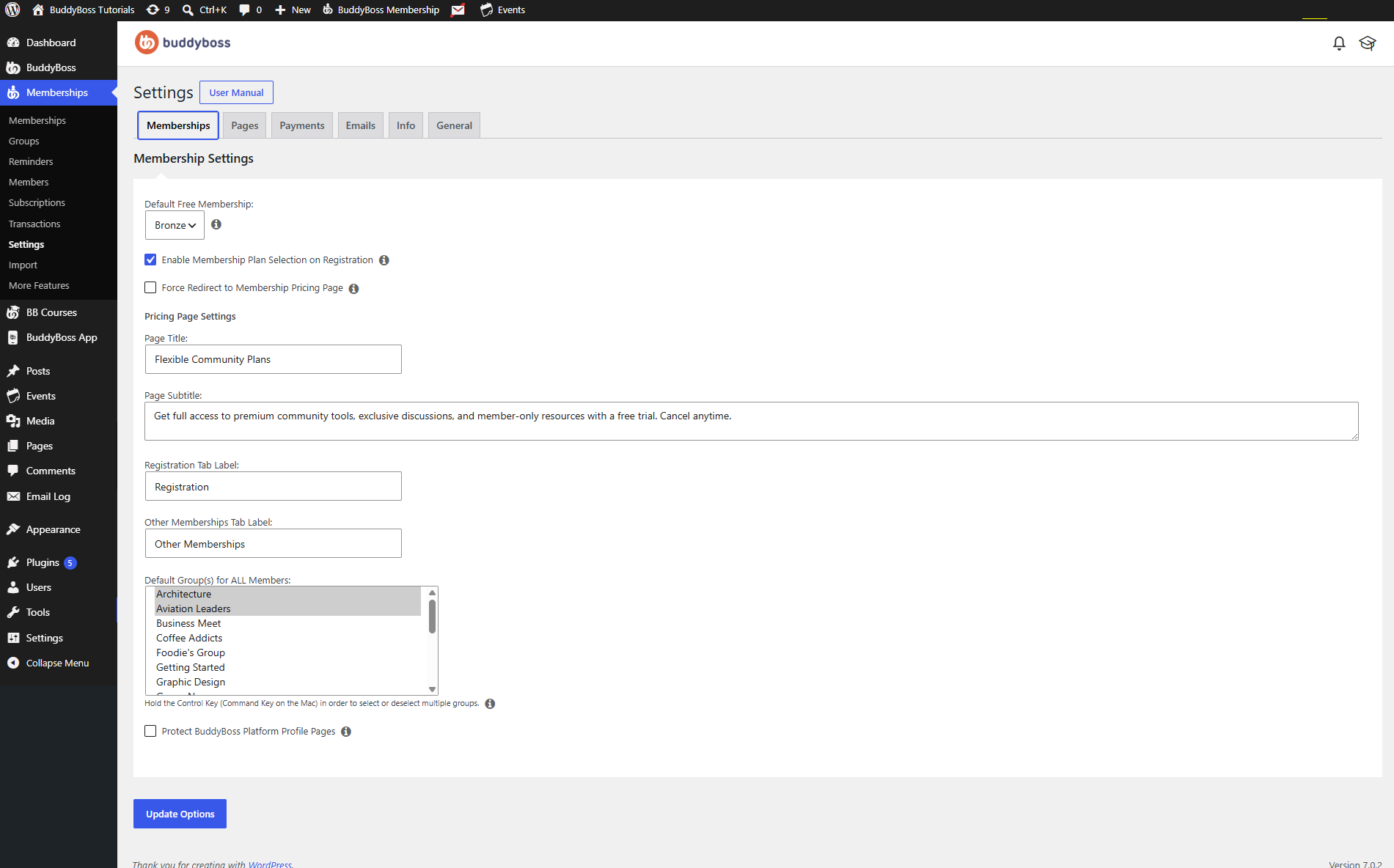
Configure Membership Settings
Default Free Membership – Select the membership that will automatically be assigned to users who register for a free account. If you do not want a free membership assigned automatically, leave this option set to None.
Enable Membership Plan Selection on Registration – Enable this option to allow users to choose a membership plan during the registration process.
When disabled, users will register without selecting a membership unless one is assigned automatically.
Force Redirect to Membership Pricing Page – Enable Force Redirect to Membership Pricing Page to automatically redirect any logged-in user without an active membership to the Membership Pricing page.
When enabled:
- Logged-in users without an active membership are redirected to the Membership Pricing page configured under Pages.
- This applies to all logged-in users who do not have an active membership, not just users who registered without selecting a plan.
- Users can still access the Membership Pricing page and the Membership Checkout page to purchase or subscribe to a membership.
This setting helps ensure that users without an active membership are directed to a page where they can choose and purchase a membership before accessing protected content.
Configure the Membership Pricing Page
The Pricing Page Settings section lets you customize the information displayed on your membership pricing page.
- Page Title – Enter the title displayed at the top of the pricing page.
- Page Subtitle – Enter introductory text that appears beneath the page title. Use this area to explain the benefits of your memberships or encourage visitors to subscribe.
- Registration Tab Label – Customize the name of the registration tab displayed on the pricing page.
- Other Memberships Tab Label – Customize the label used for the tab that displays additional membership plans.
Assign Default BuddyBoss Groups
The Default Group(s) for ALL Members option automatically adds new members to one or more BuddyBoss Groups after registration.
To assign default groups:
- Select one or more BuddyBoss Groups from the list.
- Hold Ctrl (Windows) or Command (⌘) (Mac) to select multiple groups.
- Save your changes.
Every newly registered member will automatically become a member of the selected BuddyBoss Groups.
Protect BuddyBoss Platform Profile Pages
Enable Protect BuddyBoss Platform Profile Pages to automatically restrict access to BuddyBoss member profile pages based on a user’s membership status.
When enabled:
- Logged-out visitors can only access the main /members/ page. All individual member profile pages and subpages are protected.
- Logged-in users without an active membership can only access the Membership section of a member’s profile, where they can view BuddyBoss Membership information and available plans. All other profile sections remain restricted.
- Logged-in users with at least one active membership can access the protected member profile pages and their available subpages according to their permissions.
This feature replaces the need for a custom URL rule that protects the /members/ section of your website.
Important: Before enabling this option, remove any existing Custom URI rules that protect the /members/ section. Running both at the same time may cause conflicting access restrictions.
This setting provides a simpler and more centralized way to secure BuddyBoss member profiles while ensuring users are directed to the appropriate membership information when access is restricted.
Save Your Changes
After configuring the Membership settings:
- Review your changes.
- Click Update Options.
Your global Membership settings will be applied immediately across your website.