














Introduction
The BuddyBoss Blog Page Settings control how blog posts are presented to visitors. You can choose which social sharing buttons appear, display related posts to encourage additional reading, and show author information beneath each article. These settings help improve content discovery and create a more engaging reading experience.
Tutorial Video
Access the Blog Page Settings
To access the Blog Page Settings:
- Log in to your WordPress Admin Dashboard.
- Go to BuddyBoss > Settings.
- Under BuddyBoss Add-ons, enable Member Blogging if it is not already enabled.
- Click Settings on the Member Blogging card.
- Select Blog Settings.
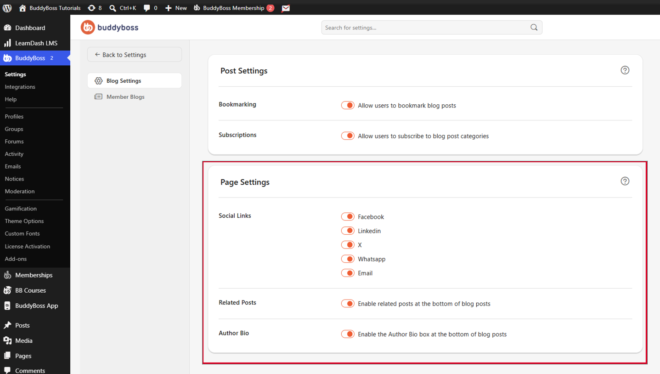
Configure Social Links
Choose which social sharing buttons appear on your blog posts by enabling or disabling the available platforms.
Available options include:
- X (formerly Twitter)
Configure Related Posts
The Related Posts option helps readers discover additional content.
- Enable related posts at the bottom of blog posts – Displays similar blog posts beneath each article to encourage visitors to continue exploring your content.
Configure the Author Bio
The Author Bio option displays information about the author at the end of each blog post.
- Enable the Author Bio box at the bottom of blog posts – Shows the author’s profile information beneath each blog post, allowing readers to learn more about the person who wrote the article.