














Introduction
The BuddyBoss Member Blog Permissions allow you to control which members are allowed to create blog posts in your BuddyBoss community. Instead of granting blog creation access to everyone, you can restrict access based on WordPress roles, BuddyBoss profile types, memberships, gamification achievements, or other member attributes.
Tutorial Video
Access the Member Blog Permissions
To access the Member Blog Permissions:
- Log in to your WordPress Admin Dashboard.
- Go to BuddyBoss > Settings.
- Under BuddyBoss Add-ons, ensure Member Blogging is enabled.
- Click Settings on the Member Blogging card.
- Select Member Blogs.
- Scroll down to the Permissions section.
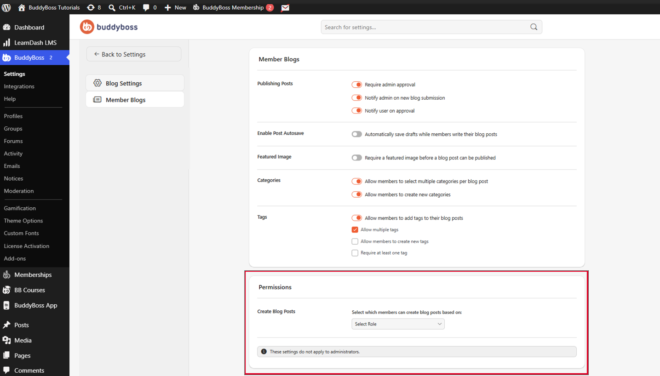
Configure Blog Creation Permissions
Use the Select Role dropdown to choose how blog creation permissions are assigned.
You can select one of the following permission methods:
- WordPress Role – Allow members to create blog posts based on their assigned WordPress user role, such as Subscriber, Contributor, Author, or Editor.
- Profile Type – Restrict blog creation to members assigned to specific BuddyBoss Profile Types.
- GamiPress – Grant blog creation permissions based on GamiPress achievements, points, ranks, or other gamification criteria.
- Membership – Allow only members with selected BuddyBoss Membership plans to create blog posts.
- Gender – Restrict blog creation permissions based on the member’s selected gender profile field.
Note: These permission settings do not apply to administrators. Administrators always have permission to create and manage blog posts.