














The BuddyBoss App’s multilingual support allows you to add, edit, and remove complete language packs, import and export translation CSV files, and configure both automatic language detection and manual language selection
These features apply to every native UI element buttons, labels, prompts, and menus—enabling full localization for your users.
Follow the guide below to set up Multilingual Support in your App.
Managing a New Language in the BuddyBoss App
Adding a New Language
To begin supporting additional languages, first add each language you wish to include:
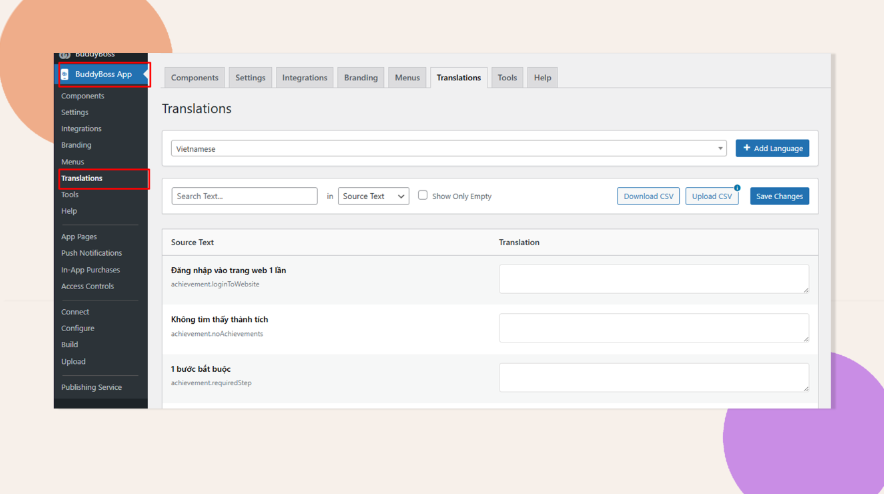
- In your WordPress admin, navigate to BuddyBoss App > Translations.
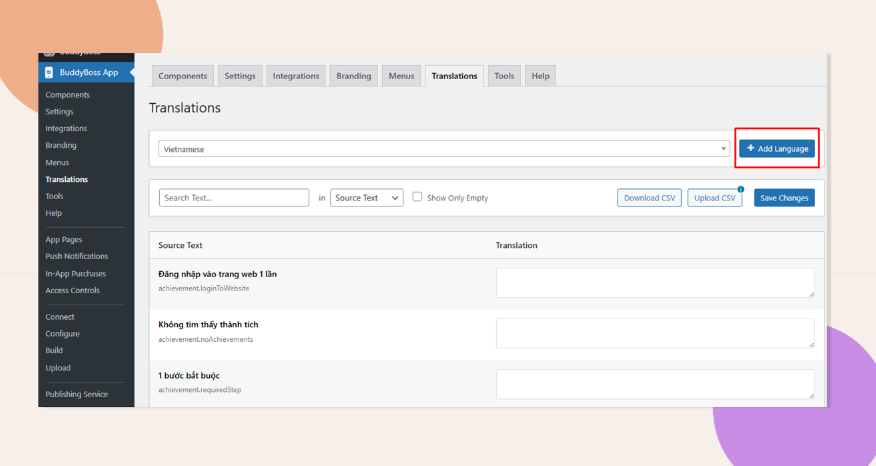
- Click Add Language to open a pop-up with a single-select dropdown.
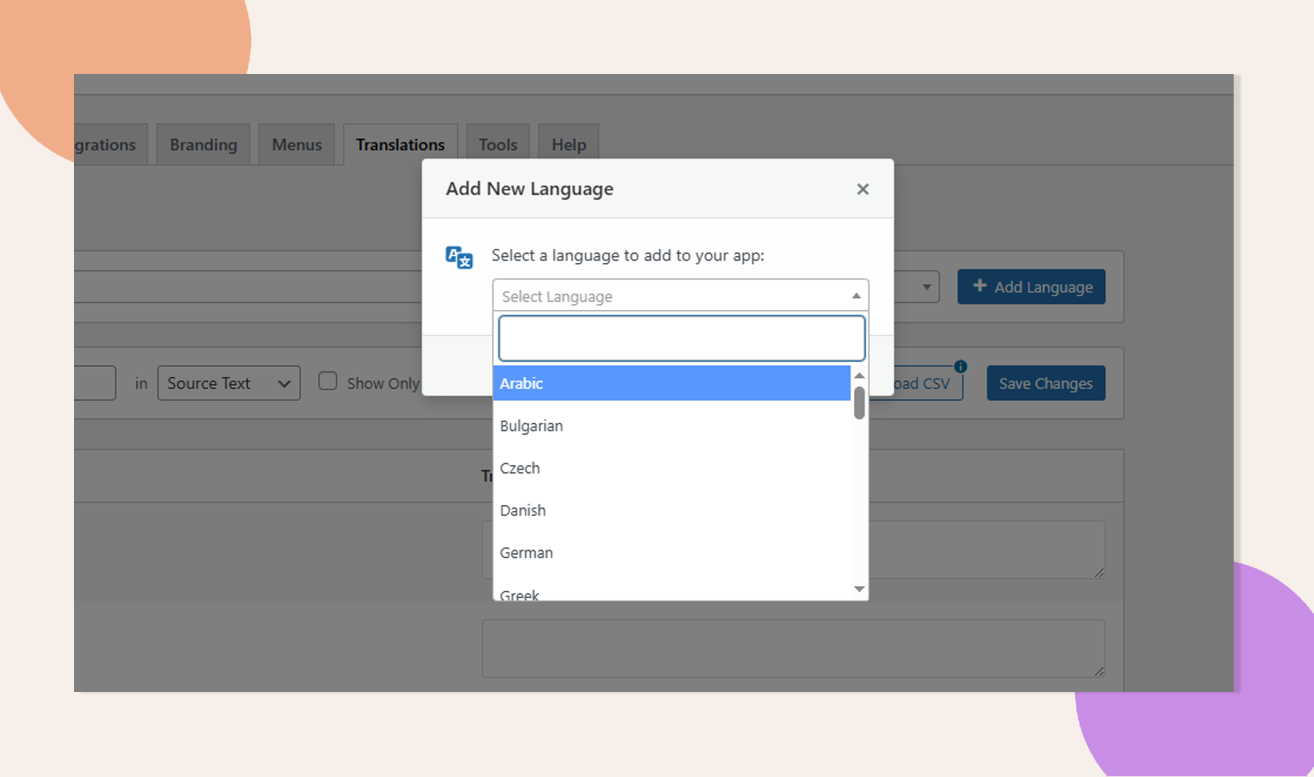
- Choose your target language (options are pulled from the supported-languages list).
- Click Save Changes to register the new language.
Deleting a Language
If you later decide to remove a language from the app:
- Go to BuddyBoss App > Translations.
- Select the language that you want to delete.
- Scroll down the translations page.
- Click Delete Language.
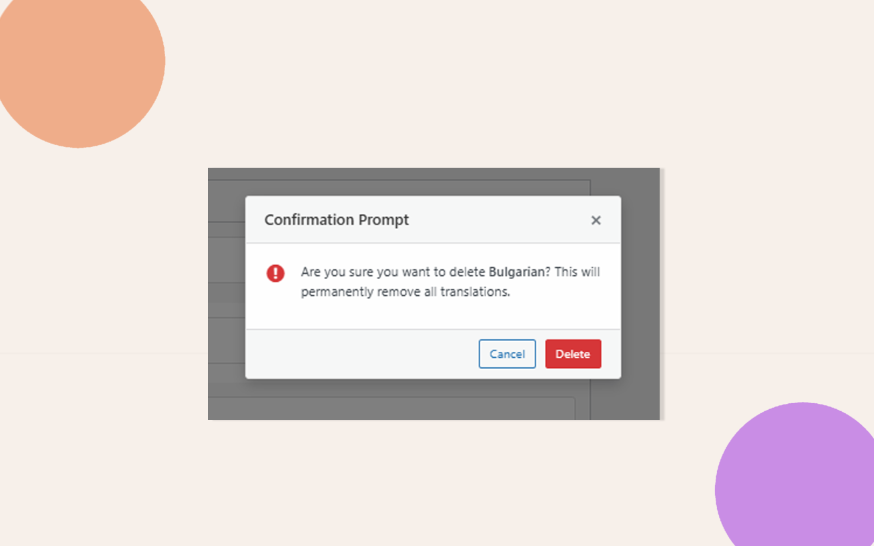
- Confirm the prompt. The language and all its translations will be permanently removed.
Editing Default Text Strings
Once a language is added, its default text strings load automatically in that locale. You can refine these translations either directly in the BuddyBoss App admin dashboard or via CSV:
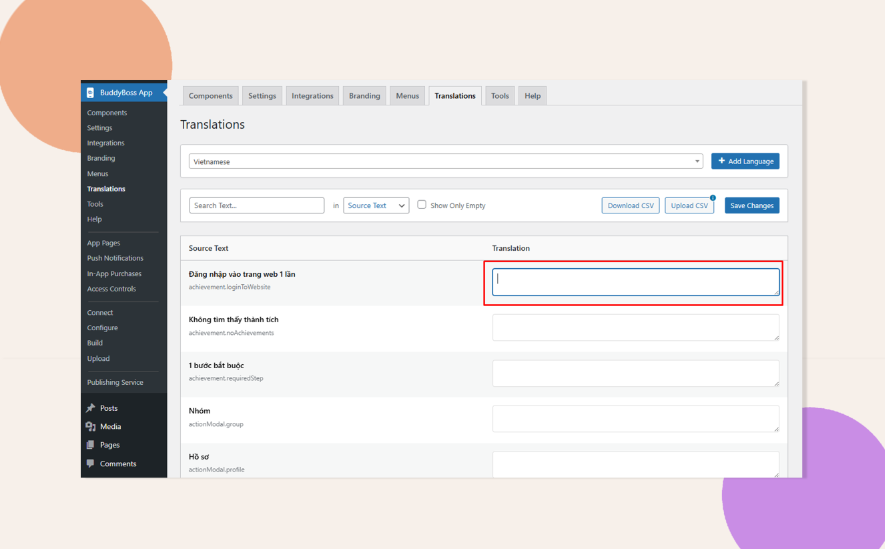
Backend Editing
You may edit the translated default text strings individually by:
- Change the default string to your preference.
- Click Save Changes.
CSV File Editing
To bulk-edit the default text strings, you may update the CSV language file. You can do this by:
Download the CSV Language File
- Click Download CSV to export all translation keys and values for the selected language.

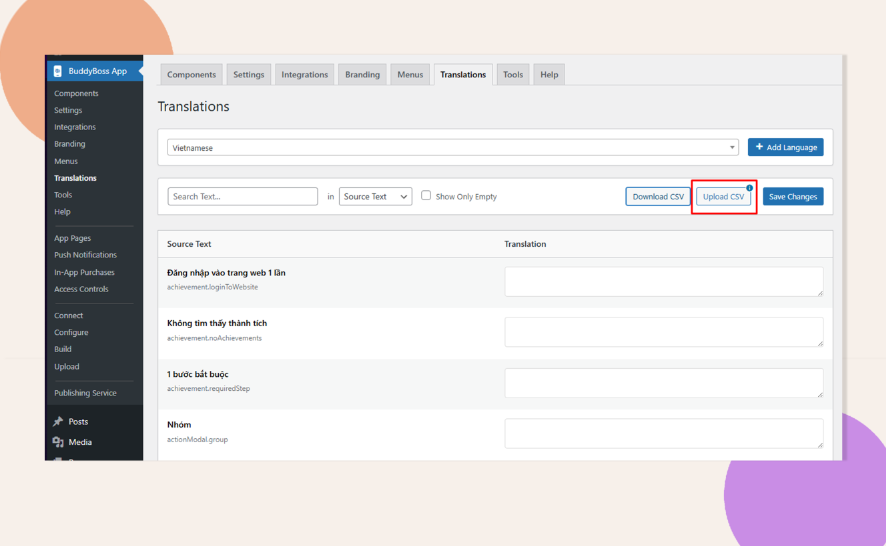
Upload the CSV Language File
After completing your edits to the default text strings, upload the revised CSV language file to apply your changes.
- Click Upload CSV to import the translation file.
User Option to Switch Language
Once the new languages are added, users will be able to change the app’s language on the app’s frontend. This can be done by doing the following:
- In the app, go to Settings > Language.
- Select a new language from the bottom sheet.
- The app automatically relaunches, showing UI strings in the chosen language.
When configuring build permissions, leave your site’s default language disabled if it matches the build’s default (e.g., leave English off if your WordPress site’s language is to English).