














Branding your BuddyBoss App with custom images, logos, and icons elevates the user experience and reinforces your identity. From home-screen logos to launch splash screens and adaptive app icons, this guide shows how you can configure your BuddyBoss app images and Icons, ensuring your mobile app looks polished on both iOS and Android devices.
Recommended Image & Icon Sizes
- Home Screen Logo: 1200 × 180 px
- Login Logo: 1200 × 774 px
- Login Background: 2732 × 2732 px
- Register Background: 2732 × 2732 px
- Launch Screen Background: 2732 × 2732 px
- iOS App Icon & Android App Icon: 1024 × 1024 px
- Android Adaptive Background & Foreground Icon: 1024 × 1024 px
- Android Notification Icon: 256 × 256 px
- Format: PNG or PSD
App Rebranding Graphic Assets Guidelines
Standard Android and iOS App Icon
App icons appear on device home screens and (for iOS) in the App Store. Android requires a separate icon for the Play Store. Modern Android adds a white margin, and uses adaptive icons for best results.
- Dimensions: 1024 × 1024 px
- Safe Zone: 682 × 682 px center
- Format: PNG (32-bit), sRGB
- iOS: Opaque only
- Android: Transparency allowed
Download standard app icon safe zone overlay here.
App Icon
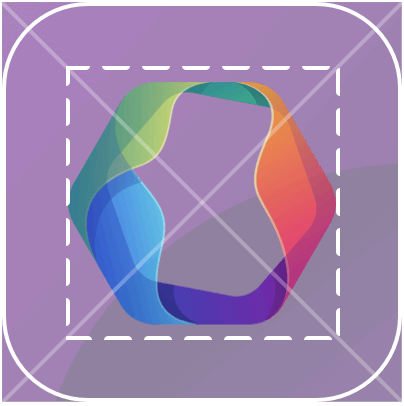
Safe Zone
Adaptive App Icon for Android
Required on Android 8+ for various shapes and parallax effects. Two layers:
- Background Layer: Opaque, 1024 × 1024 px
- Foreground Layer: Transparent logo, 1024 × 1024 px
- Safe Zone: 683 × 683 px center (170 px margin for effects)
- Format: PNG (32-bit), sRGB
Your logo should be in the foreground later. For more information, see these Android guidelines.
For best results, upload both images sized at 1024 x 1024 pixels. The inner 683 px will be visible, with a 170 px outer margin reserved for parallax effects (depending on icon shape). Background icon should be opaque, and foreground icon should include transparency.
Click here to download the adaptive app icon safe zone overlay.
Background
Foreground
Launch/Splash Screen
Displays instantly on startup before the login screen. For more information, see these Apple guidelines.
- Dimensions: 2732 × 2732 px
- Safe Zone: 1200 × 2732 px center
- Format: PNG (32-bit), sRGB
Download launch screen safe zone overlay
Click here to download the launch screen safe zone overlay.
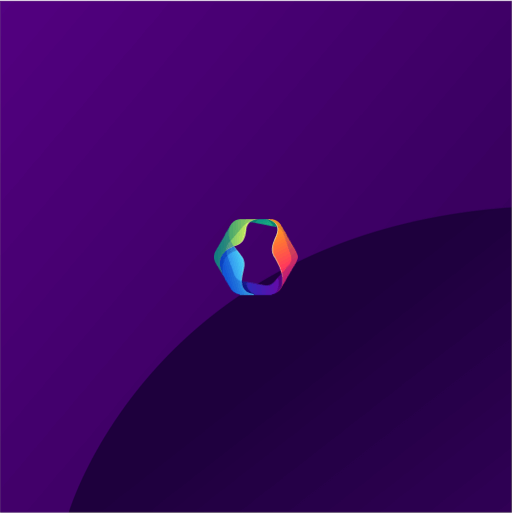
Full Splash Screen
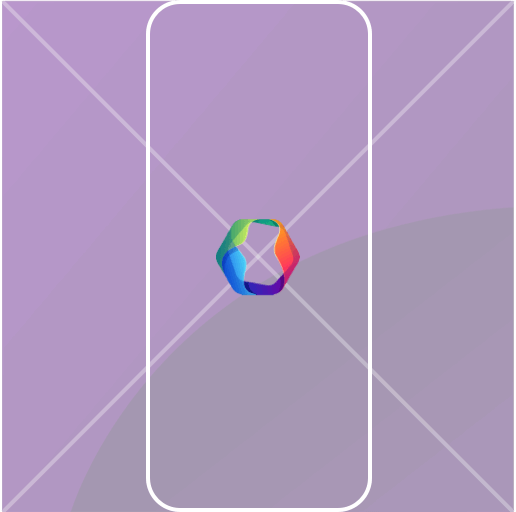
Safe Zone
Login Screen
The login screen can optionally include a logo and background image. If no background image is added, it will display the Login and Signup Screen background color.
Click here to download the login screen safe zone overlay.
- Logo: Max 200 × 150 px within the background image
- Background: 2732 × 2732 px
- Format: PNG (32-bit), sRGB
Download login screen safe zone overlay
Login Background
Login Logo
Enable App Next Gen for Dark Mode Icon Uploads (Optional)
If you want to upload separate icons for Light Mode and Dark Mode, you must first enable the App Next Gen feature. The Dark Mode icon upload option is only available when App Next Gen is enabled.
- Navigate to WordPress Dashboard > BuddyBoss App > App Next Gen.
- Enable the App Next Gen toggle.
Opening the Images & Icons Settings
- In your WordPress admin, go to BuddyBoss App > Branding > Images.
- Verify you see the Images and Icons sections: Home Screen, Login Screens, Register Screens, Launch Screen, App Icons, Android Adaptive Icon, and Notification Icon.
Setting the Home Screen Logo
- Under Home Screen, click Upload Image next to Logo.
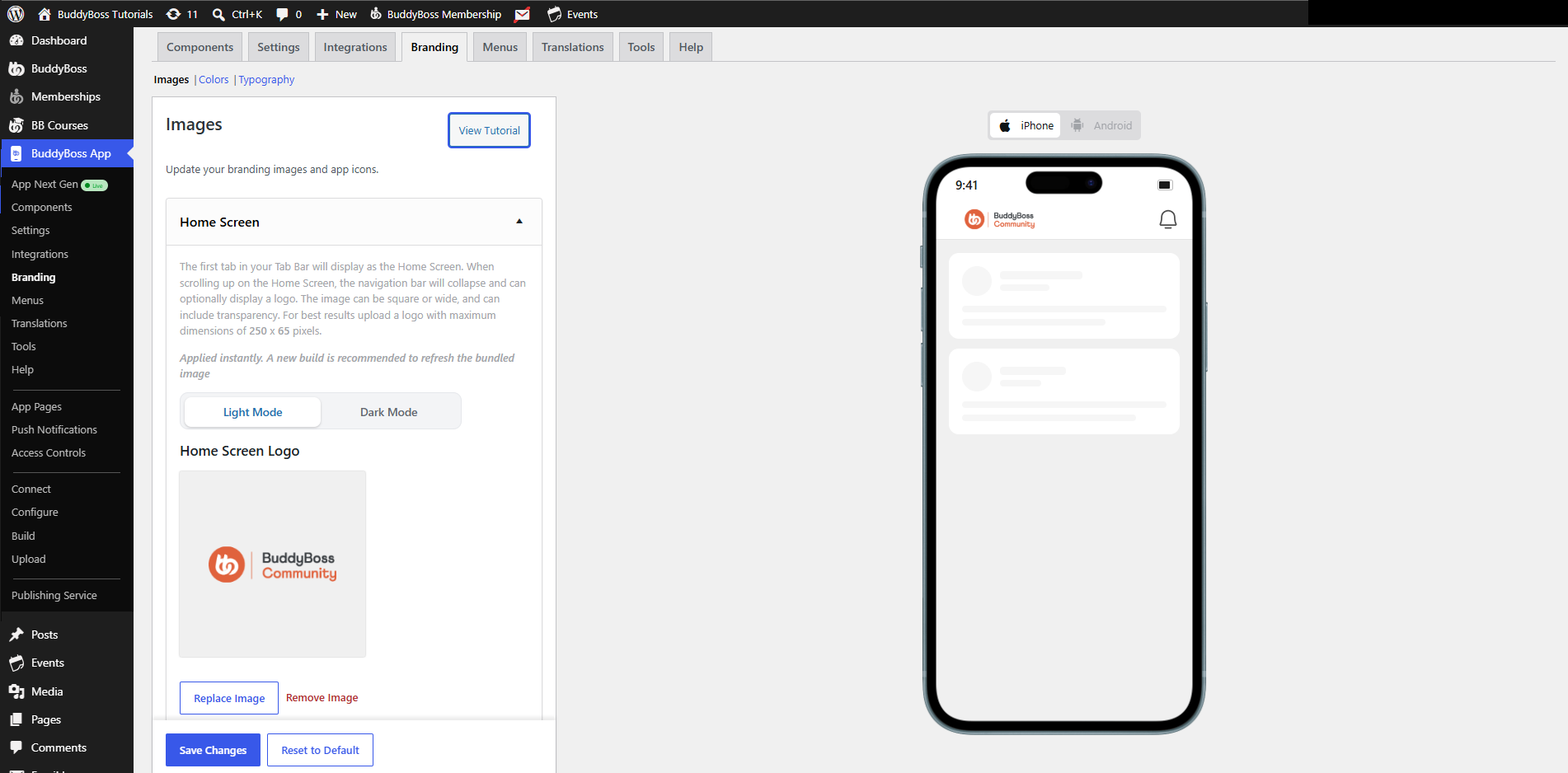
- Resize the logo as desired, then click Save Changes.
- Preview the logo on the right in both iOS and Android mockups.
Note: If App Next Gen is enabled, you can also upload a dark mode version of your Home Screen logo.
Customizing the Login Screen
- In Login Screens, click Upload Image for Login Logo.
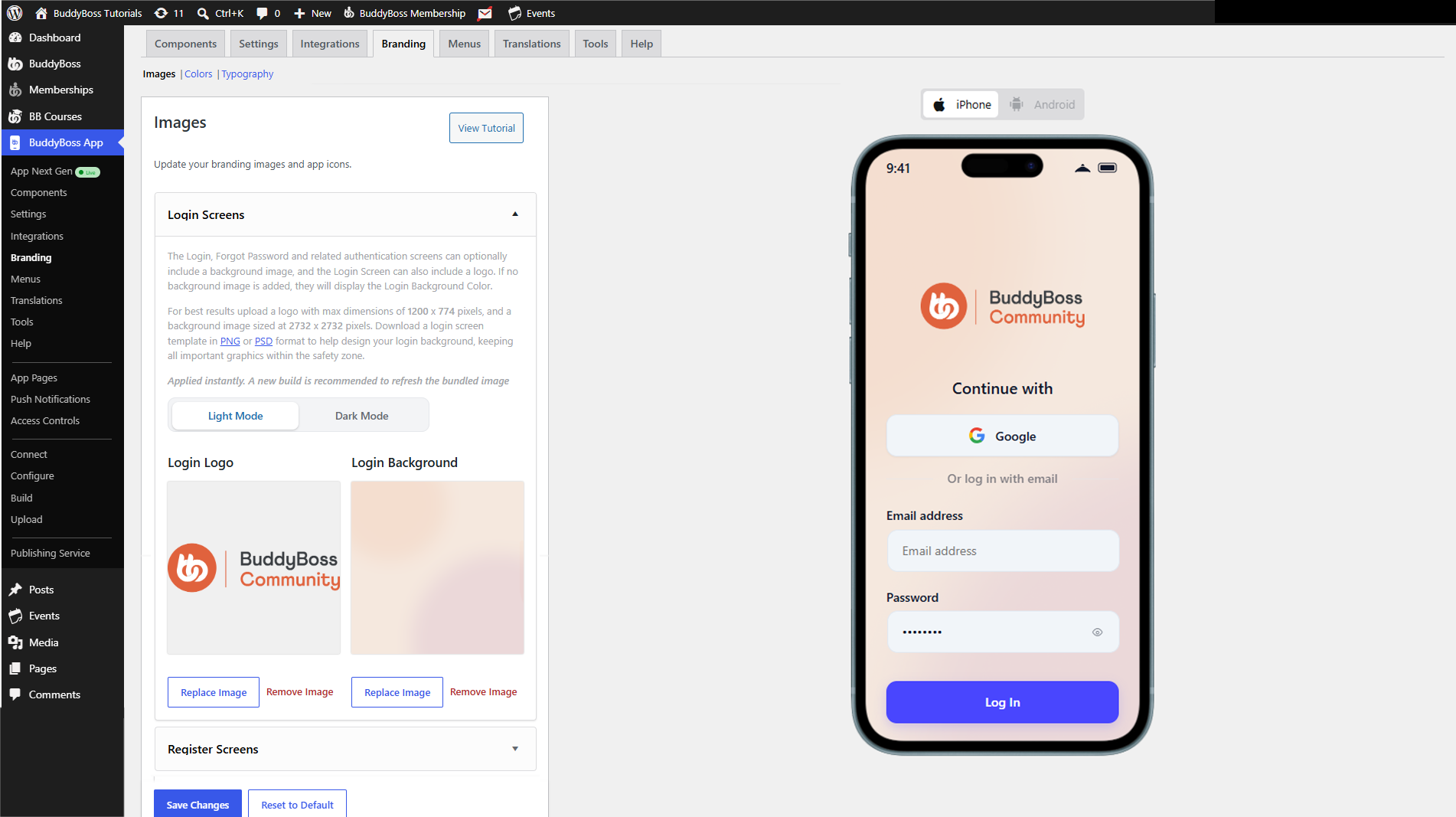
- Click Upload Image for Login Background.
- Click Save Changes to apply each image.
- Toggle the preview between Login and Forgot Password pages.
Note: If App Next Gen is enabled, you can also upload a dark mode version of your Login Screen logos.
Configuring the Register Screen
- Under Register Screens, click Upload Image for Register Background.
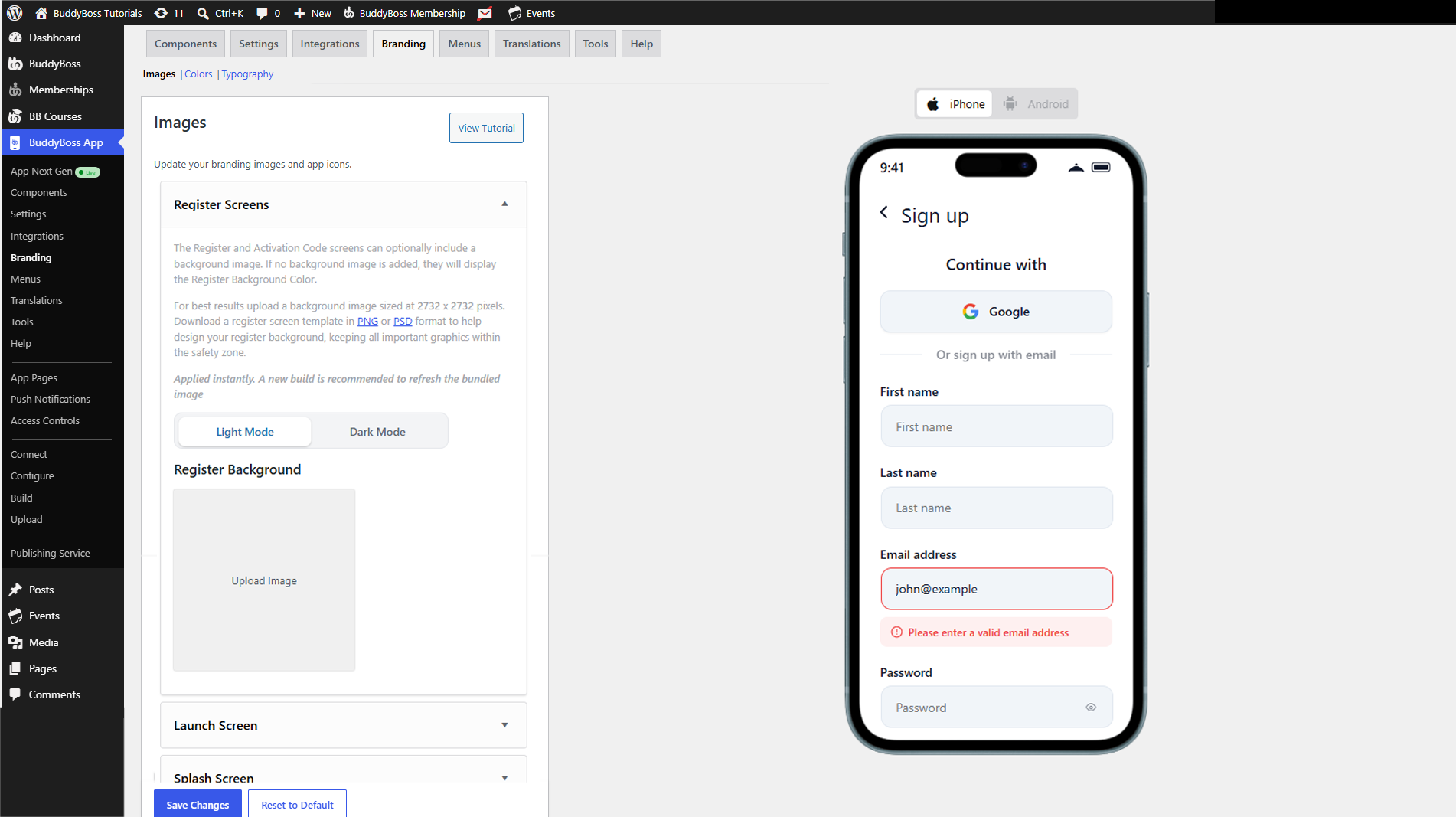
- Click Save Changes to apply.
Note: If App Next Gen is enabled, you can also upload a dark mode version of your Registration Screen logo.
Designing the Launch Splash Screen
- In Launch Screen, click Upload Image for Launch Screen Background.
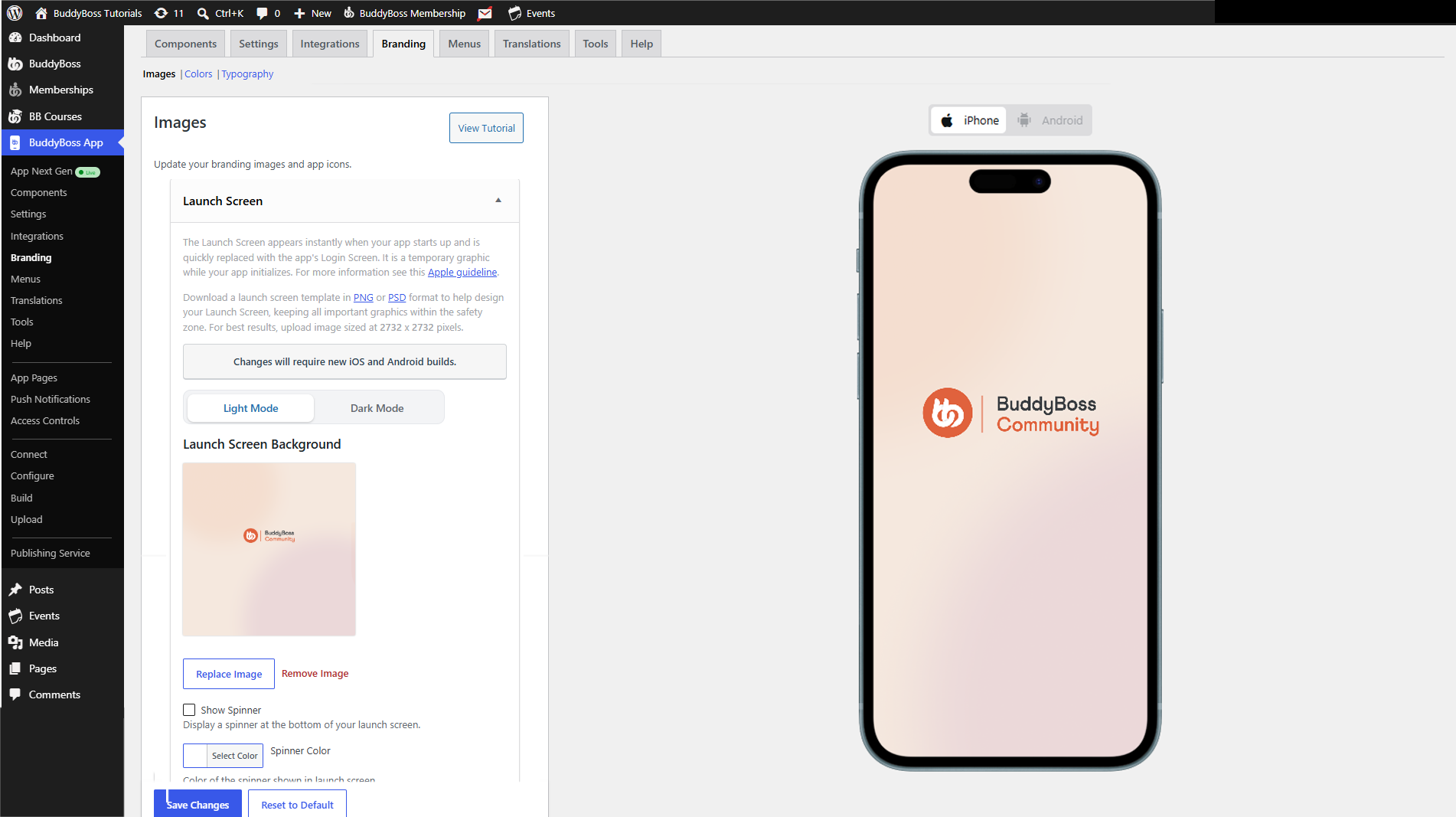
- Tick Show Spinner, choose a Spinner Color, then click Save Changes.
- Preview how the spinner animates on the mockup.
Note: If App Next Gen is enabled, you can also upload a dark mode version of your Launch Splash Screen logos.
Uploading Standard App Icons
- Under App Icons, click Upload Image for iOS App Icon (must be opaque).
- Click Upload Image for Android App Icon (transparency allowed).
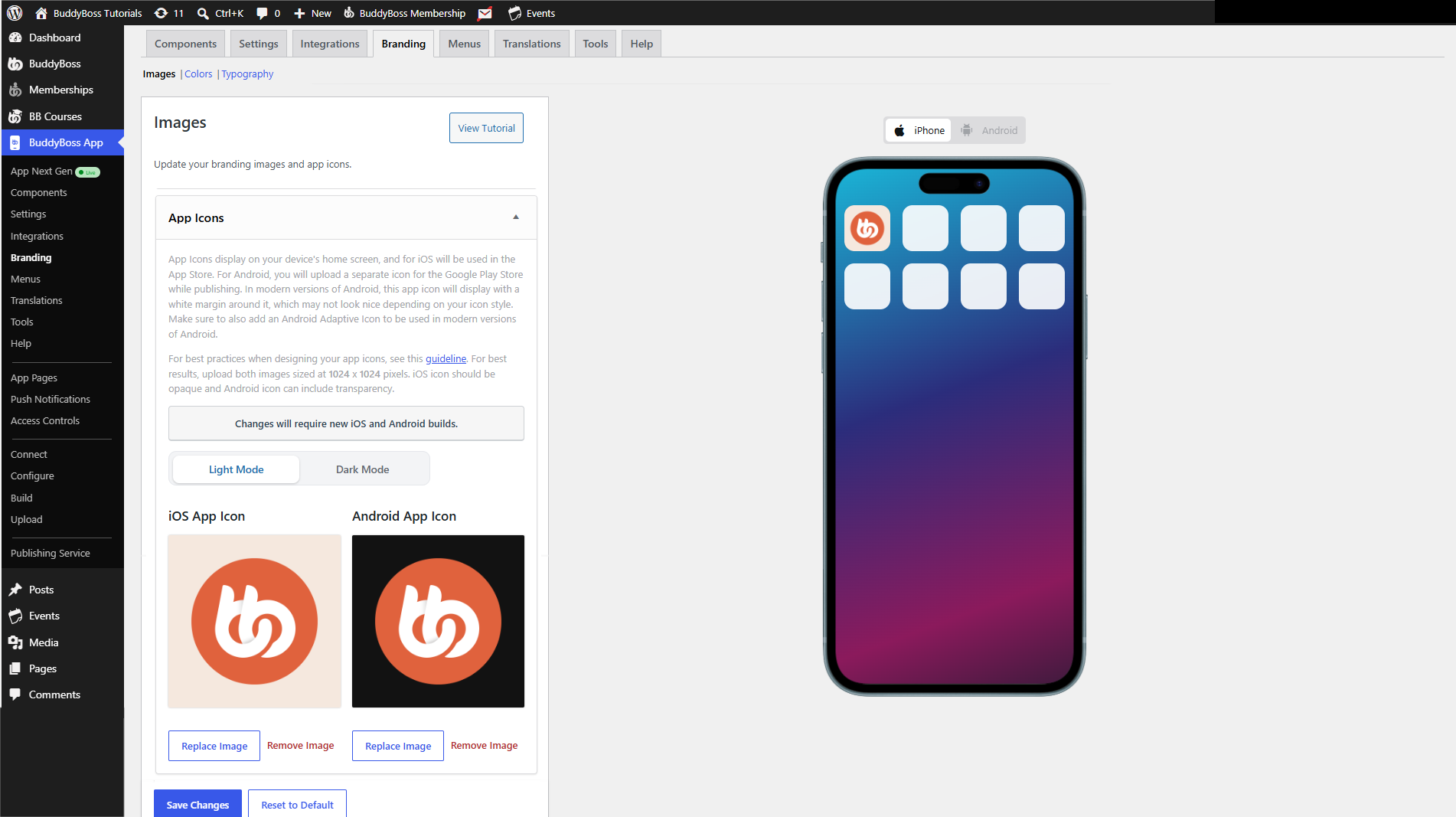
- Resize if needed, then click Save Changes.
- Preview the icons at the bottom mockup for iPhone and Android views.
Note: If App Next Gen is enabled, you can also upload a dark mode version of Standard App Icons.
Adding Android Adaptive Icons
- In Android Adaptive Icon, click Upload Image for Background Icon.
- Click Upload Image for Foreground Icon (logo layer with transparency).
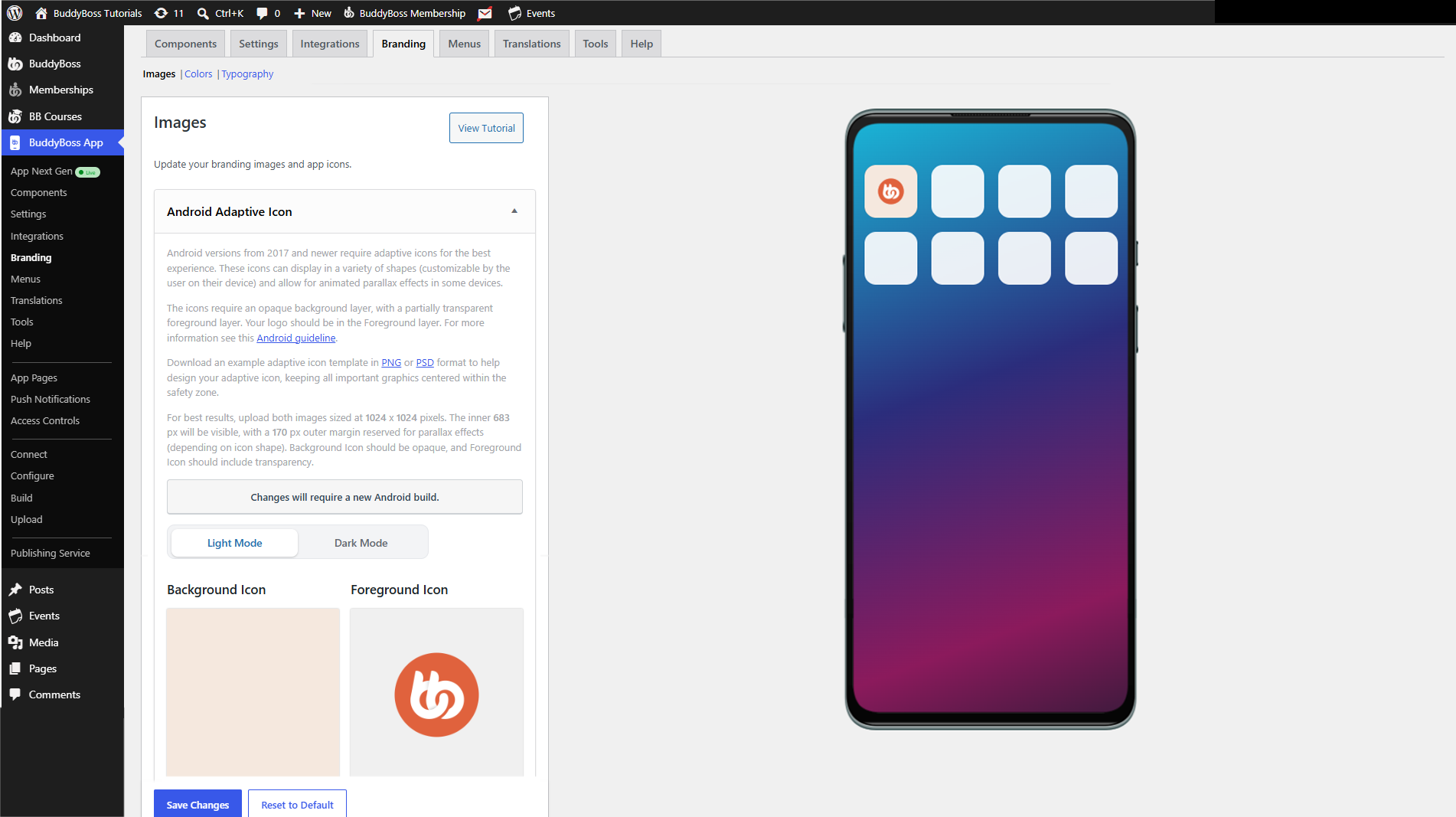
- Click Save Changes, then review the adaptive icon preview on the right.
Note: If App Next Gen is enabled, you can also upload a dark mode version of your Android Adaptive Icons
Setting the Android Notification Icon
- Under Notification Icon, click Upload Image.
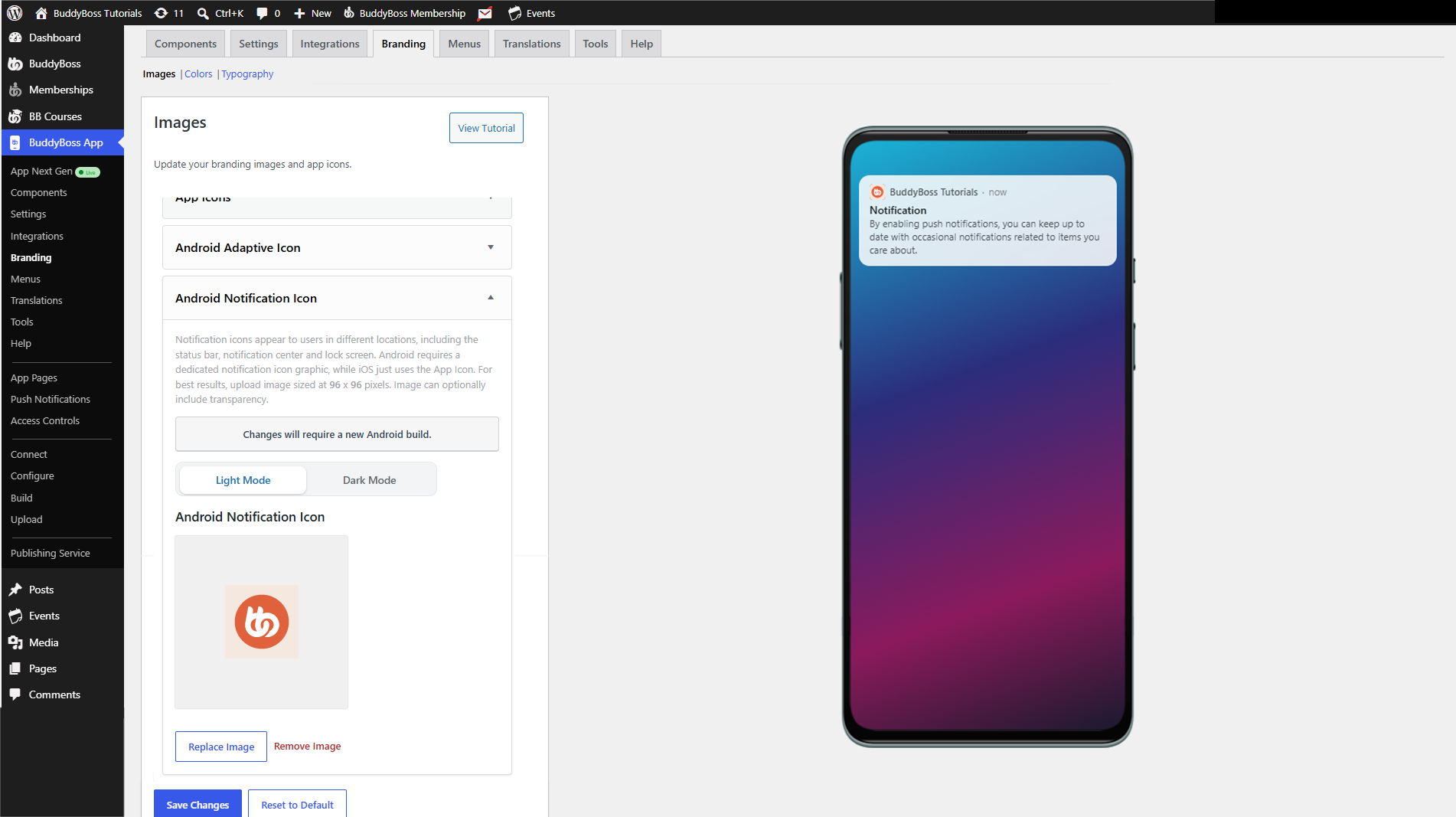
- Click Save Changes, then preview how notifications appear on Android devices.