














The BuddyBoss Course Assignments allows you to create activities that learners must complete as part of their courses. Learn how to configure BuddyBoss Course Assignments.
Using the WordPress Block Editor, you can build assignment pages with text, images, videos, downloadable files, and other supported content. Assignments can also be organized using Curriculum Categories and Curriculum Tags, making it easier to structure and manage your course content.
Download the BuddyBoss Course Assignments Plugin
Before installing the plugin, download it from your BuddyBoss account.
- Log in to your BuddyBoss account.
- Navigate to My Account > Downloads.
- Download the BuddyBoss Course Assignments plugin ZIP file.
Install and Activate the Plugin
- Log in to your WordPress Admin Dashboard.
- Navigate to Plugins > Add New Plugin.
- Click Upload Plugin.
- Select the BuddyBoss Course Assignments ZIP file.
- Click Install Now.
- Click Activate.
Once enabled, the Assignments menu will appear under BB Courses.
Note: The BuddyBoss Courses plugin must already be installed and activated before you can use the BuddyBoss Course Assignments add-on.
Create a New Assignment
- Navigate to BB Courses > Assignments.
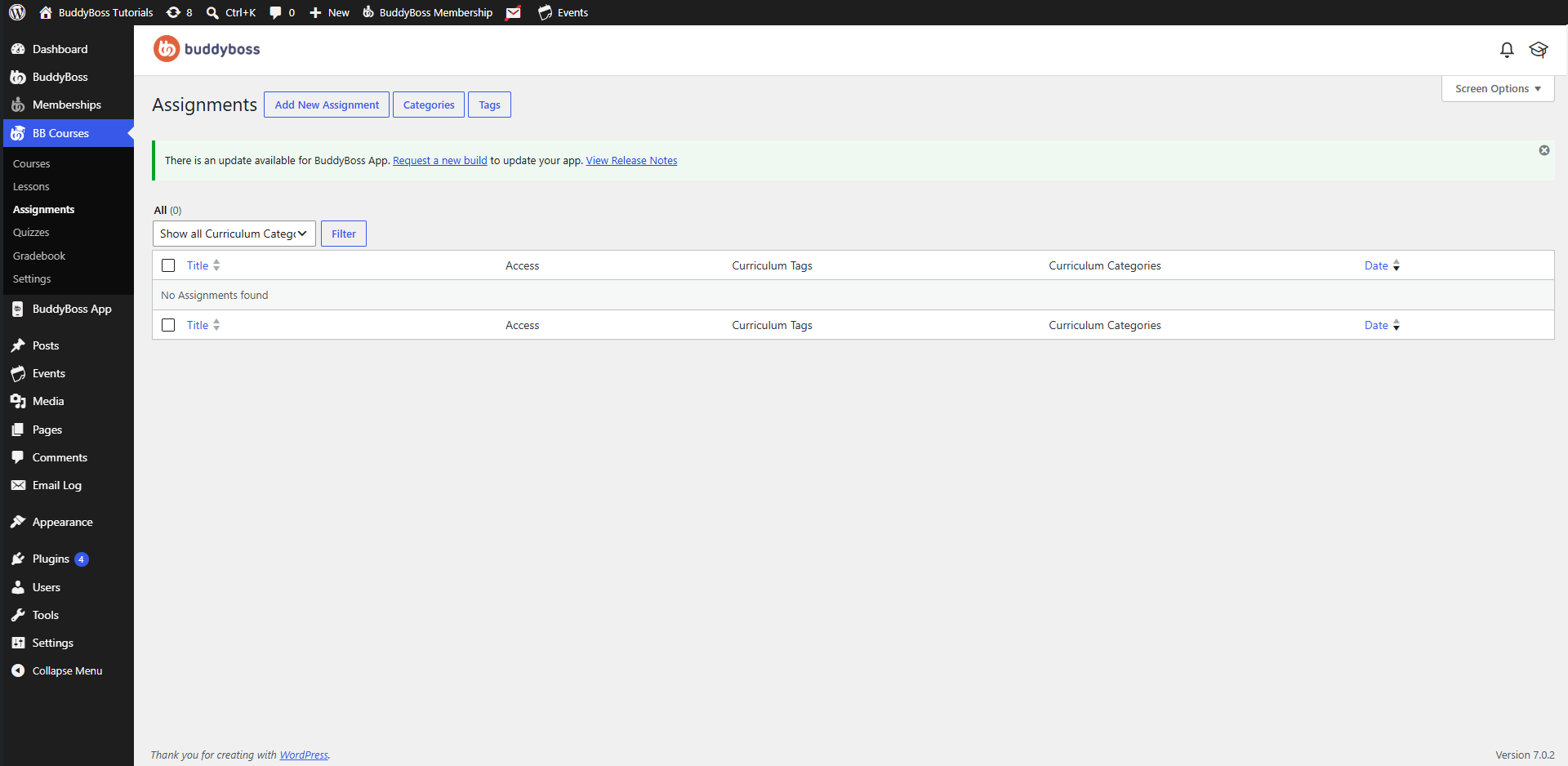
- Click Add New Assignment.
- Enter an Assignment Title.
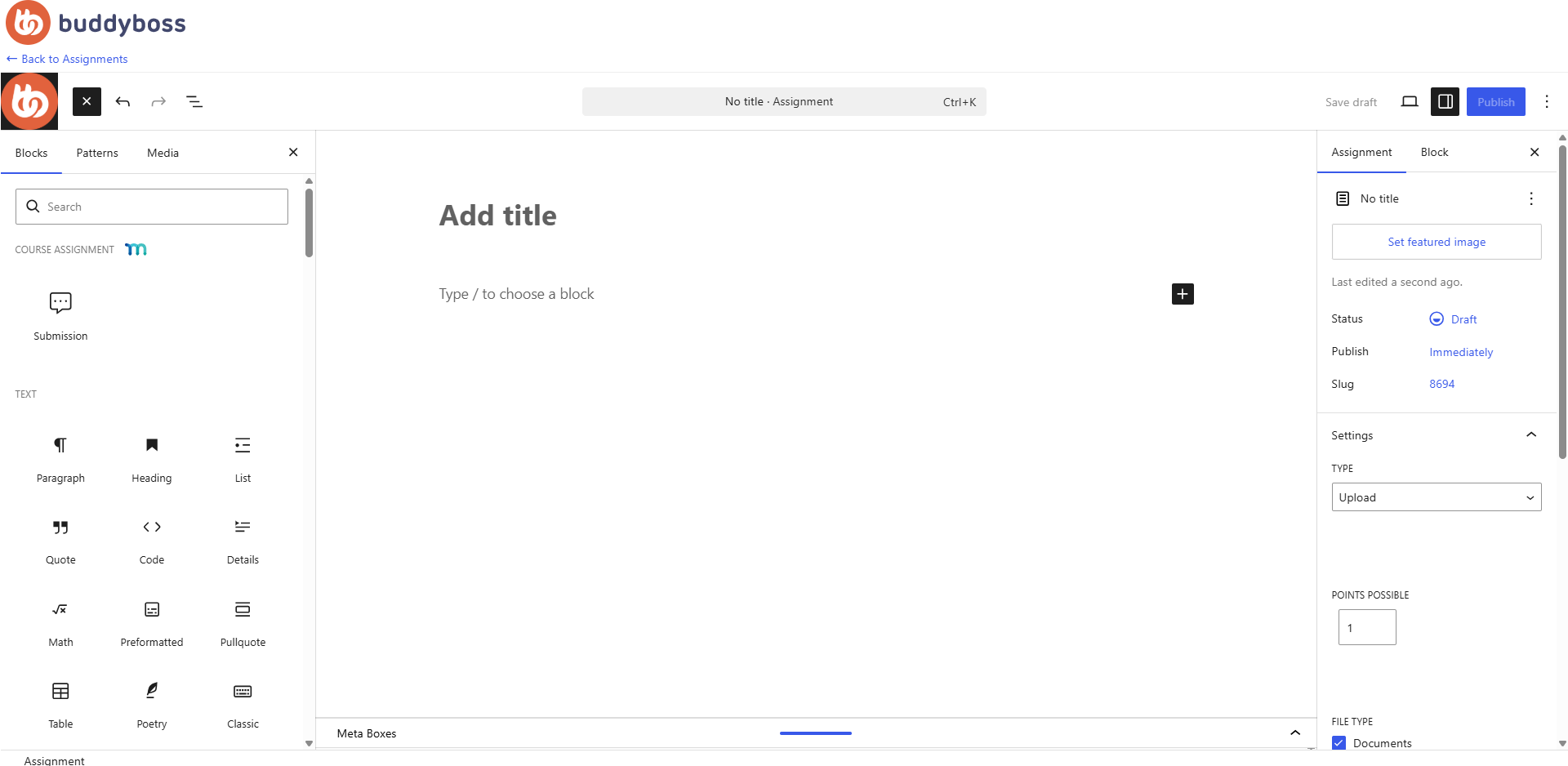
- Build the assignment content using the WordPress Block Editor.
- Configure the assignment settings from the right sidebar.
- Click Publish to make the assignment available to learners.
Build Assignment Content
Assignments use the WordPress Block Editor, allowing you to create rich learning content using any supported WordPress block.
Common blocks include:
- Text and headings
- Images and galleries
- Videos and audio
- Files and downloadable resources
- Tables
- Lists
- Quotes
- Code blocks
- Any other supported WordPress blocks
This gives you the flexibility to create anything from simple assignment instructions to detailed submission requirements.
Configure Assignment Settings
When creating or editing an assignment, you can configure the following options:
- Featured Image – Add an image to represent the assignment.
- Status – Save the assignment as a draft or publish it.
- Publish – Publish immediately or schedule it for a future date.
- Slug – Customize the assignment URL.
- Curriculum Tags – Assign tags to organize related assignments.
- Curriculum Categories – Assign one or more curriculum categories to organize the assignment within your course structure.
Assignment Settings
The Assignment panel contains additional settings that control how learners complete and submit the assignment.
Type
Choose how learners will complete the assignment.
- Upload – Requires learners to upload one or more files as their submission.
- Essay – Allows learners to submit a written response directly through the assignment editor.
Points Possible
Specify the maximum number of points learners can earn for completing the assignment.
File Type
When Upload is selected, choose which file types learners are allowed to submit.
Supported file types include:
- Documents
- Spreadsheets
- Slideshow presentations
- Images
- PDF files
Allow Upload URL
Enable Allow Upload URL to let learners submit a URL instead of uploading a file directly. This is useful when learners need to submit links to cloud storage, online documents, or other web-based resources.
Allow Re-submission
Enable Allow Re-submission to allow learners to submit updated versions of their assignment after an initial submission. This can be useful when instructors request revisions or corrections.