














The BuddyBoss Courses feature allows you to create and organize educational content directly from your BuddyBoss website. You can build complete learning experiences by creating courses, organizing lessons into sections, adding assignments and quizzes, and configuring course settings before publishing.
Accessing the Courses Page
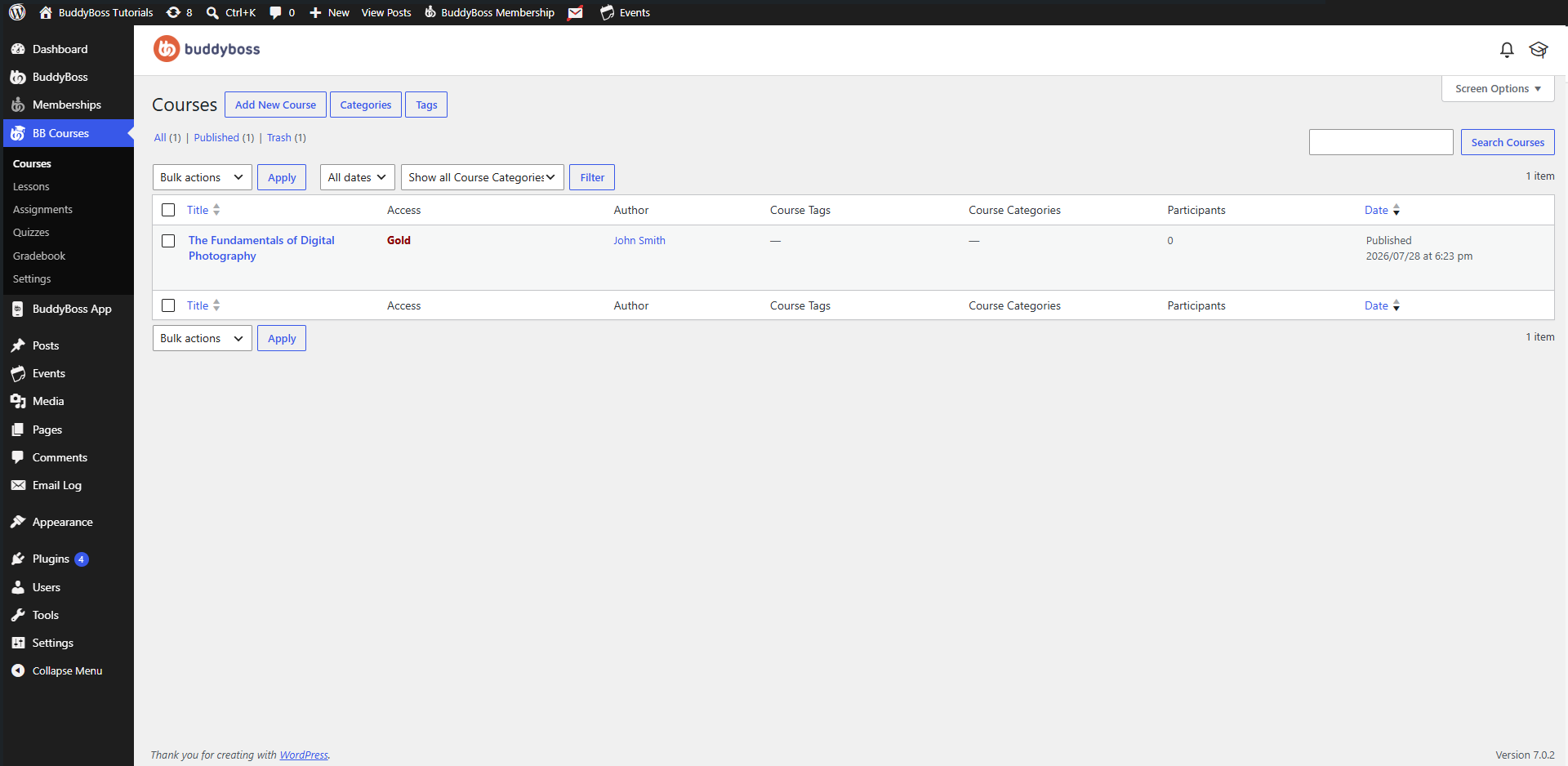
- From your WordPress Dashboard, go to BB Courses > Courses.
- The Courses page displays all existing courses.
- Click Add New Course to create a new course.
- You can also manage Categories and Tags from the top of the page to organize your courses.
Creating a Course
When creating a new course, you’ll find three primary tabs:
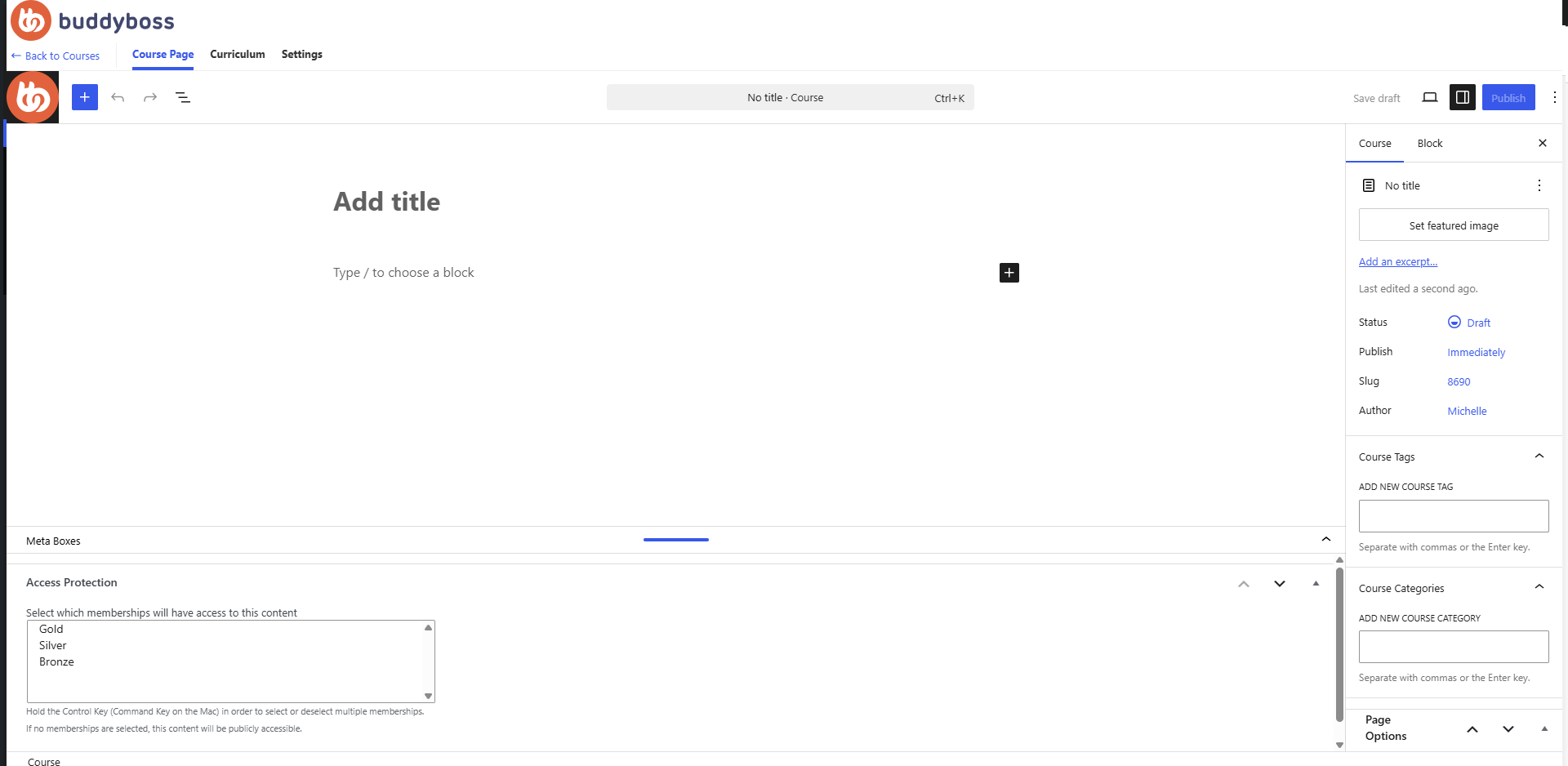
- Course Page
- Curriculum
- Settings
Complete each section before publishing your course.
Course Page
The Course Page is where you create the main course content that learners will see.
You can:
- Add the course title.
- Add course content using the WordPress Block Editor.
- Insert text, images, videos, galleries, tables, buttons, and other supported blocks.
- Set a Featured Image for the course.
- Add an optional Excerpt.
- Assign:
- Course Tags
- Course Categories
- Select the preferred Page Template.
Once complete, save your work or publish the course.
Curriculum
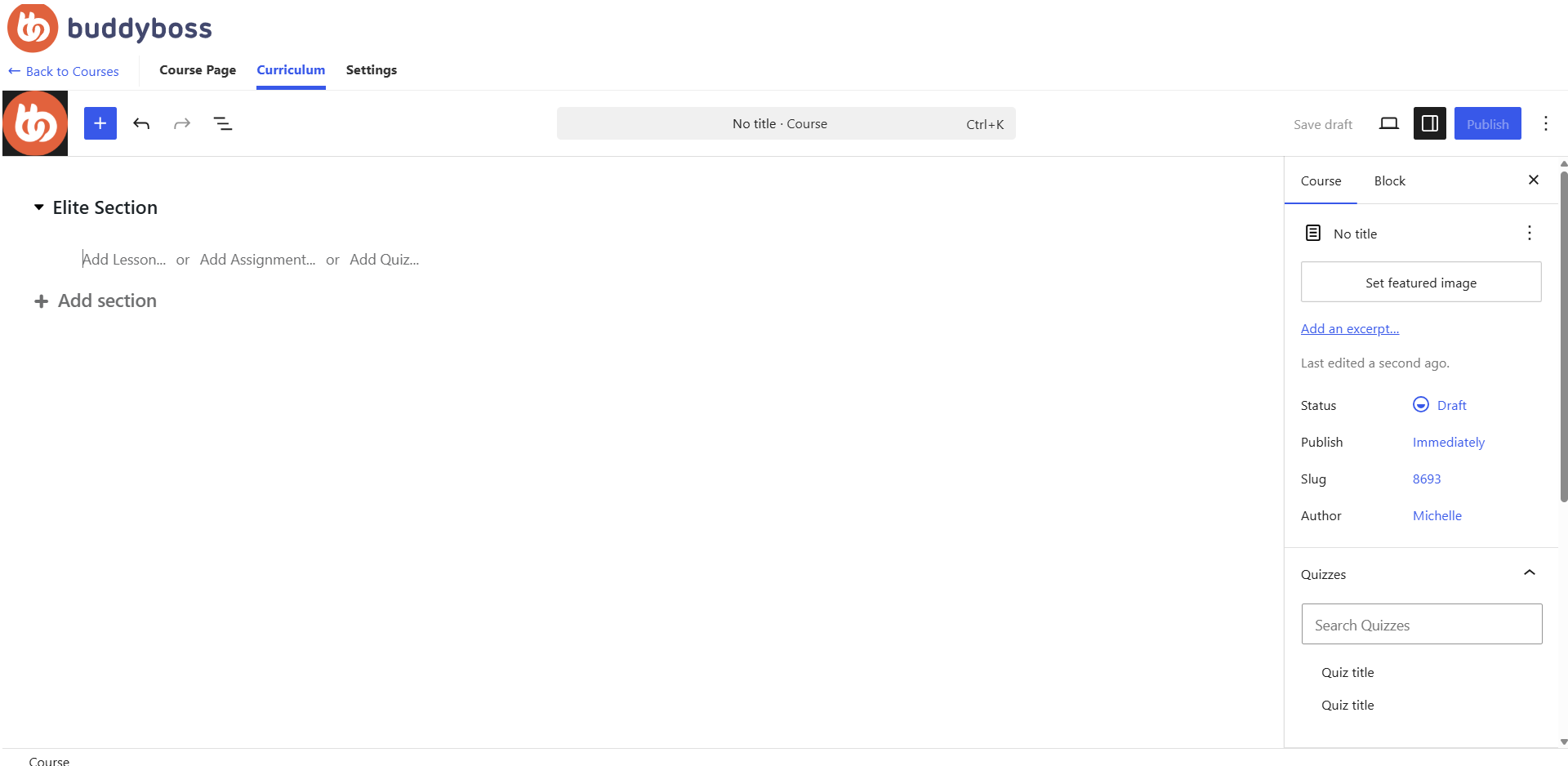
The Curriculum tab is used to build the structure of your course.
- Create Sections – Click Add Section to organize your lessons into chapters or modules. In each section, you can add different Lessons, Assignments, and Quizzes
- Add Lessons – Within each section, click Add Lesson to create lessons for that section.
- Add Assignments – Select Add Assignment to include assignments that students must complete.
- Add Quizzes – Select Add Quiz to create quizzes that test learner progress.
You can continue adding multiple sections, lessons, assignments, and quizzes to build your complete course structure.
Course Settings
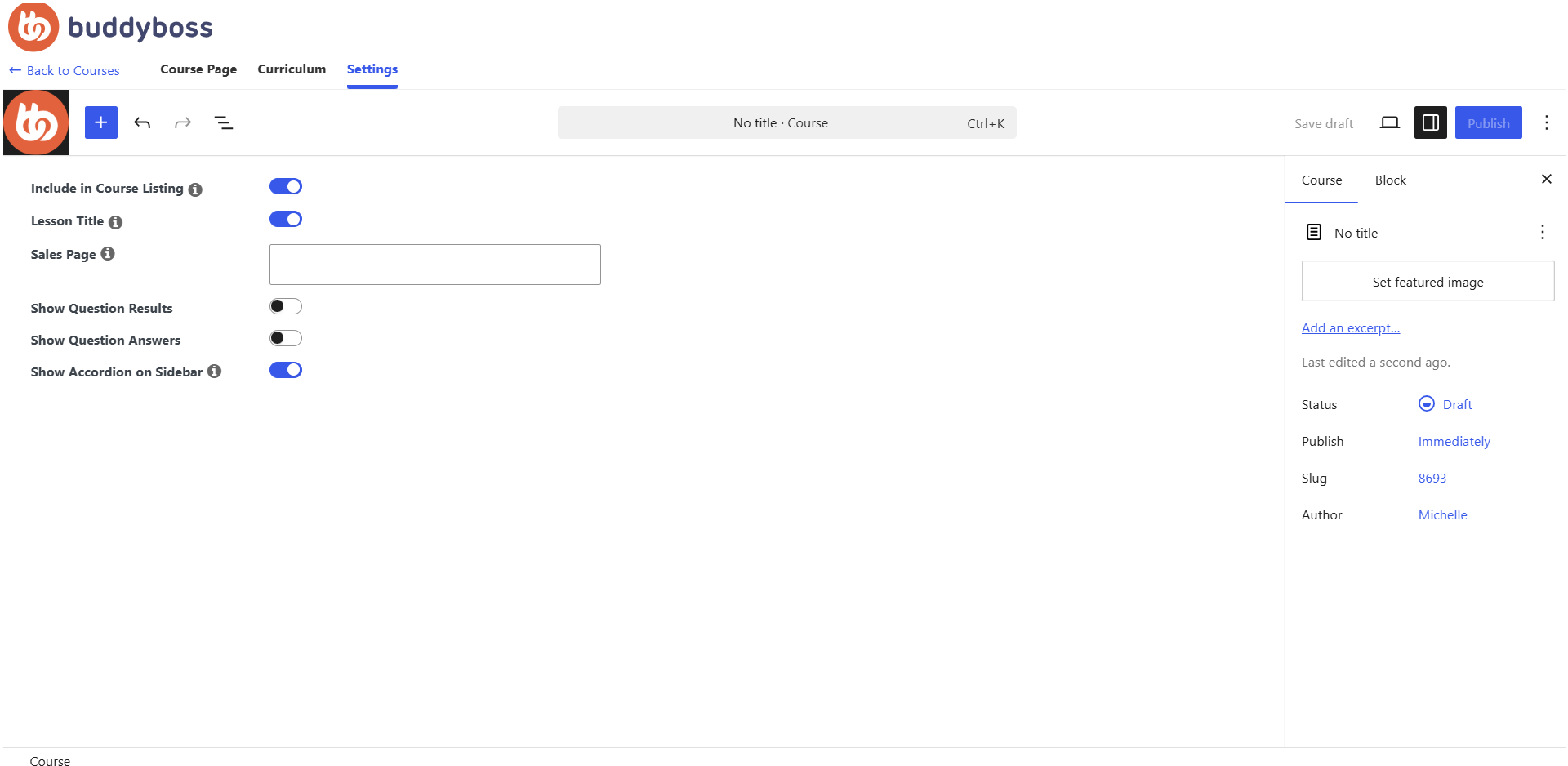
The Settings tab allows you to configure how the course behaves.
- Include in Course Listing – Enable this option to display the course in the public course directory.
- Lesson Title – Enable or disable lesson titles throughout the course.
- Sales Page – Enter the URL of a sales or landing page where users can purchase or learn more about the course.
- Show Question Results – Enable this option to display quiz question results after completion.
- Show Question Answers – Allow learners to view the correct quiz answers after completing quizzes.
- Show Accordion on Sidebar – Enable the course curriculum accordion in the course sidebar to improve navigation between lessons.
Publishing the Course
After completing the Course Page, Curriculum, and Settings:
- Review all course information.
- Click Publish.
- Your course will become available based on your configured access settings.
Managing Existing Courses
From BB Courses > Courses, you can:
- Edit existing courses.
- Delete courses.
- View course categories and tags.
- Organize courses using the course list.