














The BuddyBoss Courses Curriculum Tags help organize lessons, assignments, and quizzes using descriptive keywords. Unlike categories, tags provide a more flexible way to group related curriculum content. In BuddyBoss Courses, curriculum tags are shared across Lessons, Assignments, and Quizzes, so any tag you create is automatically available for all three content types. This guide explains how you can create and Manage Lesson, Assignment, and Quiz Tags
Access Curriculum Tags
You can access the shared Curriculum Tags page from any of the following locations:
- BB Courses > Lessons > Tags
- BB Courses > Assignments > Tags
- BB Courses > Quizzes > Tags
Regardless of where you access it, you’ll be taken to the same Curriculum Tags management page.
Create a Curriculum Tag
- Navigate to BB Courses > Lessons > Tags, Assignments > Tags, or Quizzes > Tags.
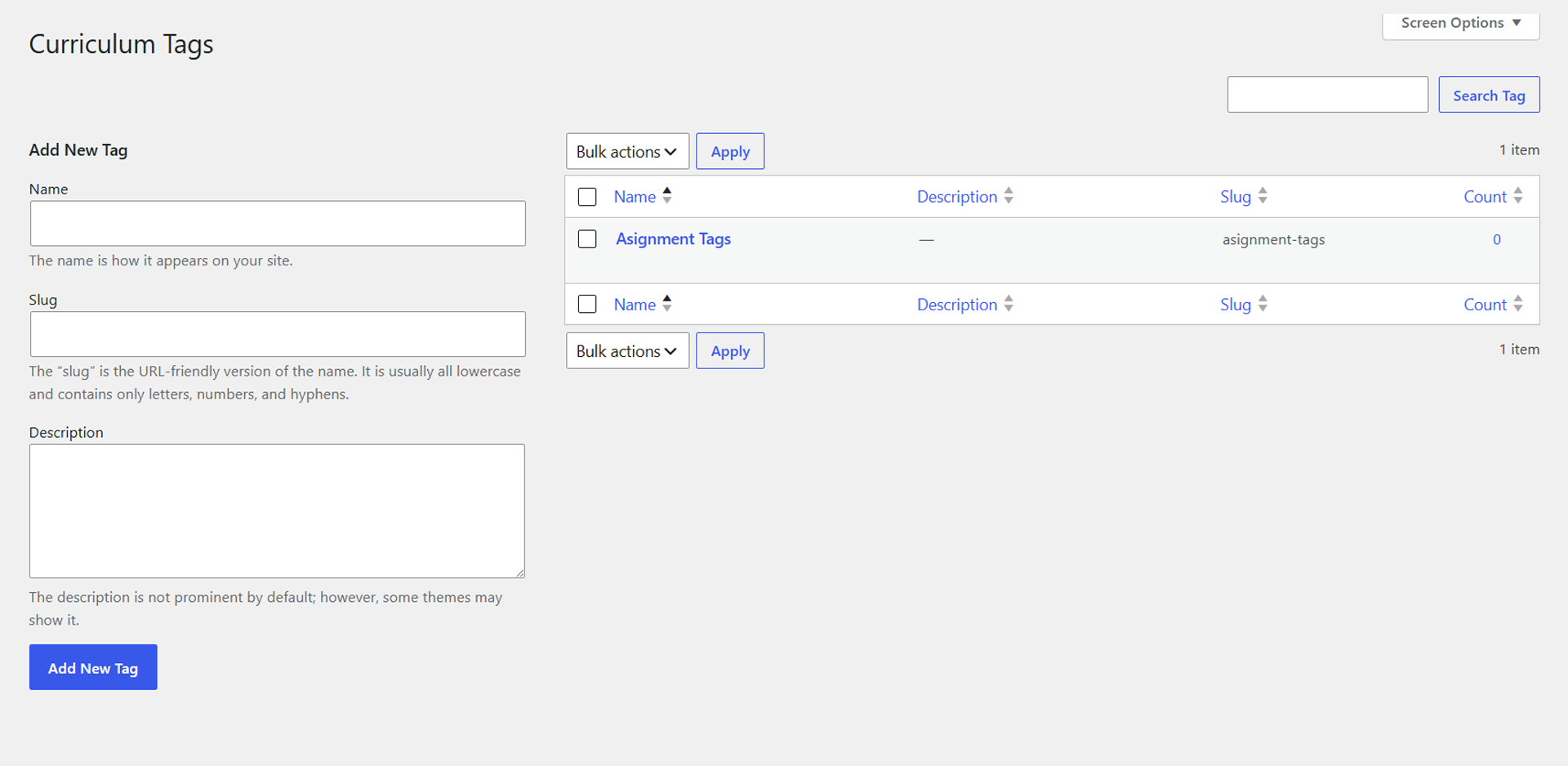
- Enter a Name for the tag.
- (Optional) Enter a Slug. If left blank, WordPress generates one automatically.
- (Optional) Add a Description.
- Click Add New Tag.
The new tag will immediately become available for lessons, assignments, and quizzes.
Manage Curriculum Tags
Existing tags are listed on the right side of the page.
From the tag list, you can:
- Edit an existing tag.
- Quick Edit the tag name or slug.
- Delete a tag that is no longer needed.
- View the tag archive.
- Use Bulk Actions to delete multiple tags at once.
- Use the Search Tags field to locate specific tags.
Using Curriculum Tags
When creating or editing a lesson, assignment, or quiz, expand the Curriculum Tags panel in the editor and select the appropriate tags.
You can assign one or more tags to better classify your curriculum content and make it easier to organize and filter related lessons, assignments, and quizzes.
Note: Curriculum Tags are shared across Lessons, Assignments, and Quizzes. Creating, editing, or deleting a tag from any one of these sections automatically updates it for all three content types.