














The BuddyBoss Course Quizzes allows you to create interactive assessments for your courses using a variety of question types. This guides you how to configure BuddyBoss course quizzes. You can evaluate learners’ understanding, reinforce course content, and organize quizzes using Curriculum Categories and Curriculum Tags. The plugin integrates seamlessly with BuddyBoss Courses to help you build engaging learning experiences.
Download the BuddyBoss Course Quizzes Plugin
Before installing the plugin, download it from your BuddyBoss account.
- Log in to your BuddyBoss account.
- Navigate to My Account > Downloads.
- Download the BuddyBoss Course Quizzes plugin ZIP file.
Install and Activate the Plugin
- Log in to your WordPress Admin Dashboard.
- Navigate to Plugins > Add New Plugin.
- Click Upload Plugin.
- Select the BuddyBoss Course Quizzes ZIP file.
- Click Install Now.
- Click Activate.
Once enabled, the Quizzes menu will appear under BB Courses.
Note: The BuddyBoss Courses plugin must already be installed and activated before you can use the BuddyBoss Course Quizzes add-on.
Create a New Quiz
Create a quiz
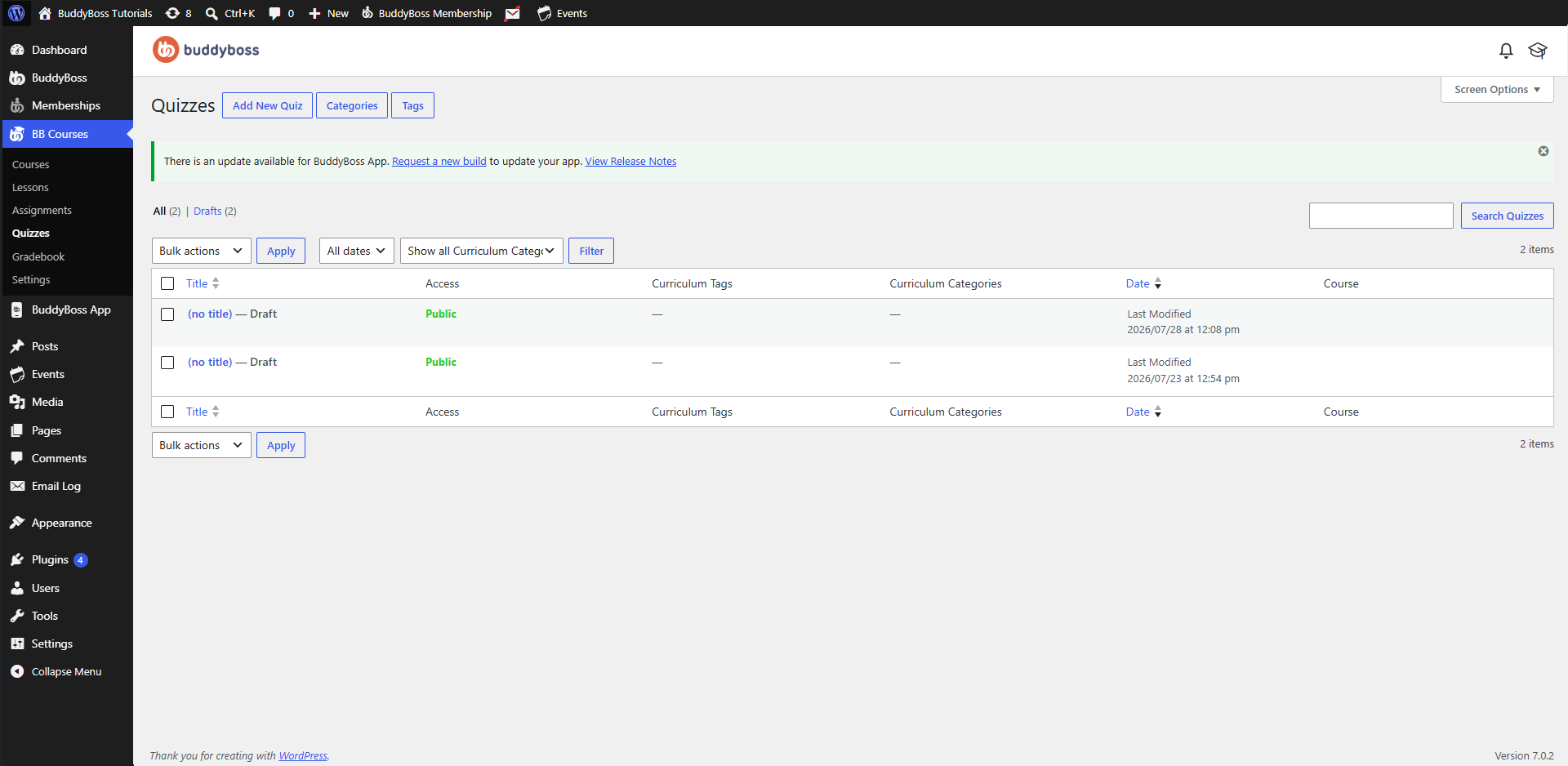
- Navigate to BB Courses > Quizzes.
- Click Add New Quiz.
- Enter a title for the quiz.
- Add one or more question blocks from the Course Questions block collection.
Quiz Questions
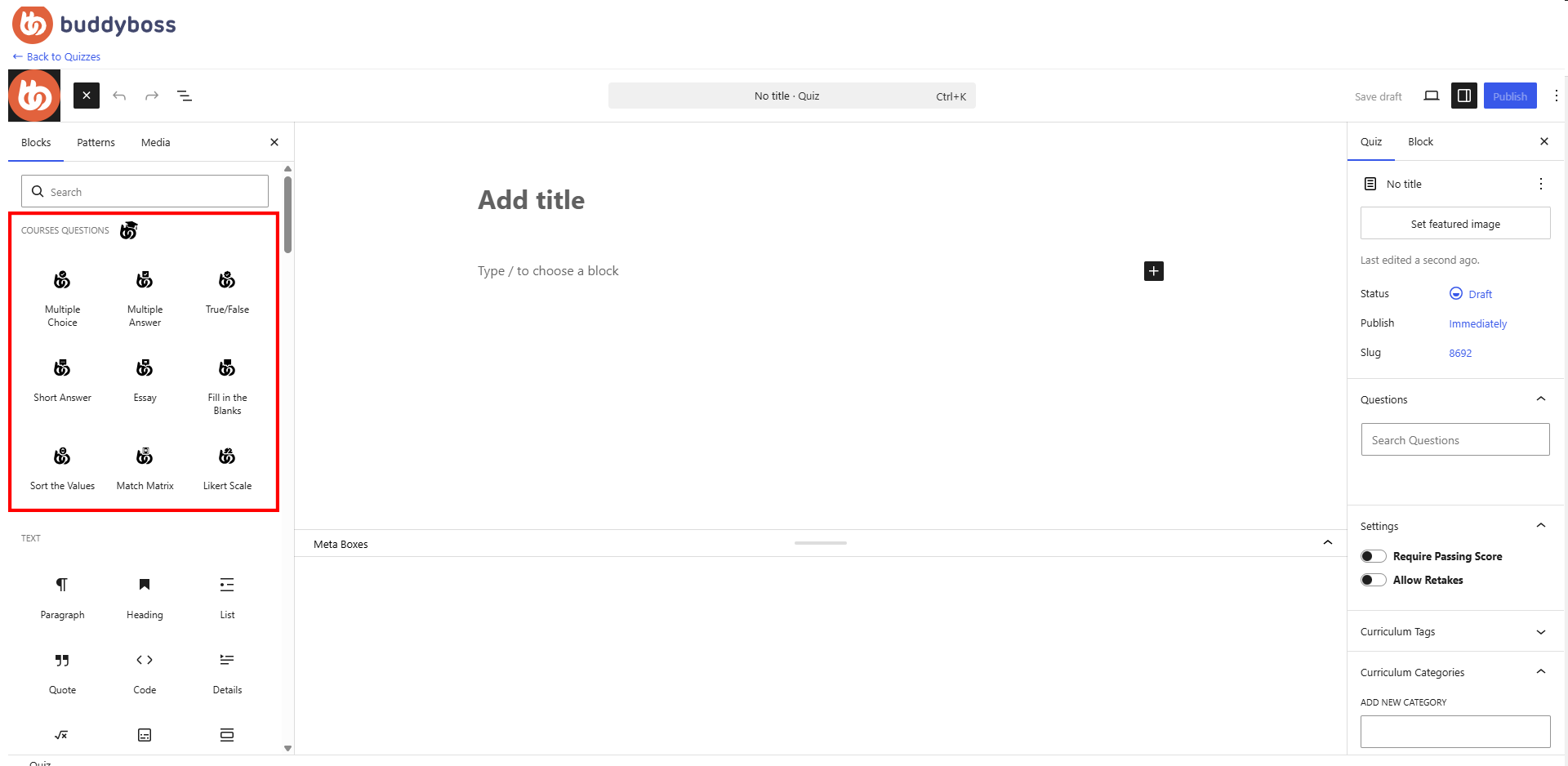
BuddyBoss Course Quizzes include several built-in question blocks that you can add using the WordPress Block Editor.
- Multiple Choice – Create a question with a single correct answer.
- Available options include:
- Mark the question as Required.
- Assign point values.
- Add feedback for incorrect answers.
- Configure additional question settings.
- Multiple Answer – Allow learners to select multiple correct answers from a list of options.
- True/False – Create a question where learners choose between True or False.
- Short Answer – Allow learners to enter a short text response.
- Essay – Create long-form written response questions that learners answer in their own words.
- Fill in the Blanks – Create questions where learners complete missing words or phrases. Use square brackets ([ ]) to define the expected answers within your question.
- Sort the Values – Create drag-and-drop ordering questions where learners arrange items into the correct sequence.
- Match Matrix – Create matching questions by pairing prompts with their corresponding answers.
- Likert Scale – Create survey-style questions using a customizable rating scale, making it ideal for feedback, surveys, and self-assessments.
- Configure the quiz settings.
- Click Publish.
Configure Quiz Settings
The Quiz settings panel allows you to configure general information for each quiz.
Available options include:
- Featured Image – Add an image to represent the quiz.
- Status – Save the quiz as a draft or publish it.
- Publish – Publish immediately or schedule the quiz for a future date.
- Slug – Customize the quiz URL.
Questions Panel – The Questions panel allows you to search for specific listed questions, allowing you to organize, reorder, and manage your quiz content easily.
Settings Panel – The Settings panel provides additional options that control how learners complete the quiz and how their results are evaluated.
Require Passing Score – Enable Require Passing Score to require learners to achieve a minimum score before the quiz is considered passed.
When enabled, you can configure:
- Passing Score – Enter the minimum score required to pass the quiz.
- Score Type – Choose how the passing score is measured:
- Percent – Require a percentage score (for example, 80%).
- Points – Require a minimum number of points.
- Failed Attempt Message – Enter a custom message displayed to learners who do not achieve the required passing score.
Allow Retakes – Enable Allow Retakes to let learners retake the quiz after completing it.
When enabled, you can configure:
- Limit – Specify the maximum number of quiz attempts allowed.
- Keep – Choose which attempt is used as the learner’s final result:
- Latest – Uses the most recent quiz attempt.
- Best – Uses the highest-scoring quiz attempt.
Manage Quizzes
Navigate to BB Courses > Quizzes to manage your quizzes.
From the Quizzes page, you can:
- View all quizzes.
- Filter quizzes by Curriculum Category.
- Filter quizzes by publication date.
- Search for quizzes.
- View assigned curriculum tags and categories.
- View the associated course.
- Use Bulk Actions to manage multiple quizzes.
For each quiz, you can also:
- Edit the quiz.
- Preview the quiz.
- Move the quiz to the Trash.