














The BuddyBoss App Tab Bar Visibility feature lets you control where the main navigation bar appears, creating a cleaner interface by hiding tabs on specific screens. This streamlines user focus on content and enhances the overall user experience.
Accessing the Tab Bar Visibility Settings
- In WordPress, go to BuddyBoss App > Menus.
- Under Tab Bar, locate the Tab Bar Visibility options.
Showing the Tab Bar on All Screens
- Select Show on All Screens.
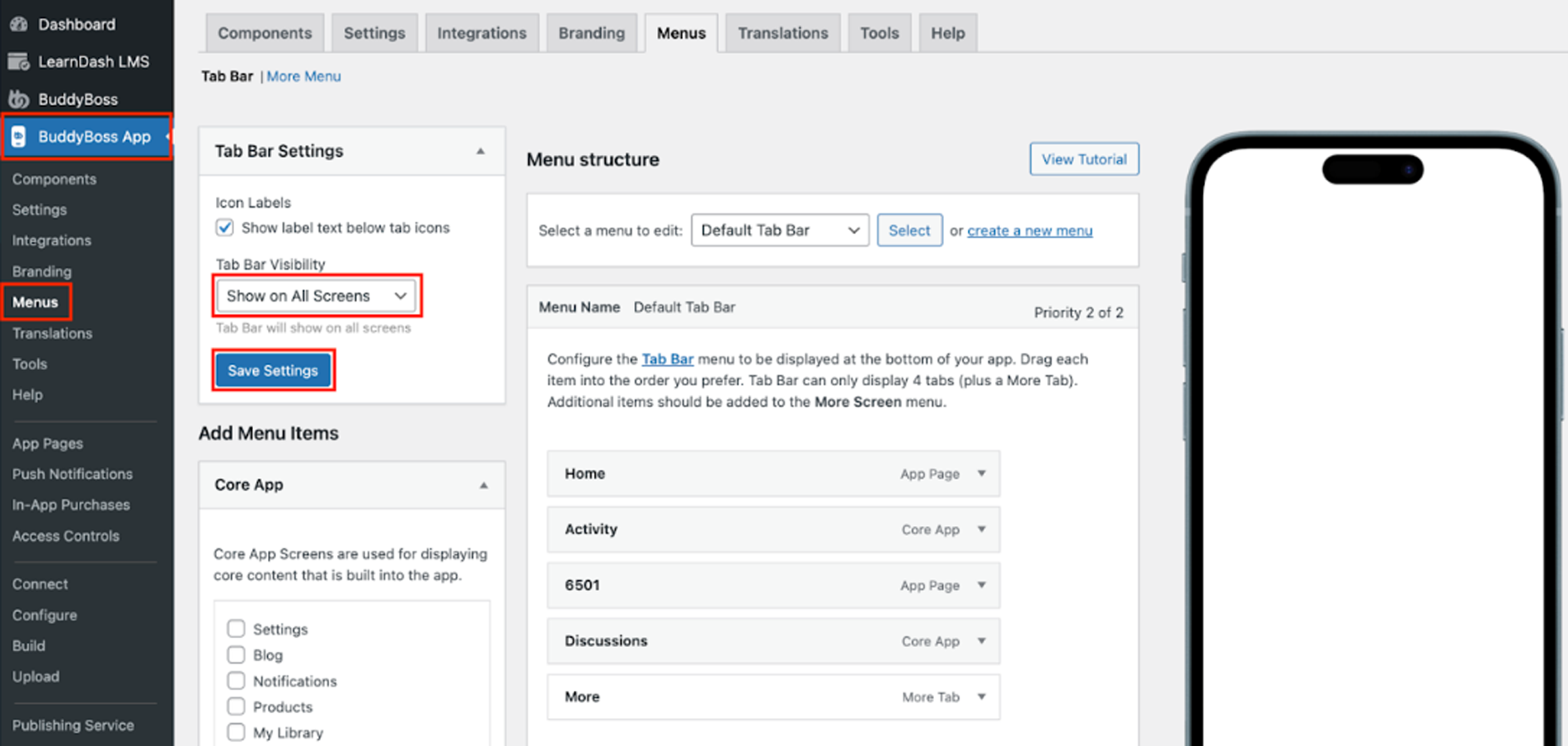
- Click Save Settings.
- Open the BuddyBoss App, navigate to any screen (e.g., view a member’s Activity), and confirm the tab bar is visible.
Restricting the Tab Bar to the Main Menu
- Return to BuddyBoss App > Menus.
- Select Show on Tab Bar Menu.
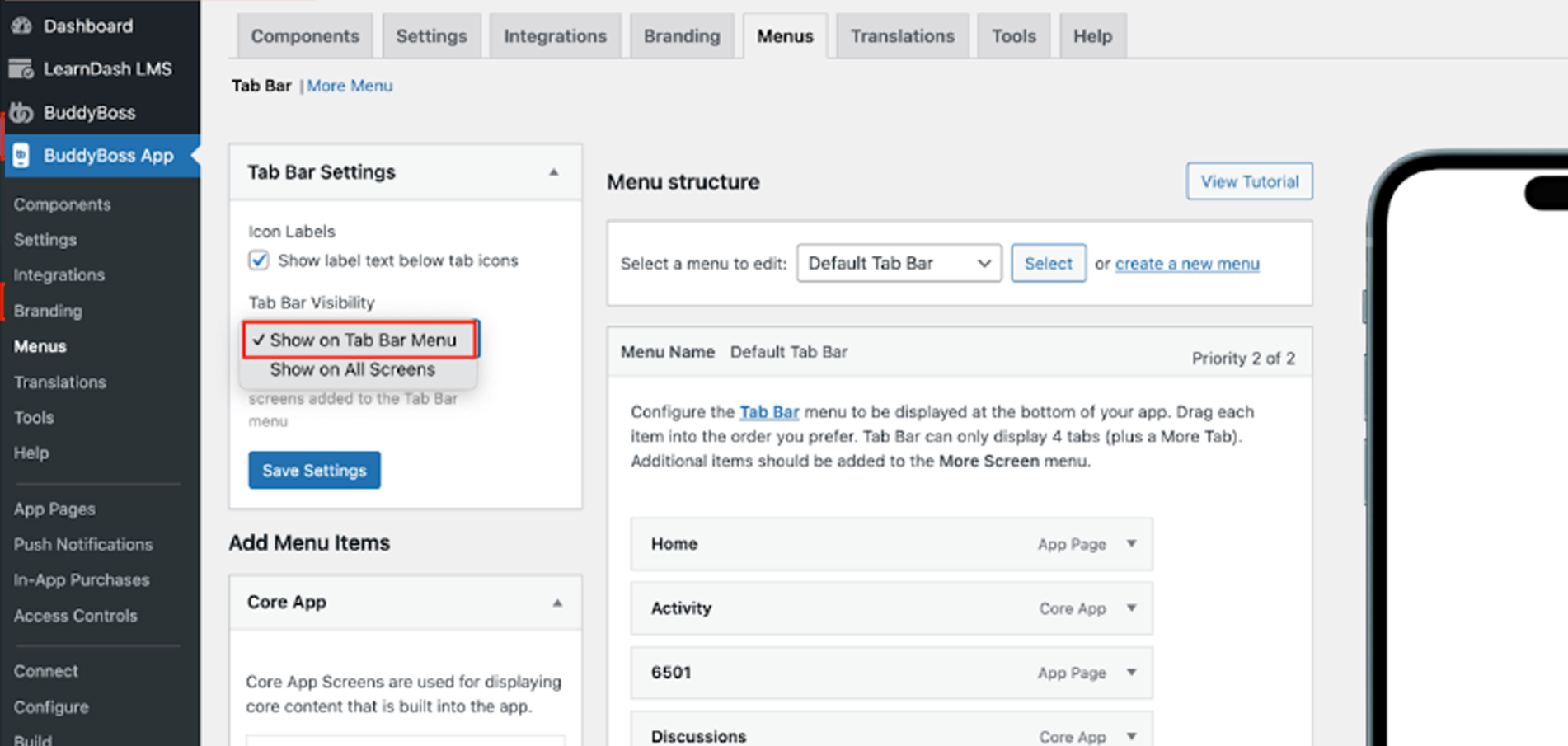
- Click Save Settings.
- In the app, navigate to a secondary screen (e.g., a member’s Activity detail page) and confirm the tab bar is hidden.