














A cron job on Cloudways allows scheduled WordPress tasks to run automatically at a defined interval instead of relying on the default WordPress WP-Cron process. To set up a cron job on Cloudways, first disable WP-Cron in your website’s wp-config.php file, then create a cron job for your application through Cloudways Cron Job Management.
You can select a predefined schedule, such as every five minutes, or configure advanced cron settings when your command requires additional switches or options.
Disable WP-Cron
Open your website’s wp-config.php file and add the following line before:
“That’s all, stop editing! Happy blogging.”
define(‘DISABLE_WP_CRON’, true);
Save the changes to your wp-config.php file.
Note: The example below schedules the cron job to run every 5 minutes. You can choose a different schedule based on your website’s requirements.
Create a Cron Job in Cloudways
- Log in to the Cloudways Platform.
- From the top menu, select Applications.
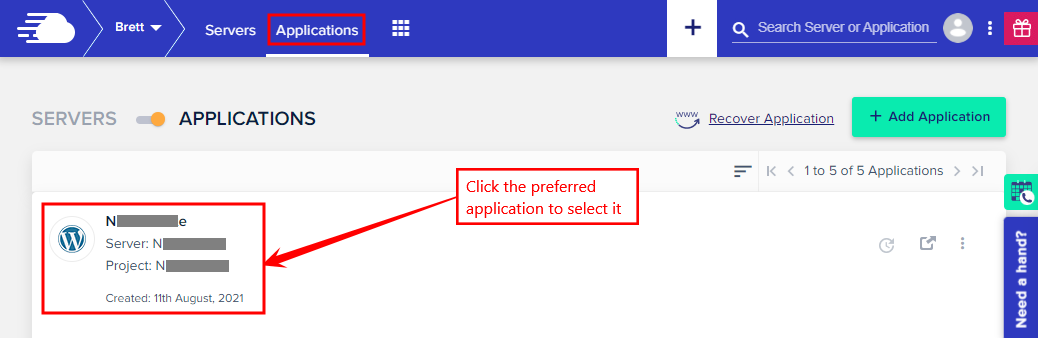
- Select the application where you want to configure the cron job.
- Navigate to Cron Job Management.
- Click Add New Cron Job.
- Open the Common Settings dropdown and select Every 5 minutes (*/5 * * * *).
- Select the type of script you want to run, such as PHP, curl, or wget.
- Enter the following in the Command field:
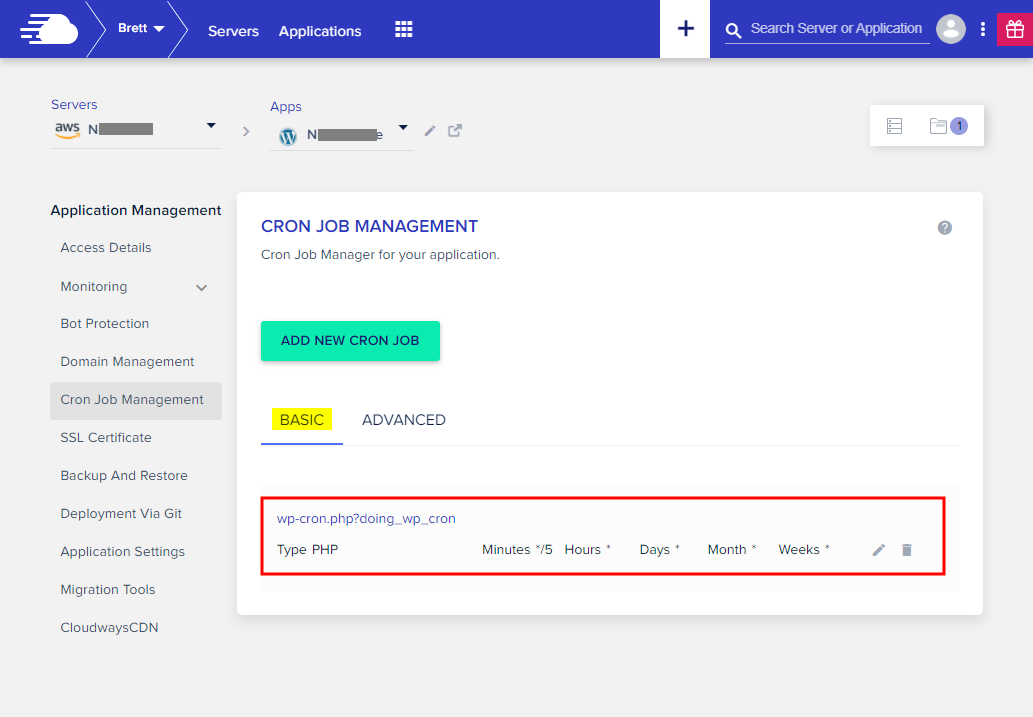
wp-cron.php?doing_wp_cron
- Click Submit to save the cron job.
Once configured, the cron job appears under the Basic tab.
Configure Advanced Cron Settings
If you need to use command-line switches or other advanced cron settings, switch to the Advanced tab in Cron Job Management.
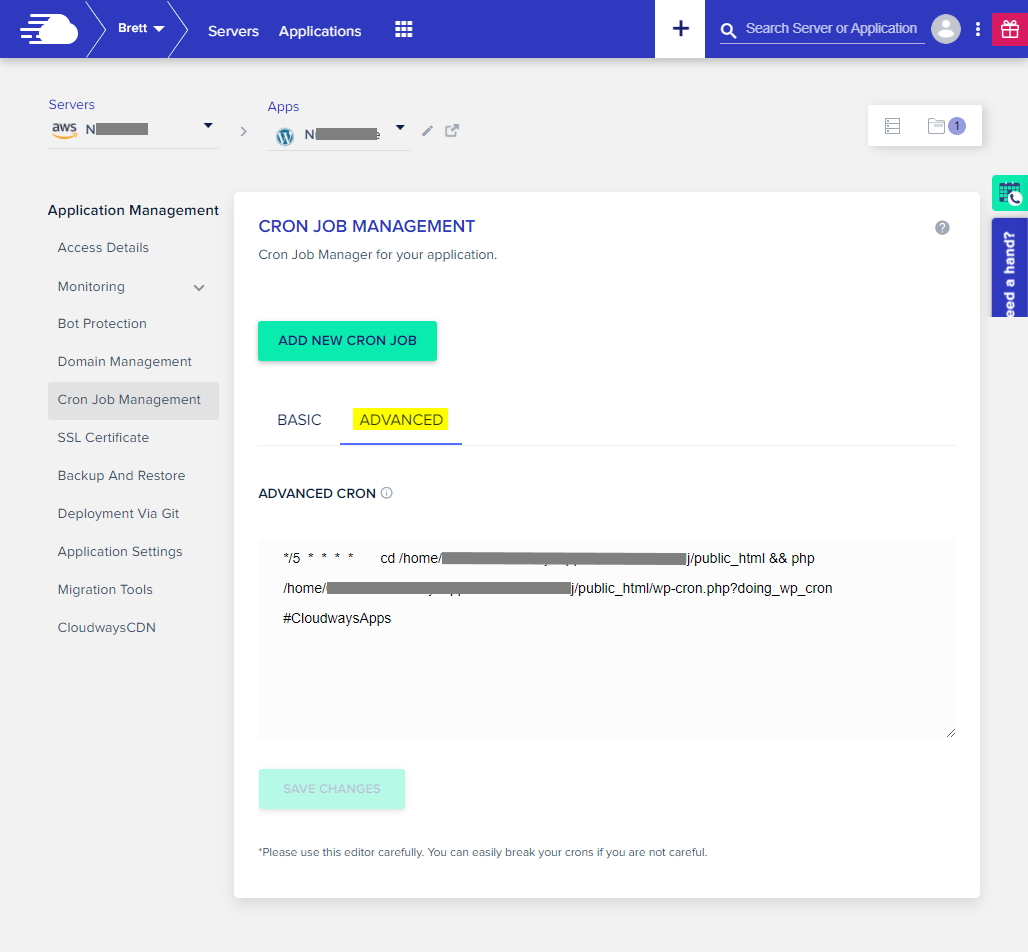
Note: The Basic tab does not provide switches for wget and curl. Use the Advanced tab when these options are required.
,Only account owners or team members with full privileges can edit cron jobs through the Advanced tab.