














The BuddyBoss Course Gradebook provides a centralized location for viewing quiz and assignment results across your courses. This guide helps you to set up BuddyBoss Course Gradebook. Once enabled, instructors can monitor learner performance, review recent assessments, and access grading information without having to open individual quizzes or assignments.
Download the BuddyBoss Course Gradebook
Before using the Gradebook, download the required plugins from your BuddyBoss account.
- Log in to your BuddyBoss account.
- Navigate to My Account > Downloads.
- Download the BuddyBoss Course Gradebook plugin ZIP file.
Install and Activate the Plugin
- Log in to your WordPress Admin Dashboard.
- Navigate to Plugins > Add New Plugin.
- Click Upload Plugin.
- Select the BuddyBoss Course Quizzes ZIP file.
- Click Install Now.
- Click Activate.
Once activated, the Gradebook menu will appear under BB Courses.
Note: The BuddyBoss Course Gradebook is an add-on for BuddyBoss Courses and requires the BuddyBoss Courses, BuddyBoss Course Quizzes, and BuddyBoss Course Assignments plugins to be installed and activated.
Access the Gradebook
- Navigate to BB Courses > Gradebook.
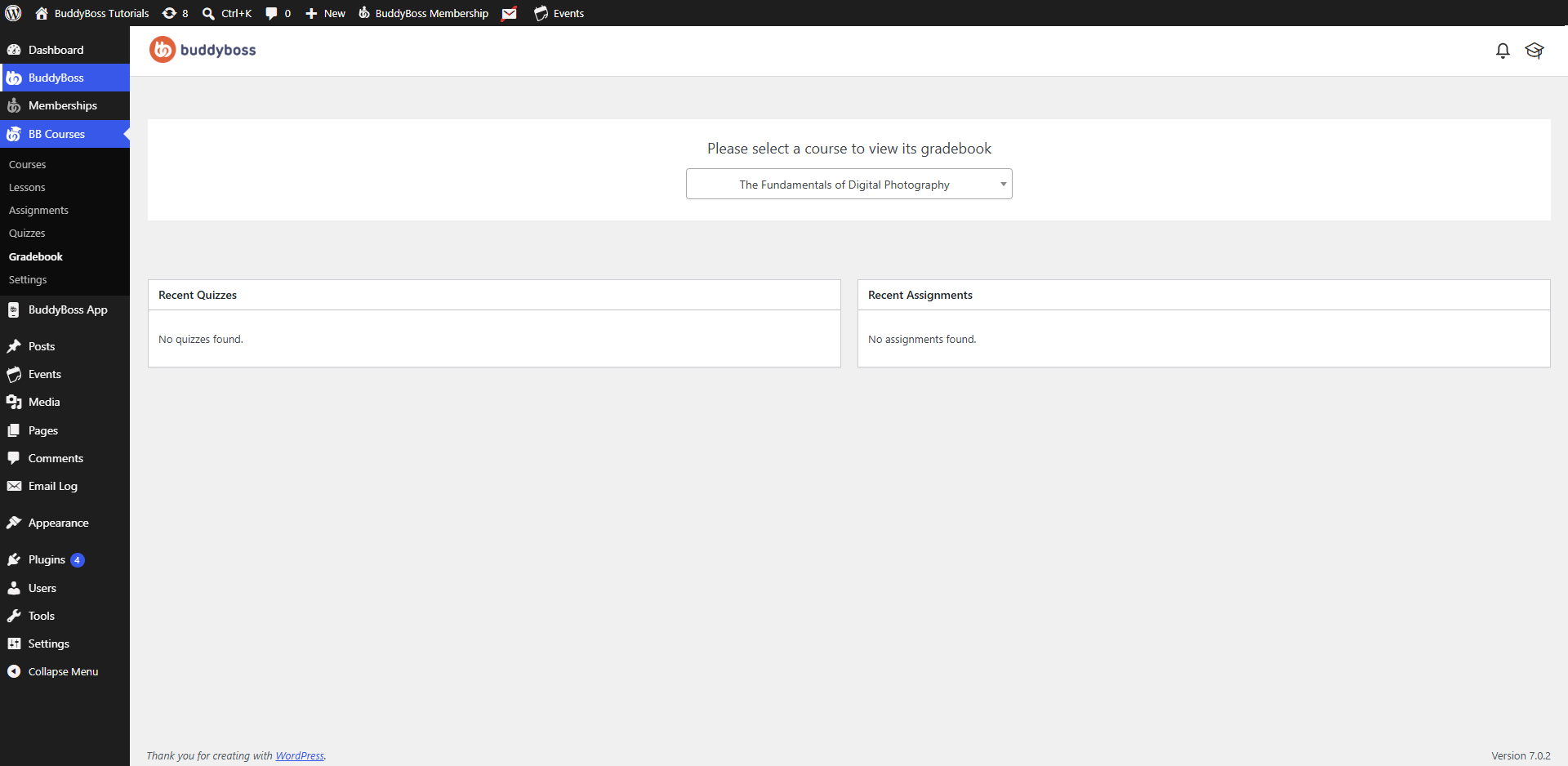
- Select a course from the Select a Course dropdown.
The Gradebook displays grading information for the selected course, including recent quiz and assignment activity, allowing instructors to review learner performance from a single location.