














The BuddyBoss Courses Settings page allows you to configure general course behavior, customize course URL slugs, manage course email settings, and migrate compatible course data. This guide shows how to configure BuddyBoss Course Settings. These settings help tailor how courses are displayed and managed across your site.
Access the BuddyBoss Courses Settings
- Log in to your WordPress Admin Dashboard.
- Navigate to BB Courses > Settings.
Configure General Settings
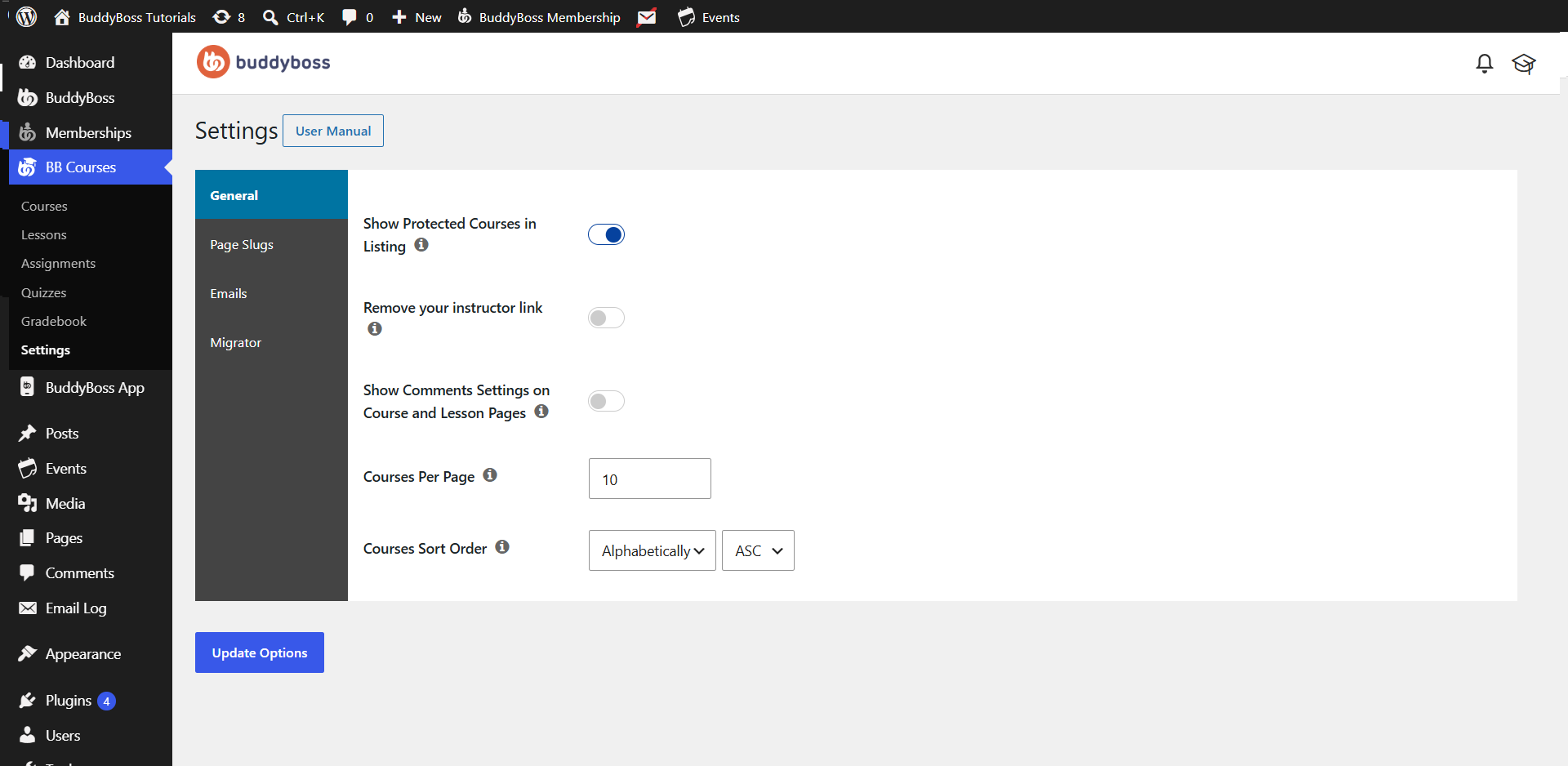
The General tab contains settings that control how courses are displayed on your website.
- Show Protected Courses in Listing – Enable this option to display protected courses in course listings, even if visitors do not have permission to access them.
- Remove Your Instructor Link – Enable this option to hide the instructor profile link from course pages.
- Show Comments Settings on Course and Lesson Pages – Enable this option to display WordPress comment settings on individual course and lesson pages.
- Courses Per Page – Specify the number of courses displayed on each page of the course directory.
- Courses Sort Order – Choose how courses are sorted and the order in which they appear, such as alphabetical ascending or descending.
After making your changes, click Update Options to save your settings.
Configure Page Slugs
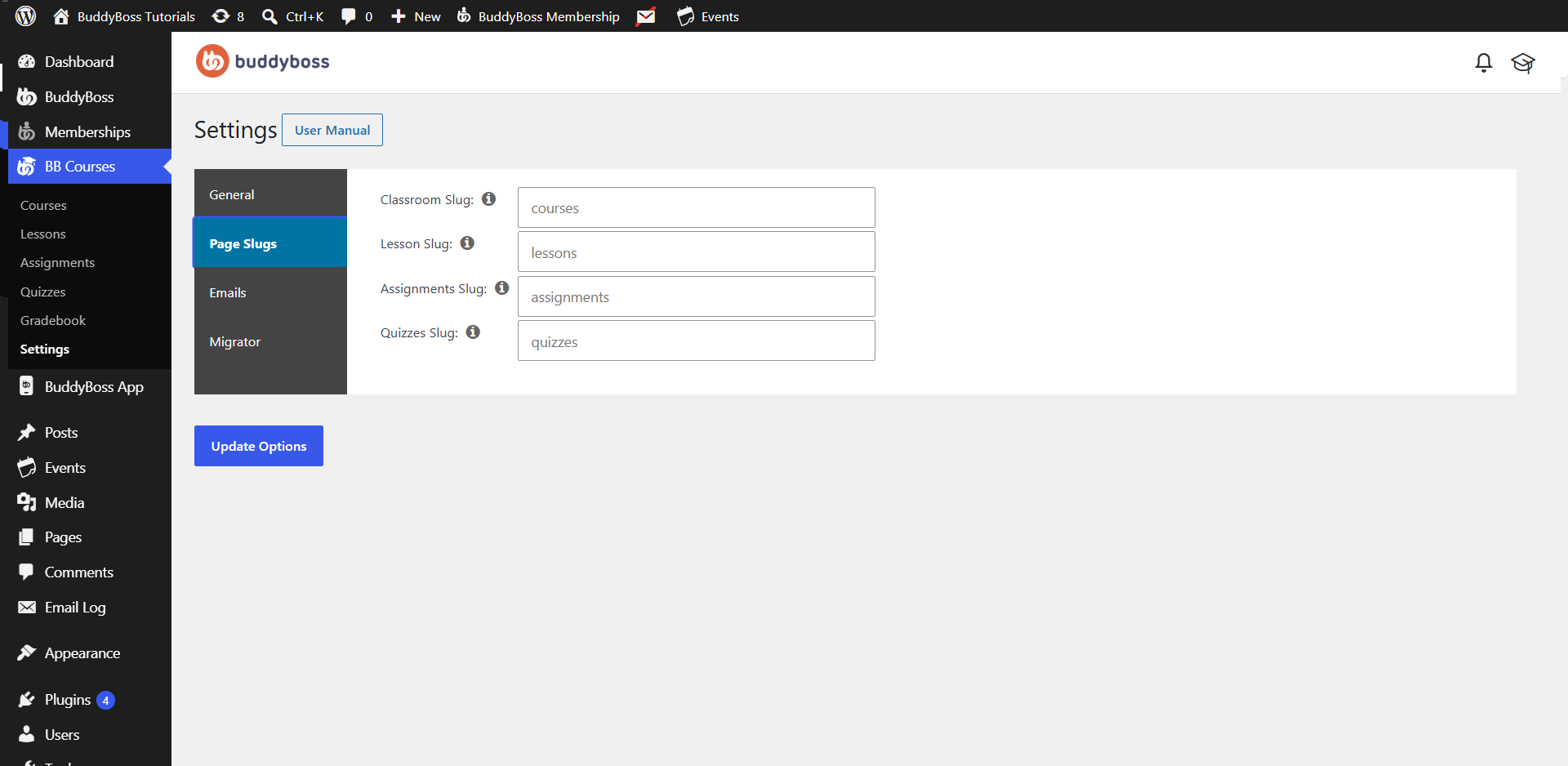
The Page Slugs tab allows you to customize the URL structure for your course content.
You can modify the following slugs:
- Classroom Slug – Defines the URL for the main courses directory.
- Lesson Slug – Defines the URL used for lesson pages.
- Assignments Slug – Defines the URL used for assignment pages.
- Quizzes Slug – Defines the URL used for quiz pages.
After updating any slug, click Update Options to save your changes.
Note: Changing page slugs may affect existing links. If you modify any slug, save your Permalinks by navigating to Settings > Permalinks and clicking Save Changes to refresh your site’s URL structure.
Configure Email Settings
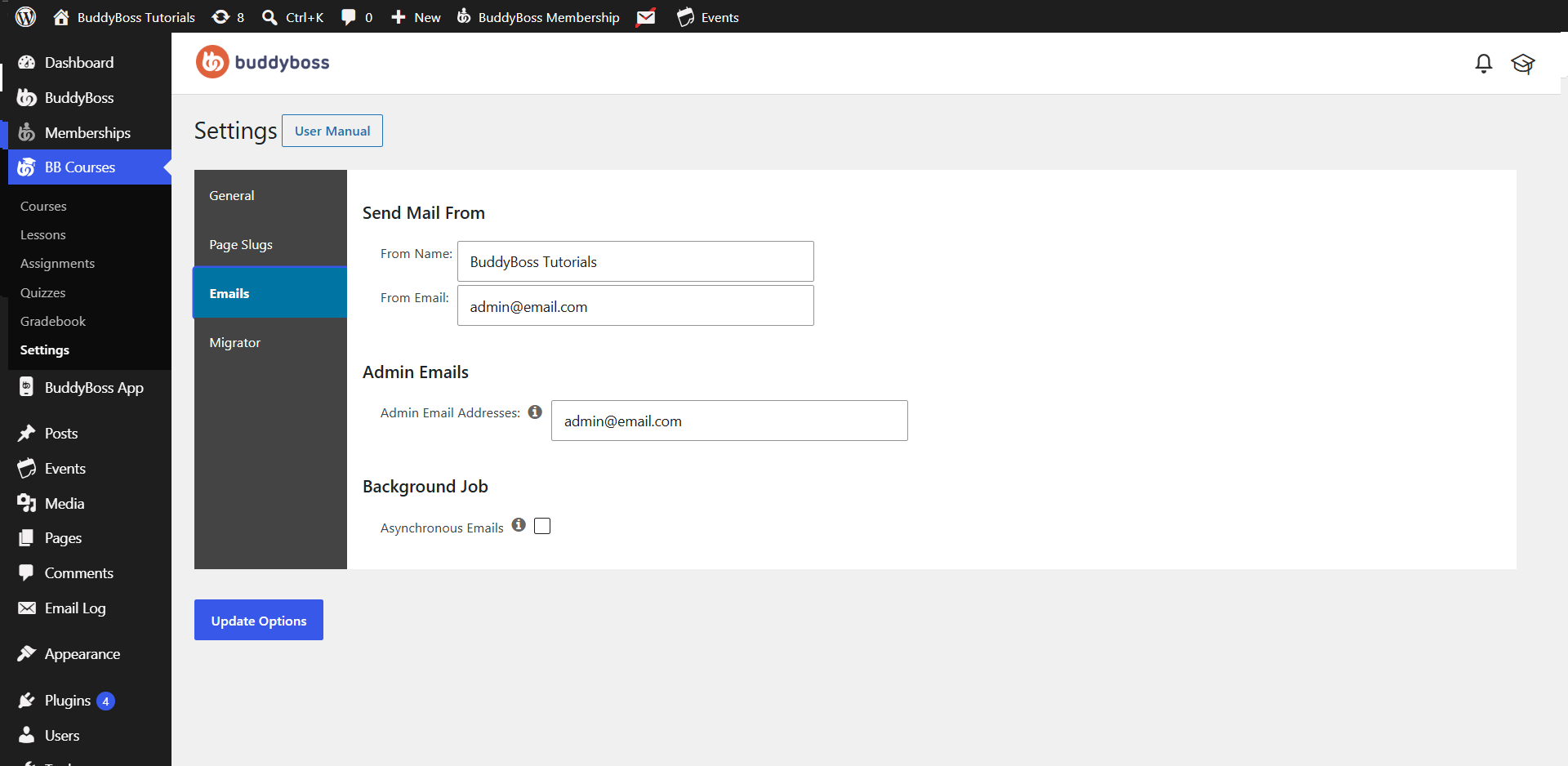
The Emails tab lets you configure the sender information used for BuddyBoss Courses email notifications.
- Send Mail From – Configure the sender information for outgoing course emails.
- From Name – The name recipients see as the email sender.
- From Email – The email address used to send notifications.
- Admin Emails – Enter one or more administrator email addresses to receive course-related notifications.
- Background Job – Enable Asynchronous Emails to send emails in the background, helping improve performance on busy websites.
- After making your changes, click Update Options.
Migrate Course Data
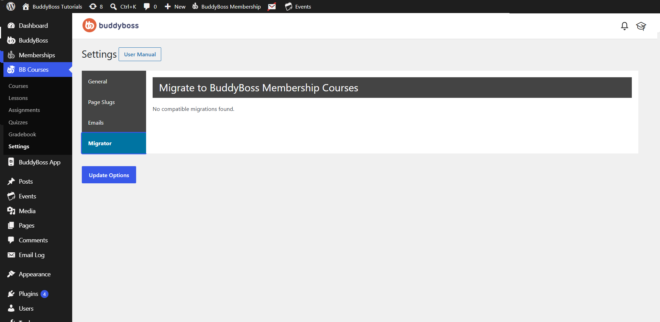
The Migrator tab checks for supported course data that can be migrated into BuddyBoss Courses.
If compatible data is detected, migration options will be displayed on this page. If no supported data is found, the page will display No compatible migrations found.
After completing any available migration, click Update Options if prompted to save your changes.