














The BuddyBoss App Default Restricted Message lets you customize what members see when they attempt to access content restricted by memberships, course enrollments, or Access Groups. You can configure a default title, message, button action, and optional teaser to help members understand why the content is restricted and what they can do next.
Individual Access Rules can also override these default settings when you need a different restricted message or action for specific content.
Configuring the Default Restricted Message
Go to BuddyBoss App > Settings > Access Controls and fill out the Default Restricted Message panel:
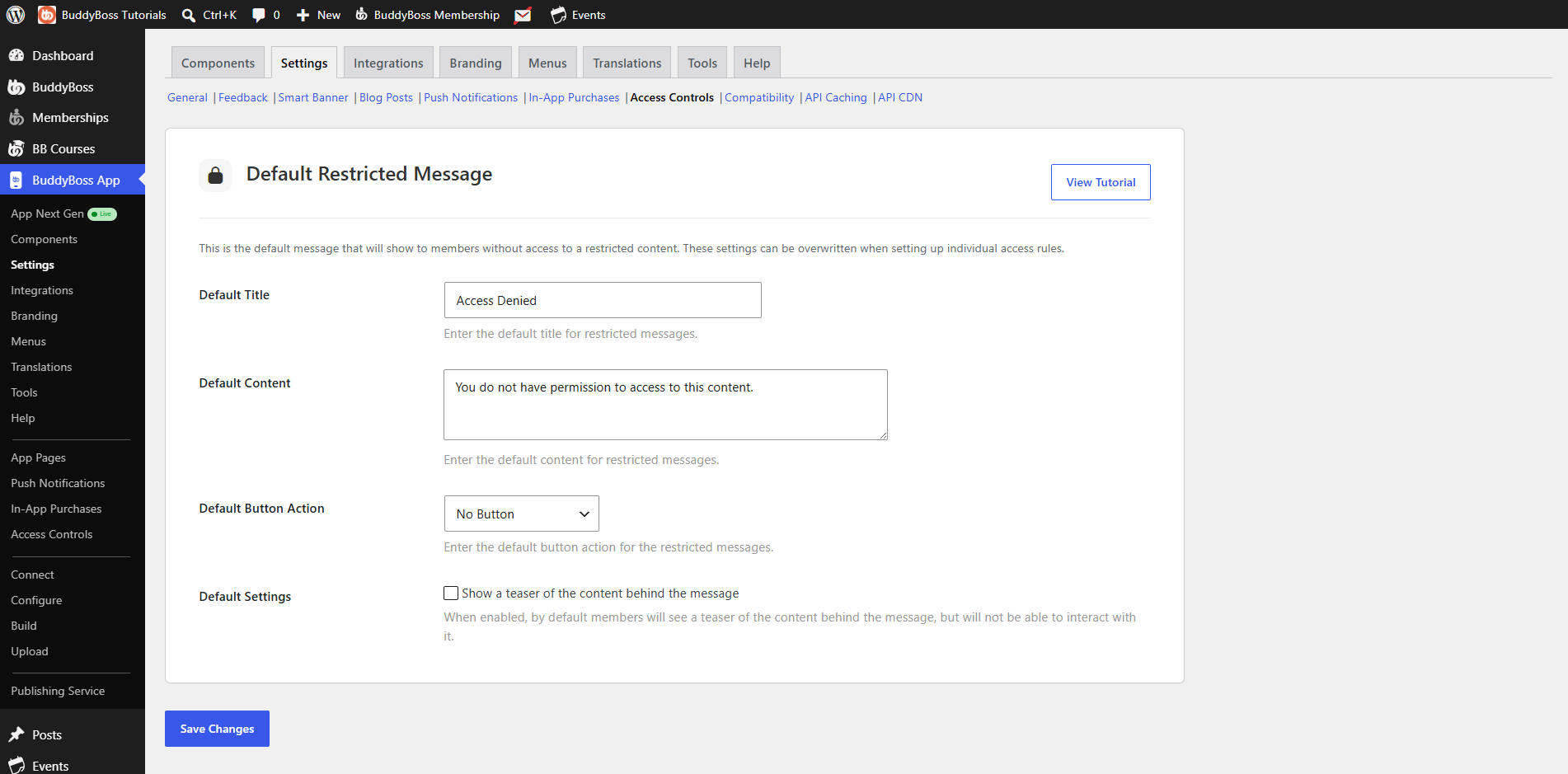
- Default Title – Enter the headline members see when they hit a locked screen (e.g. “Access Denied”).
- Default Content – Write the body text explaining why they can’t view this content yet.
- Default Button Action – Choose one of:
- No Button
- Open App Page
- Open Product Screen
- Open In-App Product
- Show Teaser
Enable “Display teaser content” to reveal a snippet of the locked screen behind a gradient overlay. - Click Save Changes.
Note: Any individual Access Rule can override these defaults with its own custom title, copy, button, and teaser settings.