














The BuddyBoss Membership Reminders allow you to automatically send email notifications to members and administrators based on important membership events, such as subscription renewals or expiration dates. These reminders help keep members informed about upcoming actions while reducing the need for manual follow-ups. This guide explains how to create BuddyBoss Membership Reminder in BuddyBoss Membership.
Create BuddyBoss Membership Reminder
To create a reminder:
- Log in to your WordPress Admin Dashboard.
- Go to Memberships > Reminders.
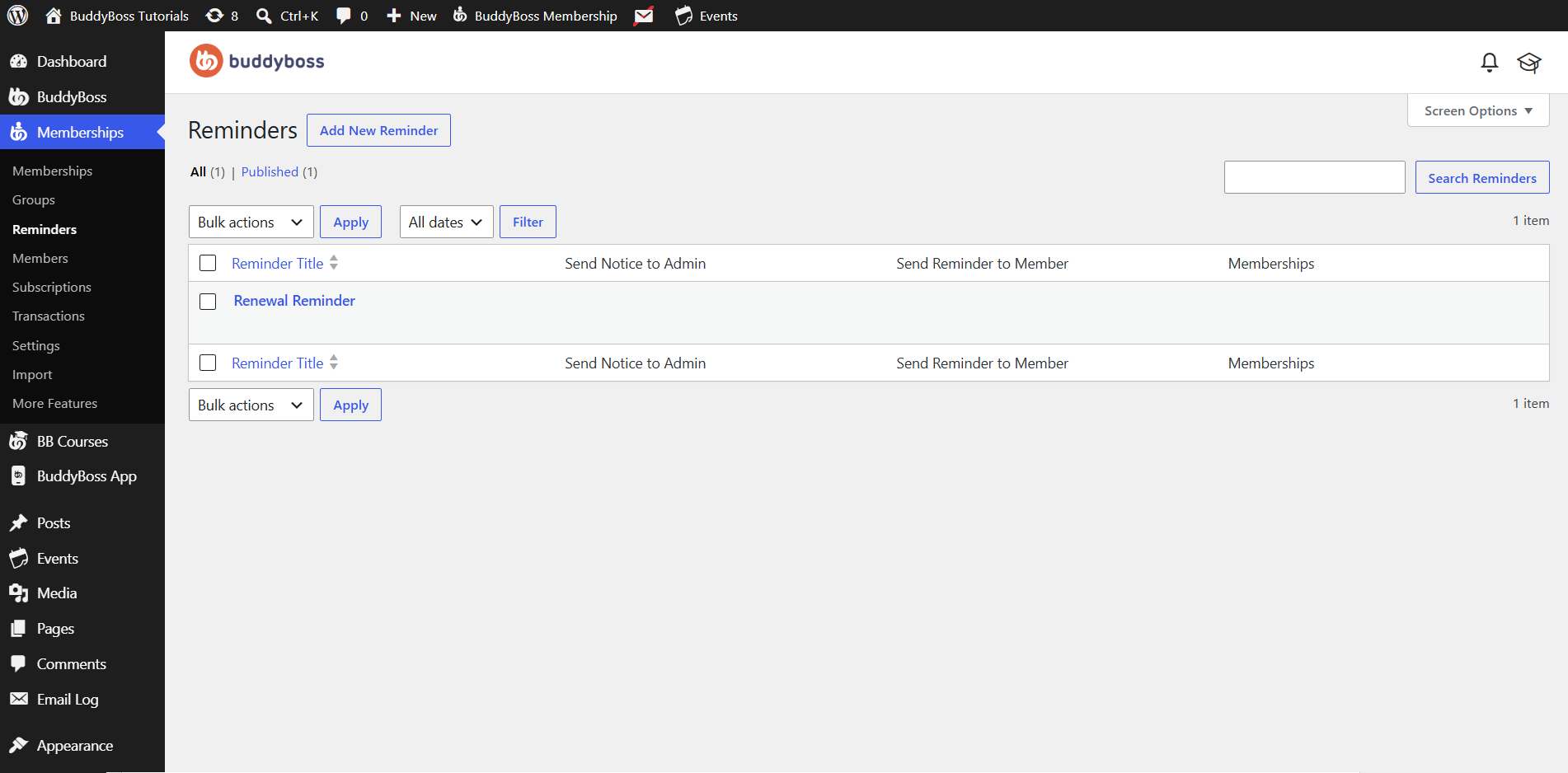
- Click Add New Reminder.
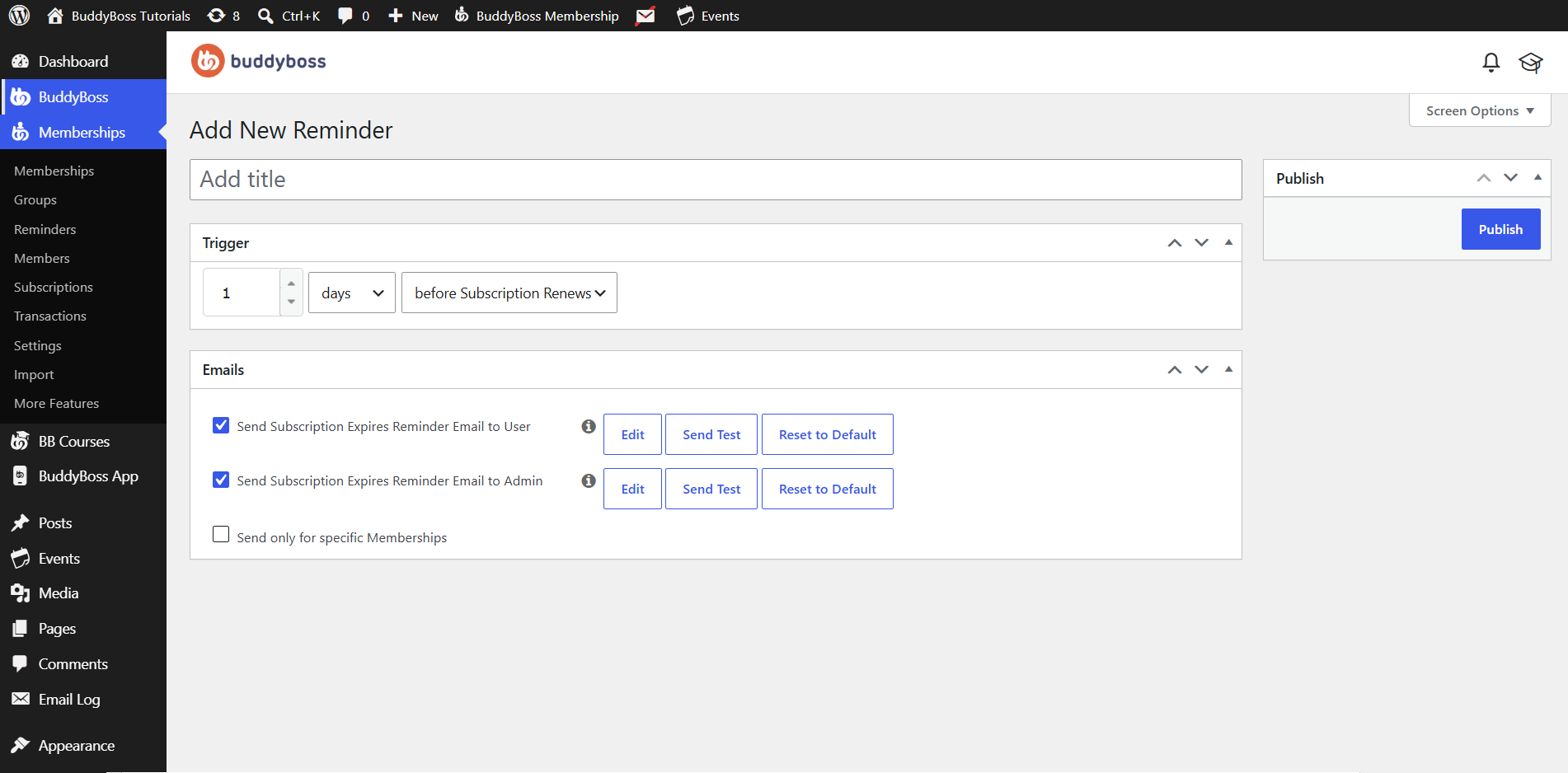
- Enter a title for the reminder.
Choose a descriptive title such as Renewal Reminder, Subscription Expiration Notice, or Membership Renewal Email to help identify the reminder later.
Configure the Reminder Trigger
The Trigger section determines when the reminder email will be sent.
Reminder Timing – Specify how long before or after an event the reminder should be sent.
- Enter a numeric value.
- Select the time unit:
- Hours
- Days
- Weeks
- Months
- Years
This allows you to schedule reminders based on your membership workflow.
Configure Email Notifications
The Emails section lets you choose who receives the reminder and customize the email content.
Send Reminder Email to the Member – Enable Send Subscription Expires Reminder Email to User to automatically notify members about upcoming subscription events.
You can also:
- Edit the email template.
- Send Test to preview the email.
- Reset to Default to restore the original template.
Send Reminder Email to the Administrator – Enable Send Subscription Expires Reminder Email to Admin to notify site administrators whenever the reminder is triggered.
Like the member email, you can:
- Edit the template.
- Send a test email.
- Restore the default version.
Limit the Reminder to Specific Memberships – By default, reminders apply to all memberships.
If you only want the reminder to apply to selected membership plans:
- Enable Send only for specific Memberships.
- Select the memberships that should receive this reminder.
This is useful when different membership plans require different reminder schedules or messaging.
Publish the Reminder
After configuring the reminder:
- Review the trigger and email settings.
- Click Publish.
The reminder will become active immediately and will automatically send emails based on the configured schedule.