














Introduction
Multiple Versions of App Menus let you serve up the perfect navigation bar for every visitor whether they’re a guest, a Bronze member, or part of your top-tier Gold crowd. Show a simplified Tab Bar to logged-out users, swap in premium tabs for paid tiers, or surface entirely custom More Menus based on profile type, course enrollment, or membership plan.
This guide walks you through building separate Tab Bar and More Menus for guests and for each Access Group, styling them, and prioritizing menus when members qualify for more than one.
By doing so, you can:
- Show a different Tab Bar/More Menu to logged-out members
- Show a Tab Bar/More Menu which is specific to the access group(s) a logged-in member is in.
Tutorial Video
Creating a Menu for Logged-Out Members
- Go to BuddyBoss App > Menus > Tab Bar (or More Menu).
- Click Create a new menu.
- Under Login Status, select Logged-out Members.
- Click Create Menu.
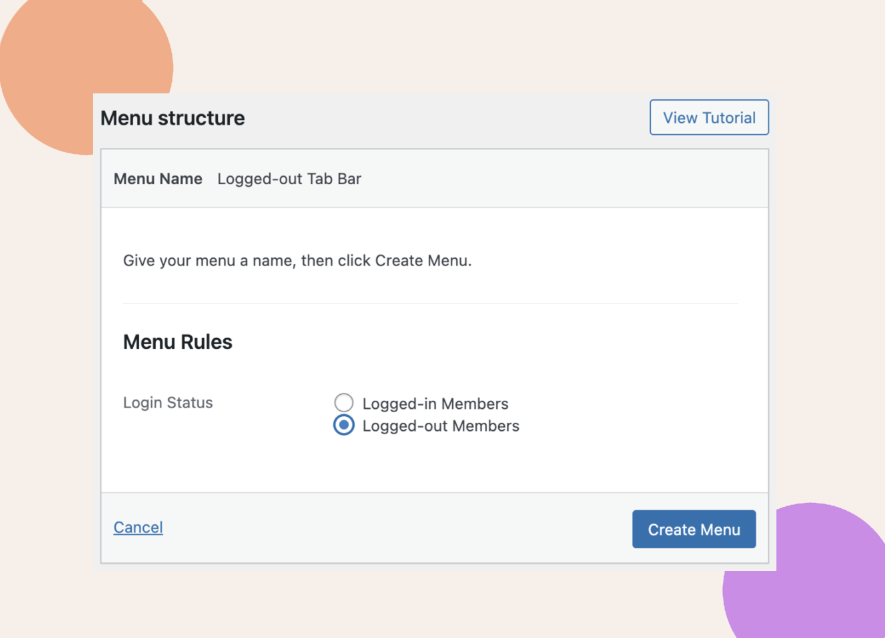
- Add items from Add Menu Items.
- Click Save Menu.
Creating Menus for Specific Access Groups
- Go to BuddyBoss App > Menus > Tab Bar (or More Menu).
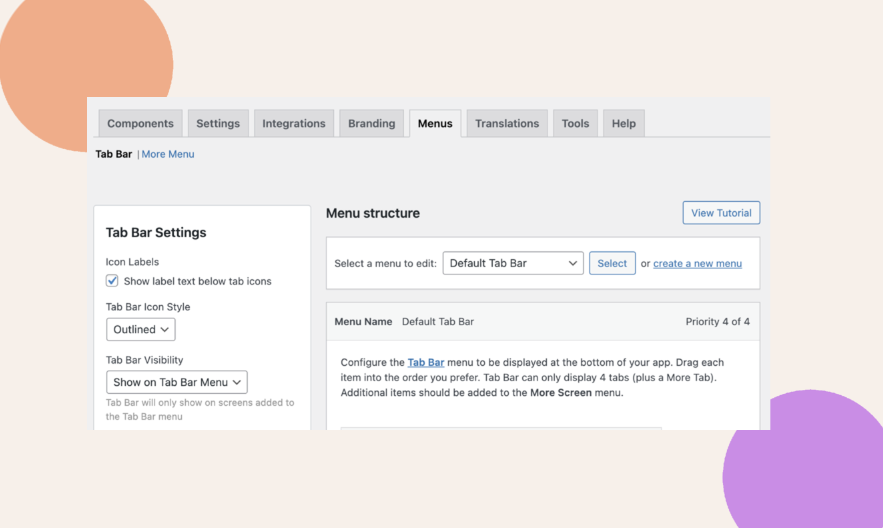
- Click Create a new menu.
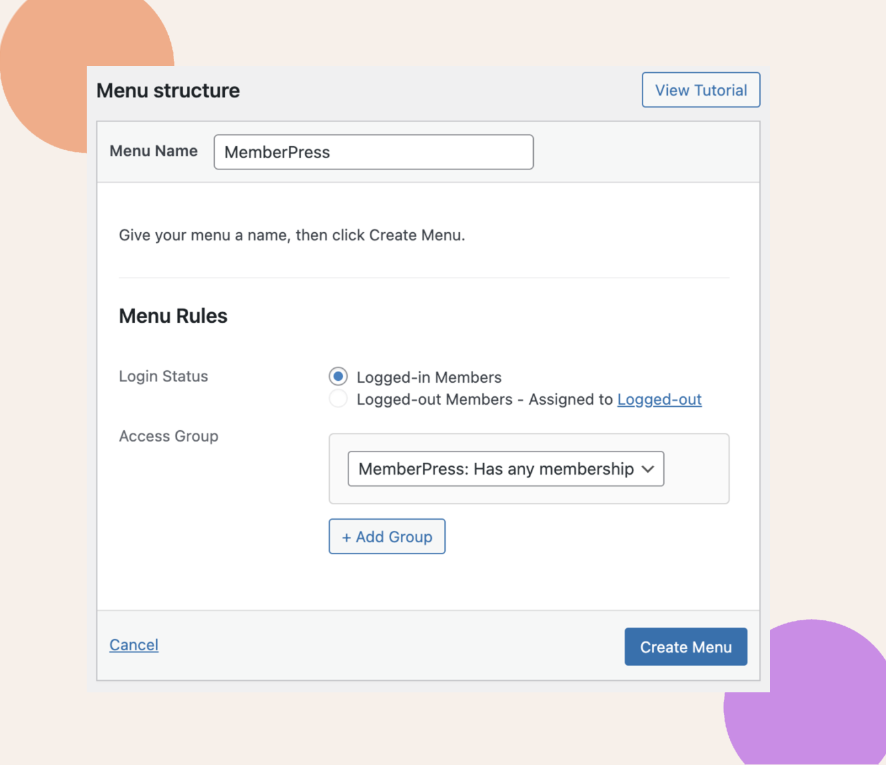
- Enter a Menu Name (e.g., “Gold Members”).
- Under Login Status, choose Logged-in Members.
- Under Access Group, select one or more groups (e.g., Gold, Silver).
- Click Create Menu.
- Add items from Add Menu Items.
- Click Save Menu.
Repeat for each Access Group you want to target.
Styling the Tab Bar
- Go to BuddyBoss App > Menus > Tab Bar.
- Toggle Icon Labels to show or hide text under icons.
- Choose Tab Bar Icon Style: Outlined or Boxed.
- Set Tab Bar Visibility: Show on Tab Bar Menu or Show on All Screens.
- Click Save Settings.
Styling the More Menu
- Go to BuddyBoss App > Menus > More Menu.
- Select More Menu Icon Style: Outlined or Boxed.
- Click Save Settings.
Setting Menu Priority
- Go to BuddyBoss App > Menus > Menu Priority.
- Click Set Menu Priority.
- Drag menus into your desired order (highest priority at top).
- Click Save Changes.
Troubleshooting & FAQs
Q: My logged-out menu isn’t appearing.
A: Ensure Private App is disabled under BuddyBoss App > Settings > General > Privacy. otherwise guests only see login/register screens.
Q: A member in two groups sees the wrong menu.
A: Reorder menus under BuddyBoss App > Menus > Menu Priority and recalculate their Access Groups at BuddyBoss App > Access Controls > Access Groups.
Q: Style changes didn’t show up.
A: Force-close and reopen the app to refresh its cache and fetch the latest menu settings.
Q: I need a unique More Menu style per group.
A: Global styles apply to all menus; for per-menu flair, upload custom icons or override colors on individual menu items.