














Introduction
Build Error Code E004 with the message “Unable to generate build with the font files provided” indicates that one or more custom font files in your BuddyBoss App configuration are invalid or causing conflicts. To fix this, remove the problematic fonts, re-import valid font files, and then generate a fresh build.
Remove Existing Fonts
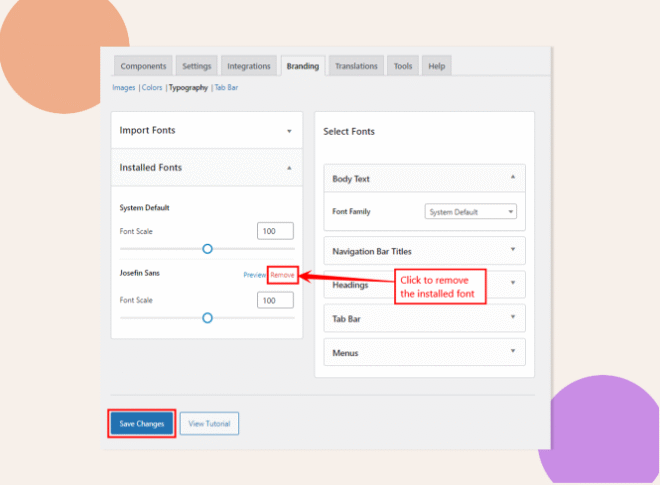
- In WordPress admin, go to BuddyBoss App > Branding > Typography.
- Click Remove beside each installed font to delete it.
- Click Save Changes to confirm removal.
Re-Add Preferred Fonts
- On the same Typography page, click Import Fonts.
- Upload your new font files (ensure they are valid .woff2, .woff, or .ttf formats).
- Click Save Changes to register the fonts.
Request a New App Build
- Navigate to BuddyBoss App > Build.

- In Step 2: Review Information, verify your newly installed fonts are listed.
- Click Send Build Request to generate a new build with the updated typography.
Troubleshooting and FAQs
Q: What font formats are supported?
A: BuddyBoss App accepts .ttf, .woff, and .woff2. Other formats (like .otf) may cause build failures.
Q: My font file is large, will that cause issues?
A: Keep individual font files under 1 MB. Larger files can exceed build system limits and trigger errors.
Q: I re-added fonts but still see E004.
A: Clear any caching plugins, verify file integrity (no corruption), and ensure filenames contain no special characters or spaces.
Q: Can I use multiple font weights?
A: Yes. Import separate files for each weight/style (e.g., Regular, Bold, Italic) and name them distinctly.
Q: How do I confirm the fonts are applied?
A: After installing the new build on a device or emulator, navigate to a screen using custom typography and verify the appearance matches your imported fonts.